

Guides / Wheel and brushes
Brush Studio
Change everything about a brush on its three pages, Paint, Marks and Motion, watch it apply live, and keep, revert or reset it.
- Free
- All three pages, Paint, Marks and Motion, with every motion, motion stacks, All parameters, Share brush… and nineteen effect looks.
- Plus
- Every effect look on the Marks page.
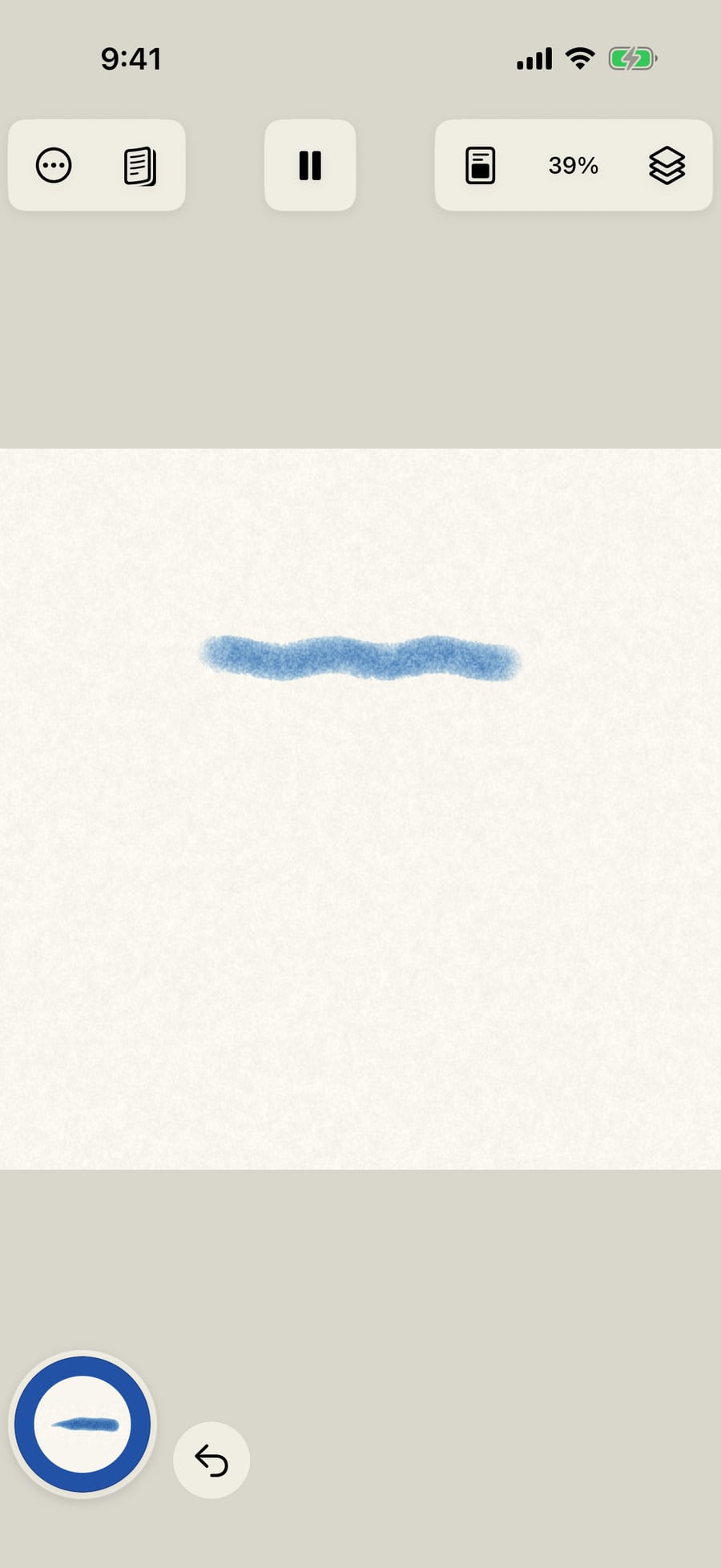
First, paint a stroke with the brush as it is, to compare. This is watercolor's Round.
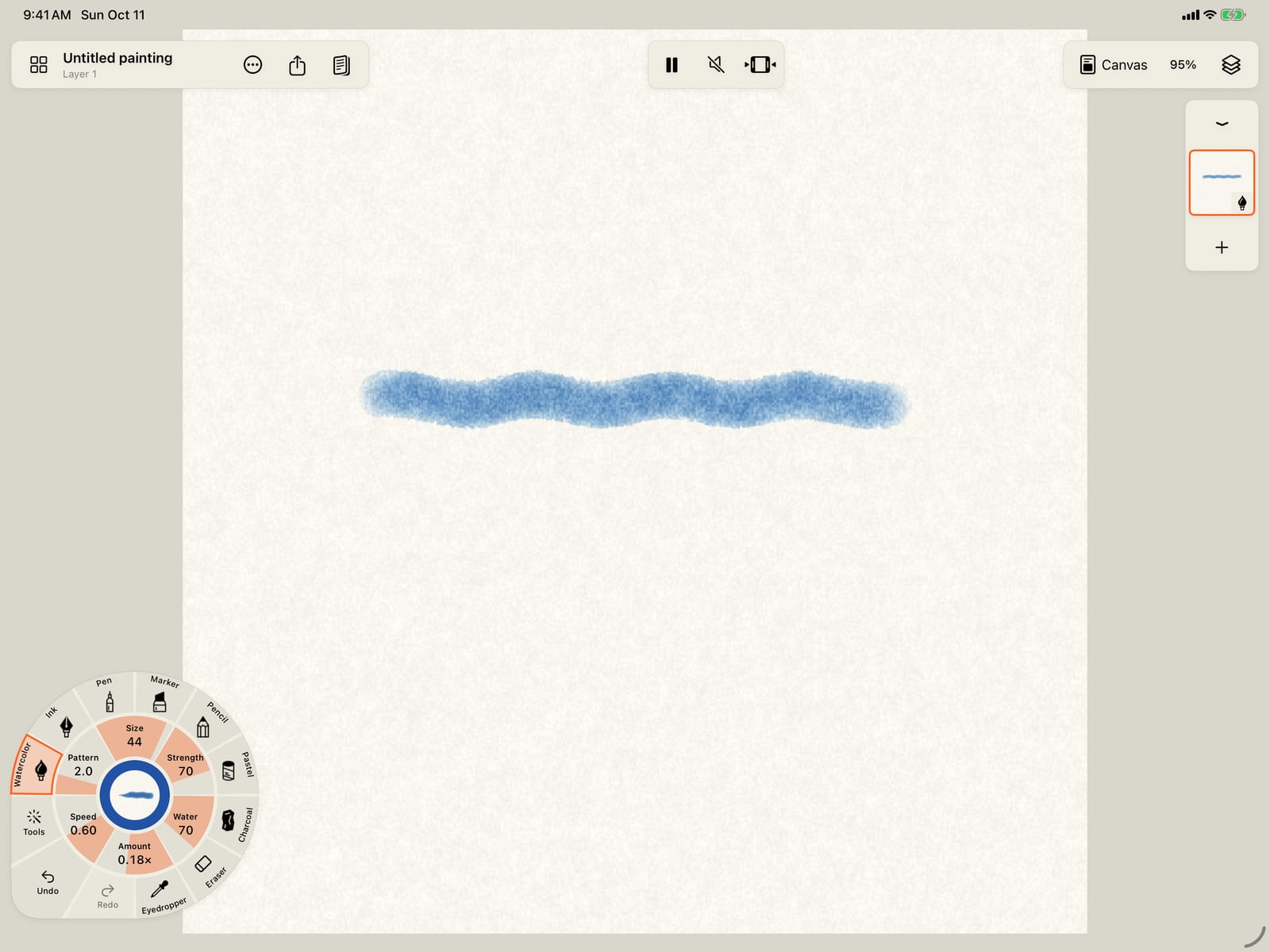
First, paint a stroke with the brush as it is, to compare. This is watercolor's Round.
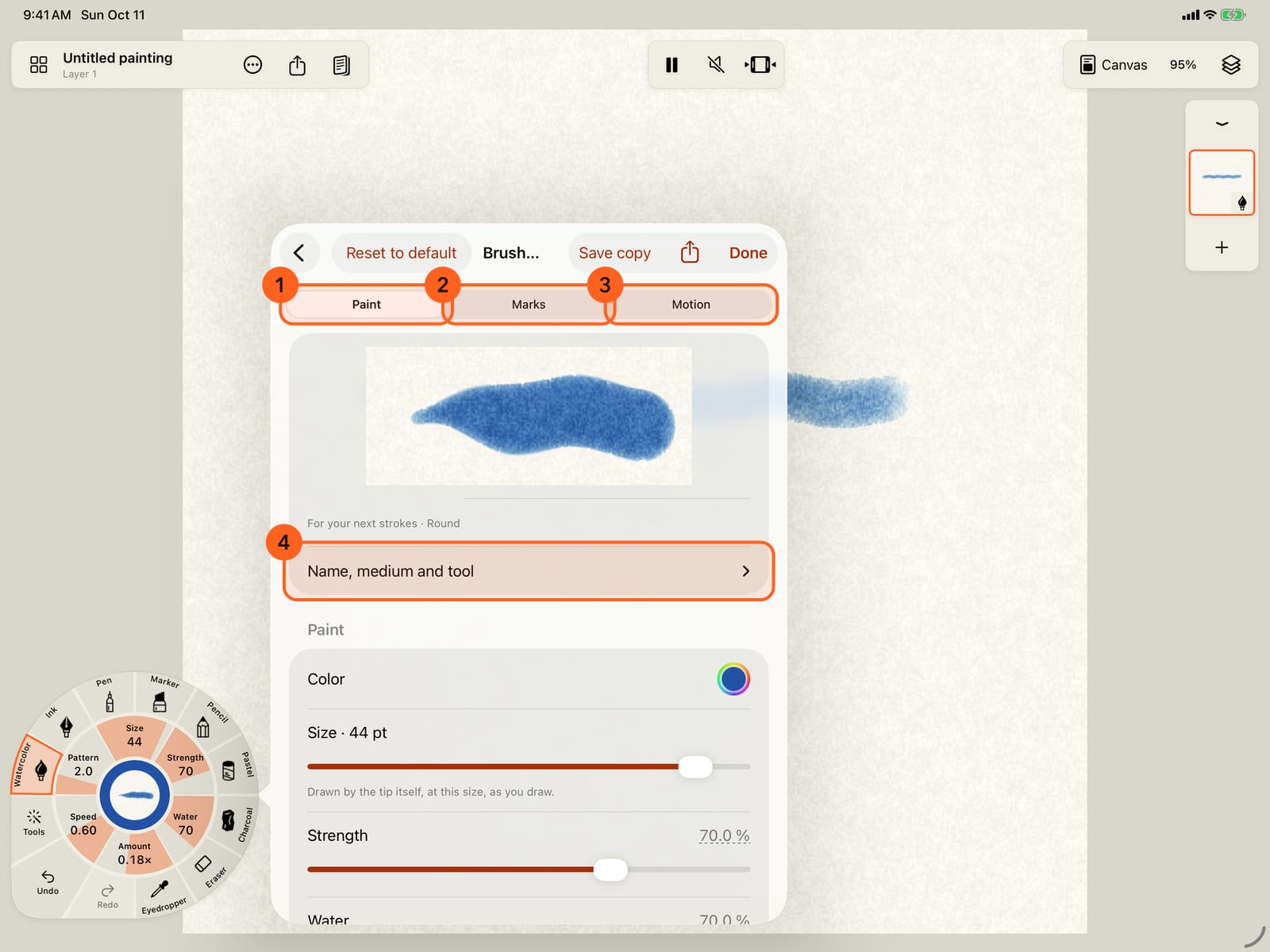
Tap the medium in hand, then Add brushes, then the settings button beside the brush in hand. Brush Studio has a page for each part of a stroke, Paint, Marks and Motion.
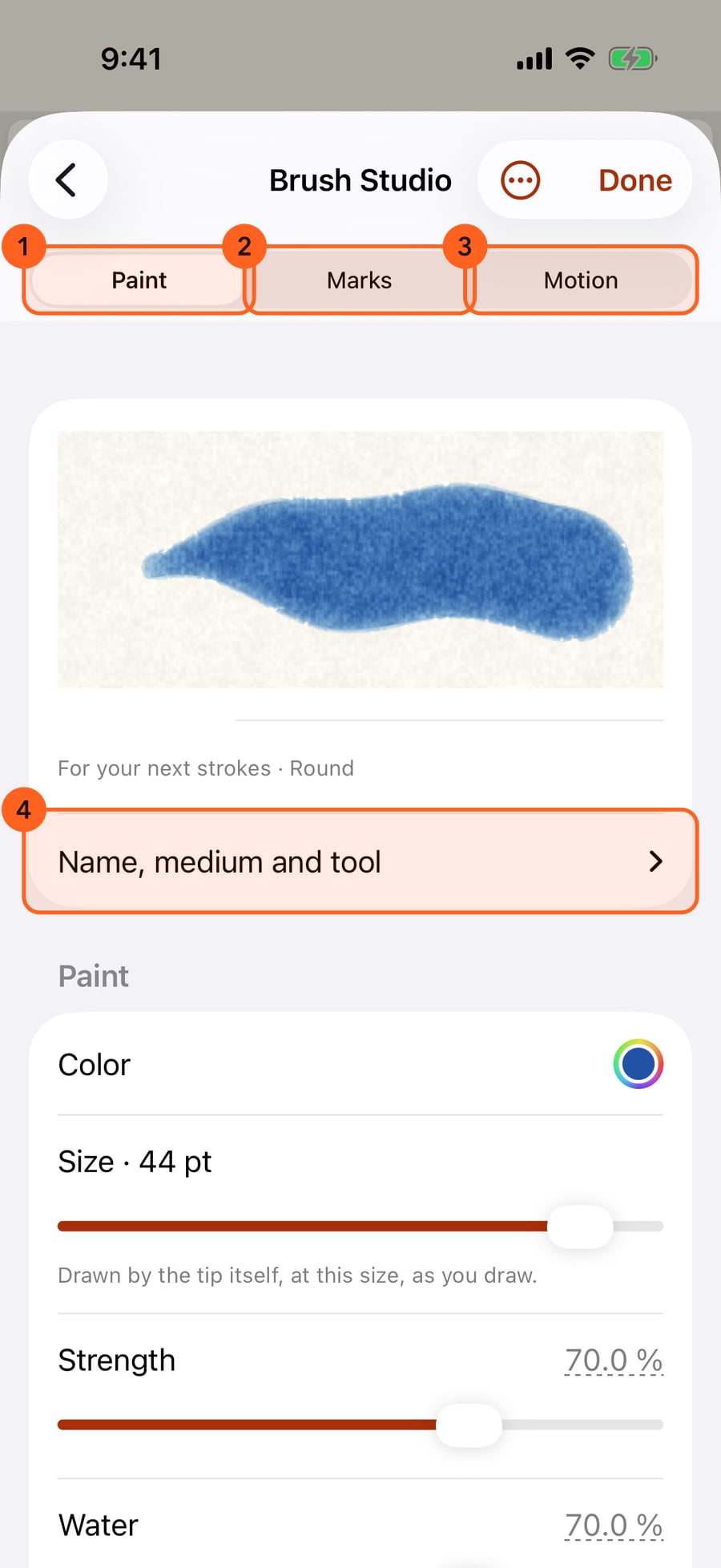
Unfold the wheel, tap the medium in hand, then Add brushes, then the settings button beside the brush in hand. Brush Studio has a page for each part of a stroke, Paint, Marks and Motion.
Click the medium in hand, then Add brushes, then the settings button beside the brush in hand. Brush Studio has a page for each part of a stroke, Paint, Marks and Motion.
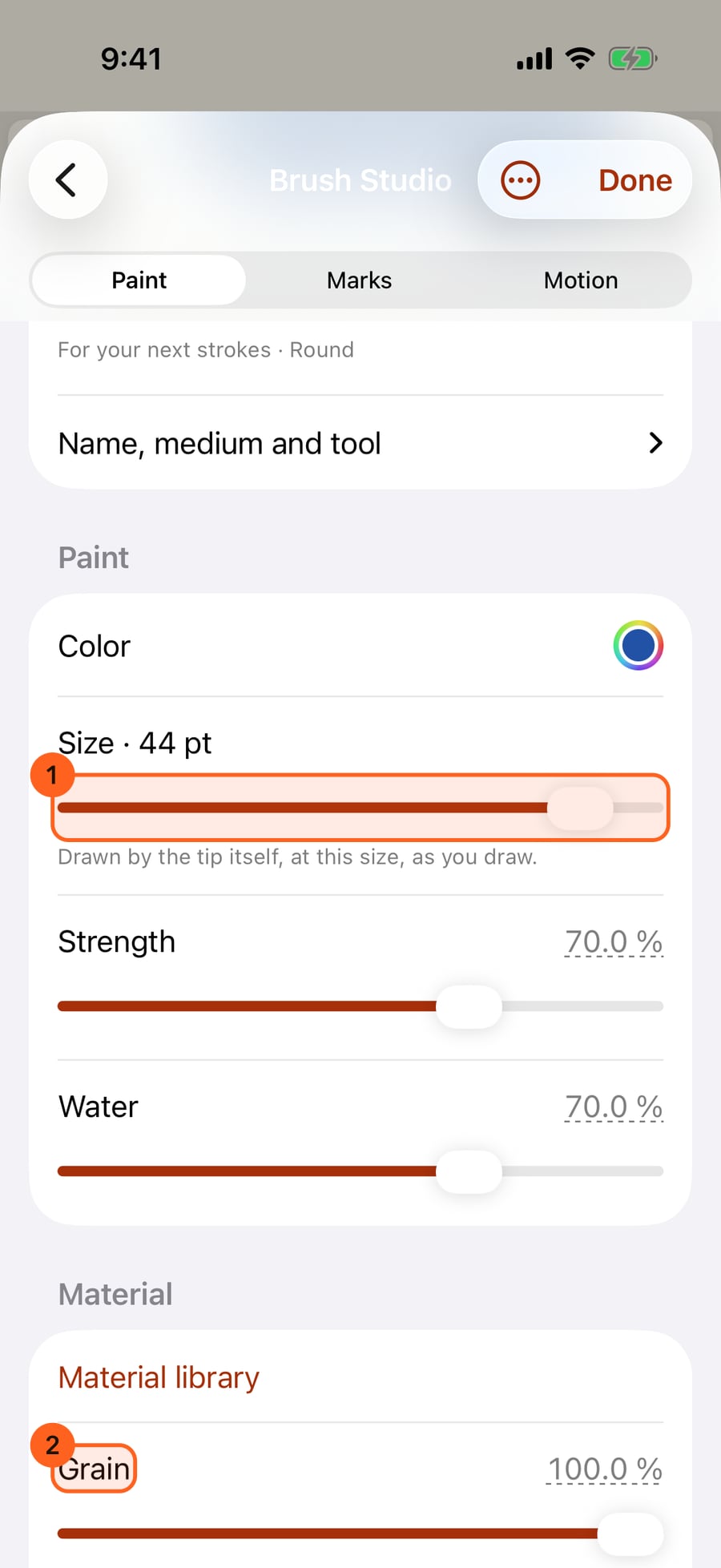
The Paint page comes first. Make the brush larger and grainier. Every change applies to your next strokes as you make it, and Revert appears, to undo them all.
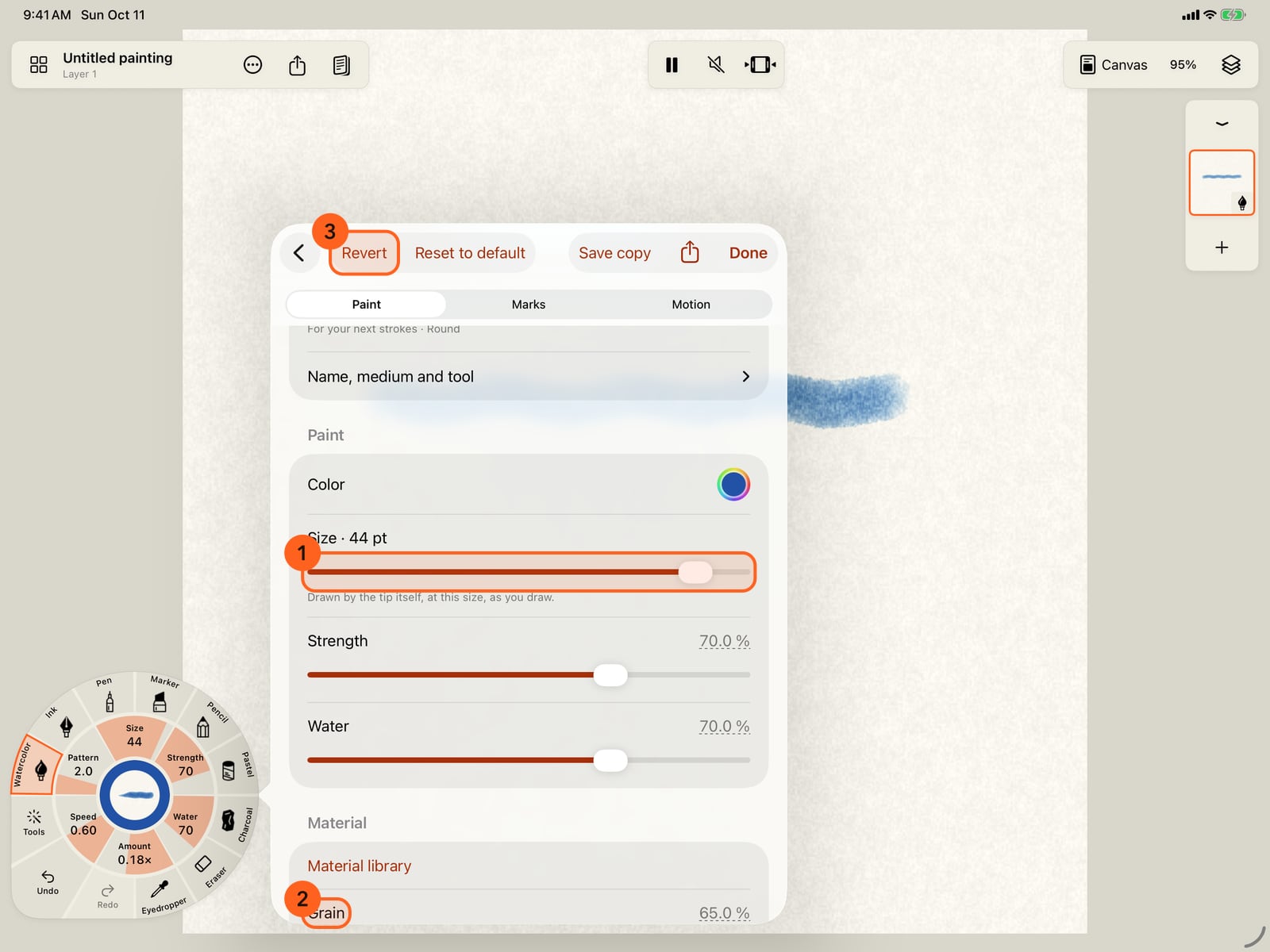
The Paint page comes first. Make the brush larger and grainier. Every change applies to your next strokes as you make it, and Revert appears, to undo them all.
The tip is part of Paint too. Further down, Native tip is the shape Apple Pencil draws with. Open it to choose round, brush, nibs, pencil, crayon, wash, monoline or reed.
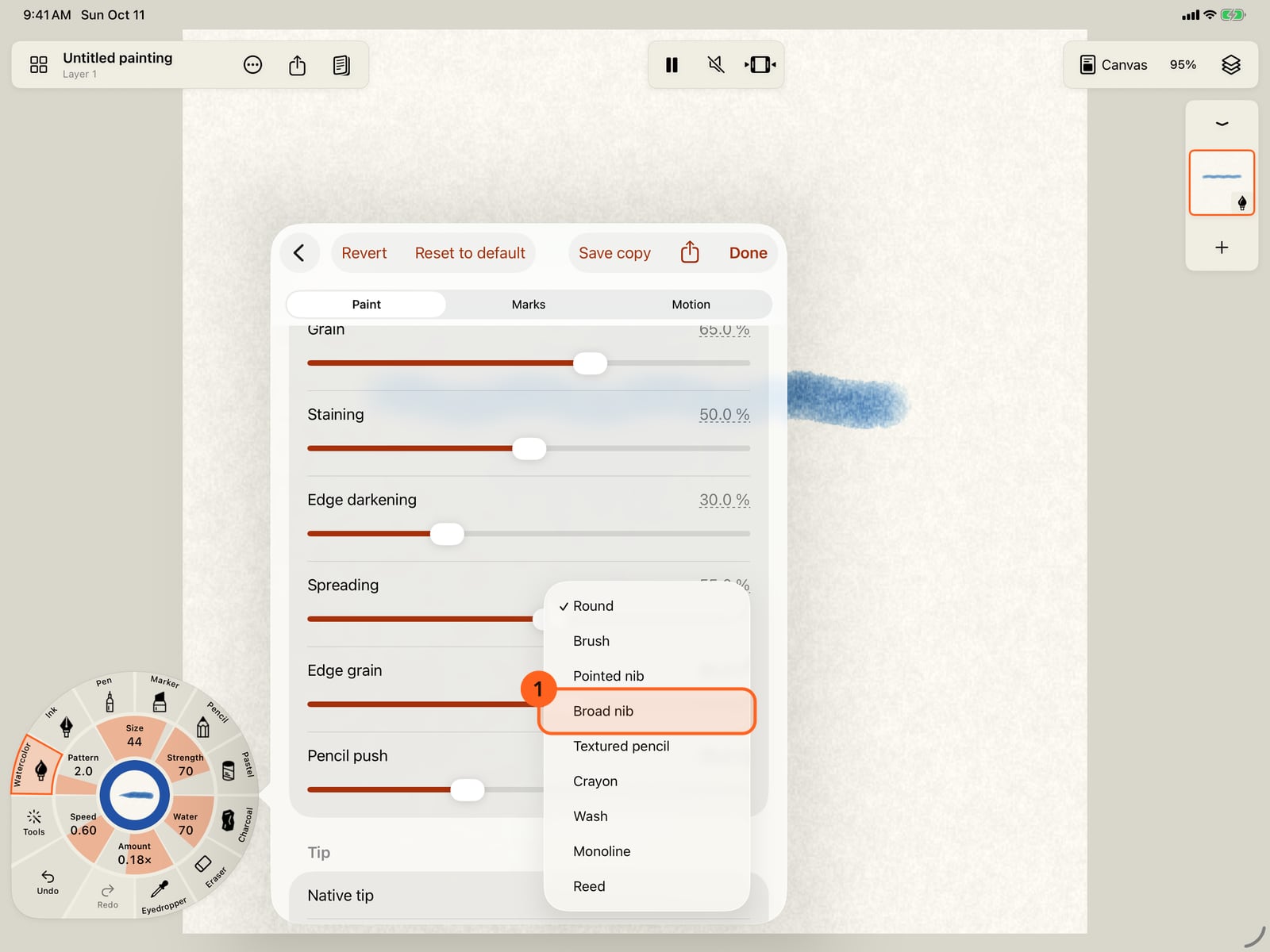
The tip is part of Paint too. Further down, Native tip is the shape Apple Pencil draws with. Open it to choose round, brush, nibs, pencil, crayon, wash, monoline or reed.
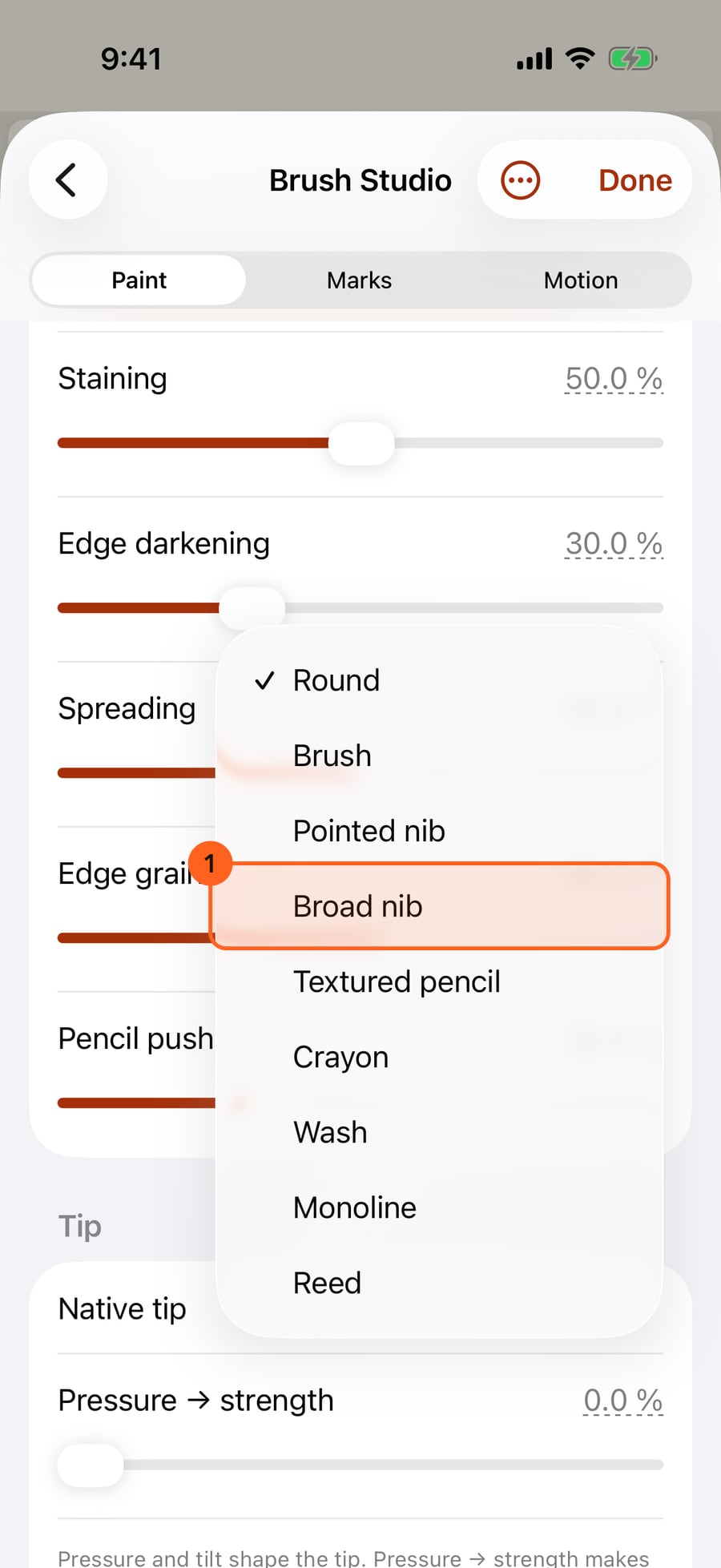
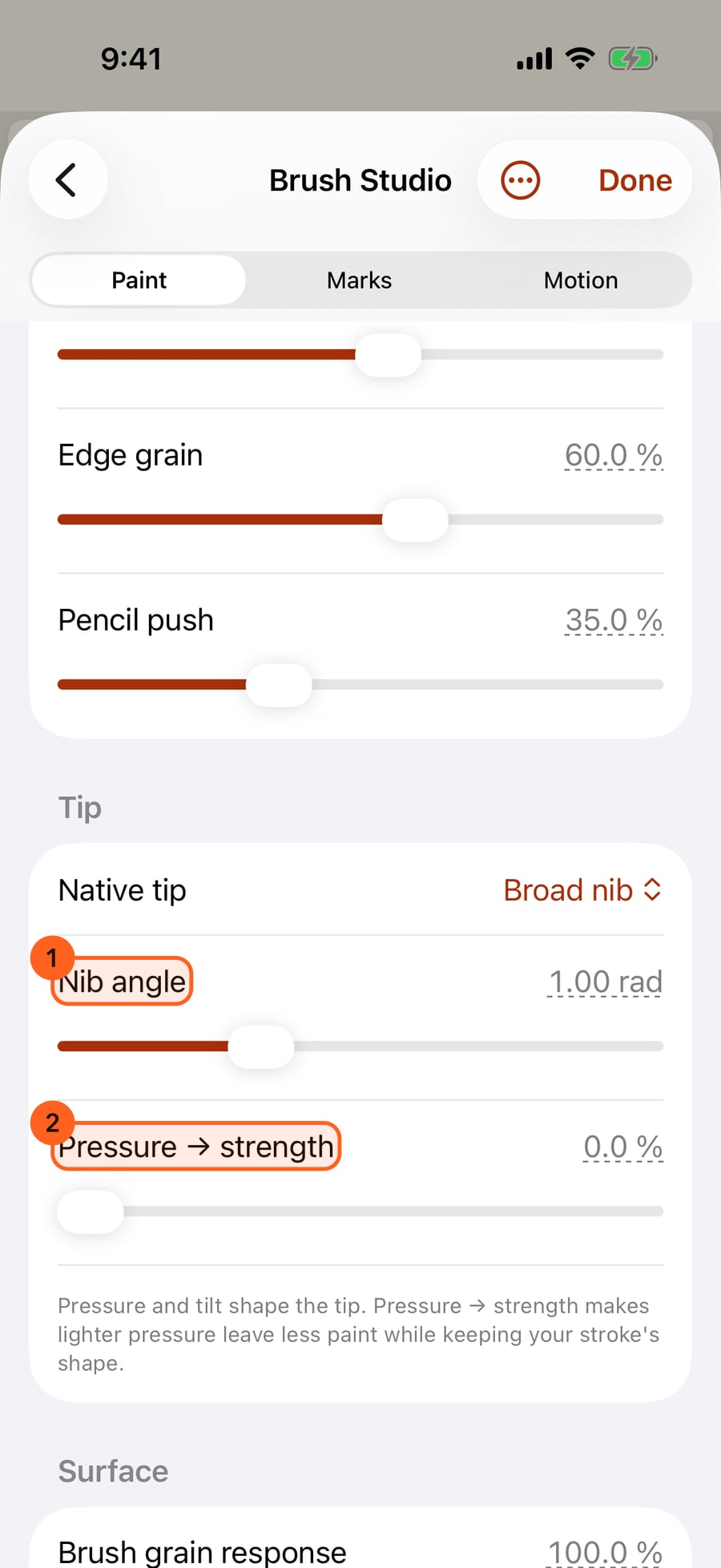
Choose Broad nib. A nib holds an edge, so Nib angle appears, turning the edge the way a calligraphy pen is held.
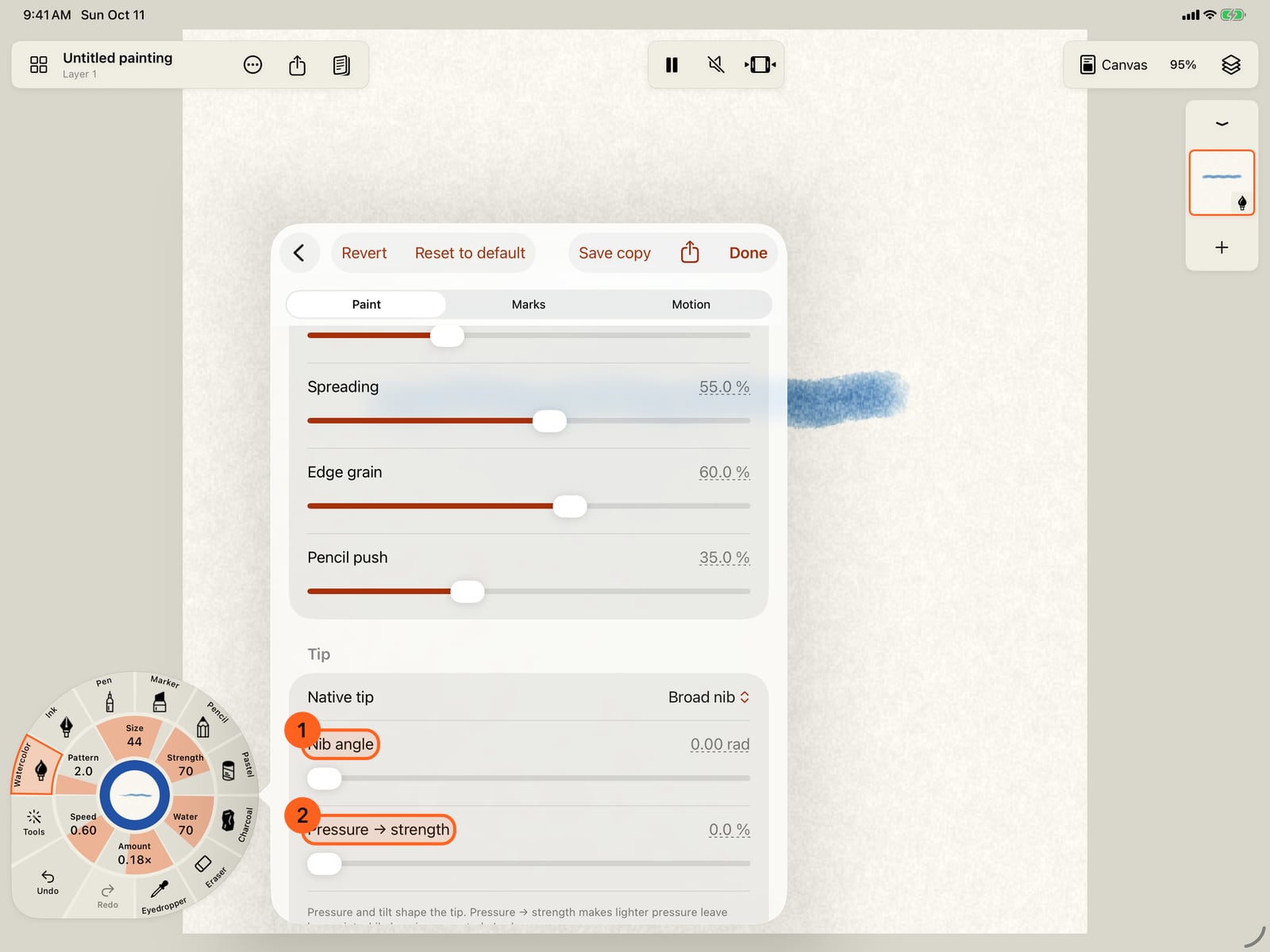
Choose Broad nib. A nib holds an edge, so Nib angle appears, turning the edge the way a calligraphy pen is held.
Tap Done and paint below the first stroke. The same brush, now wider, grainier and cut by a broad nib.
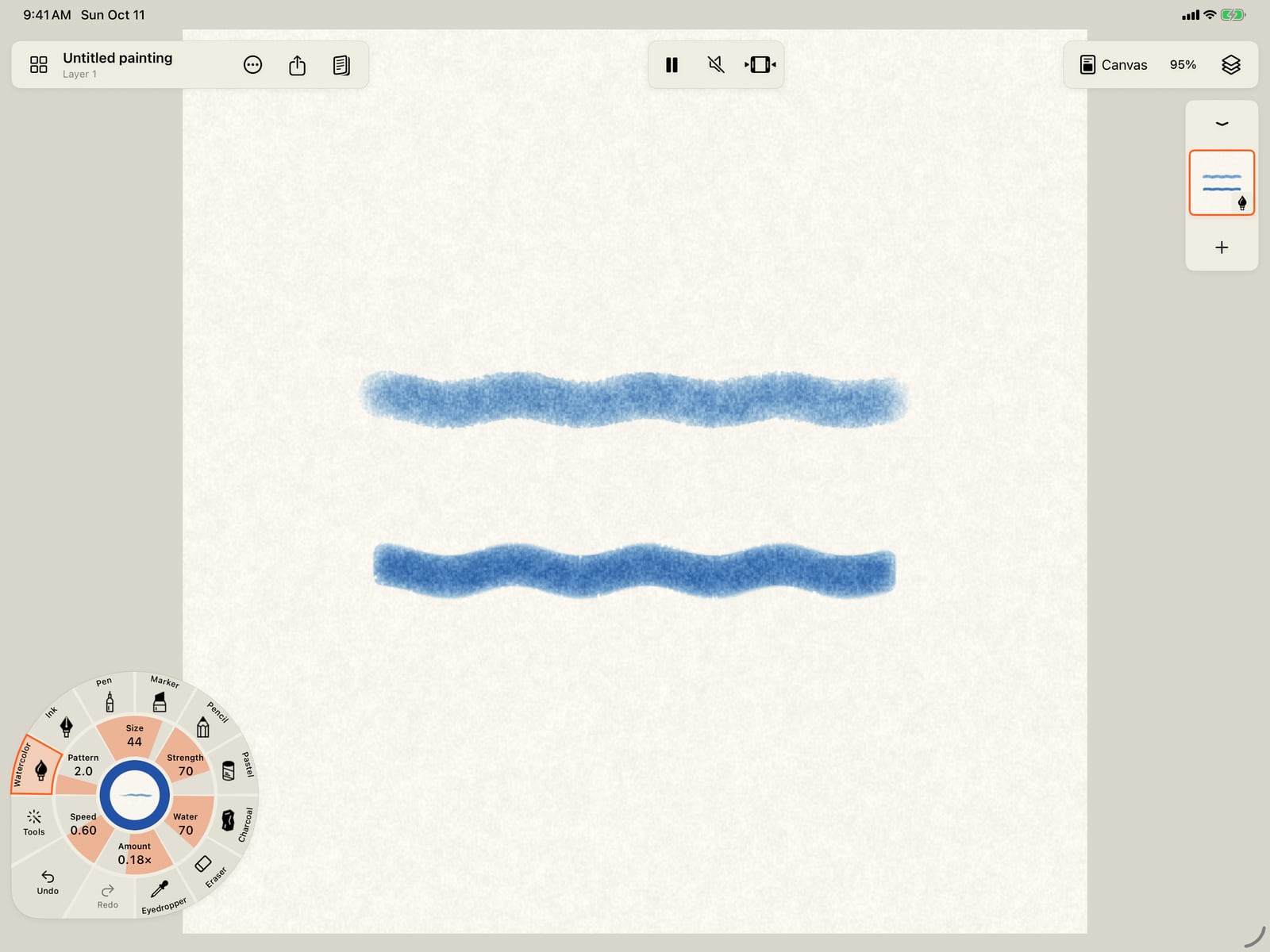
Tap Done, fold the wheel, and paint below the first stroke. The same brush, now wider, grainier and cut by a broad nib.
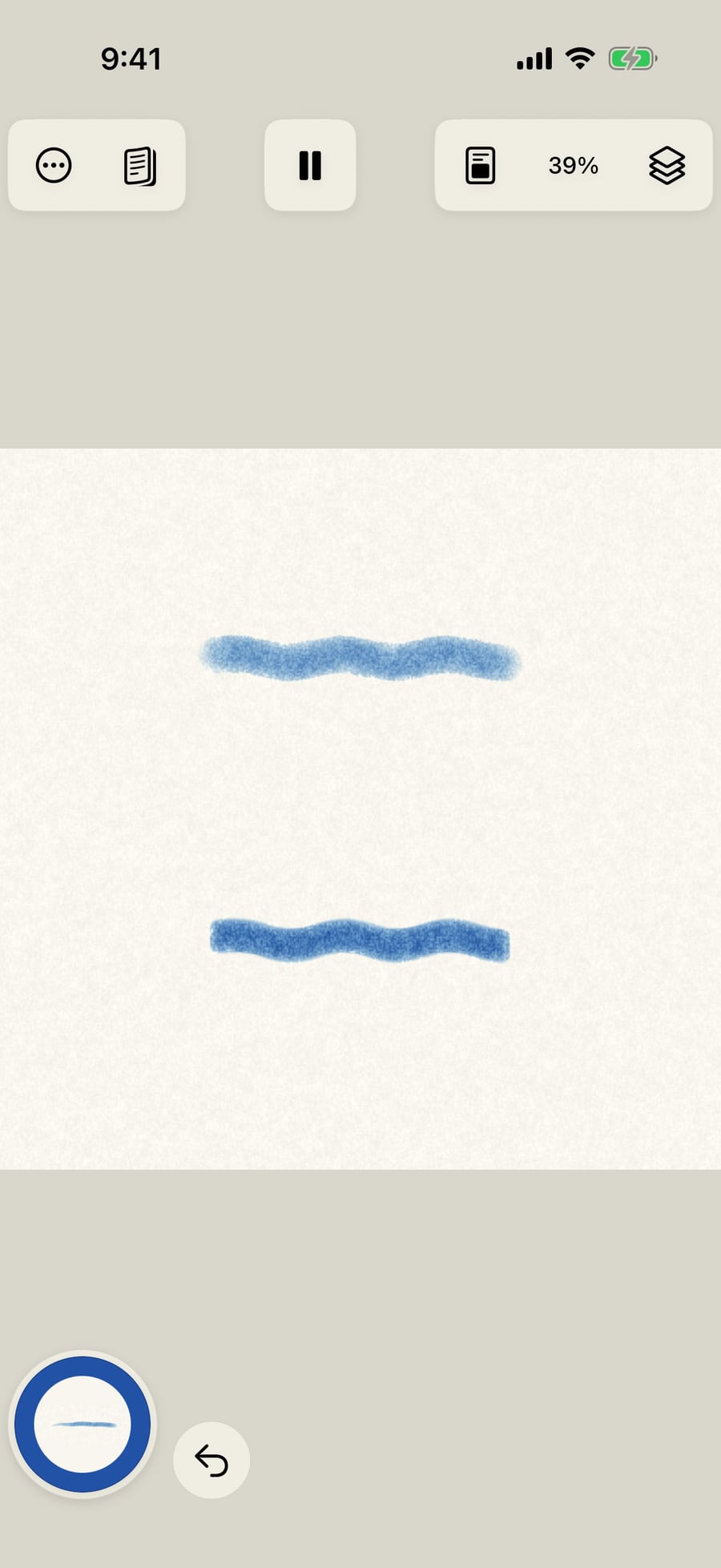
Click Done and paint below the first stroke. The same brush, now wider, grainier and cut by a broad nib.
Open the studio again. Reset to default takes the brush back to how it came, and Save copy keeps this version in My brushes.
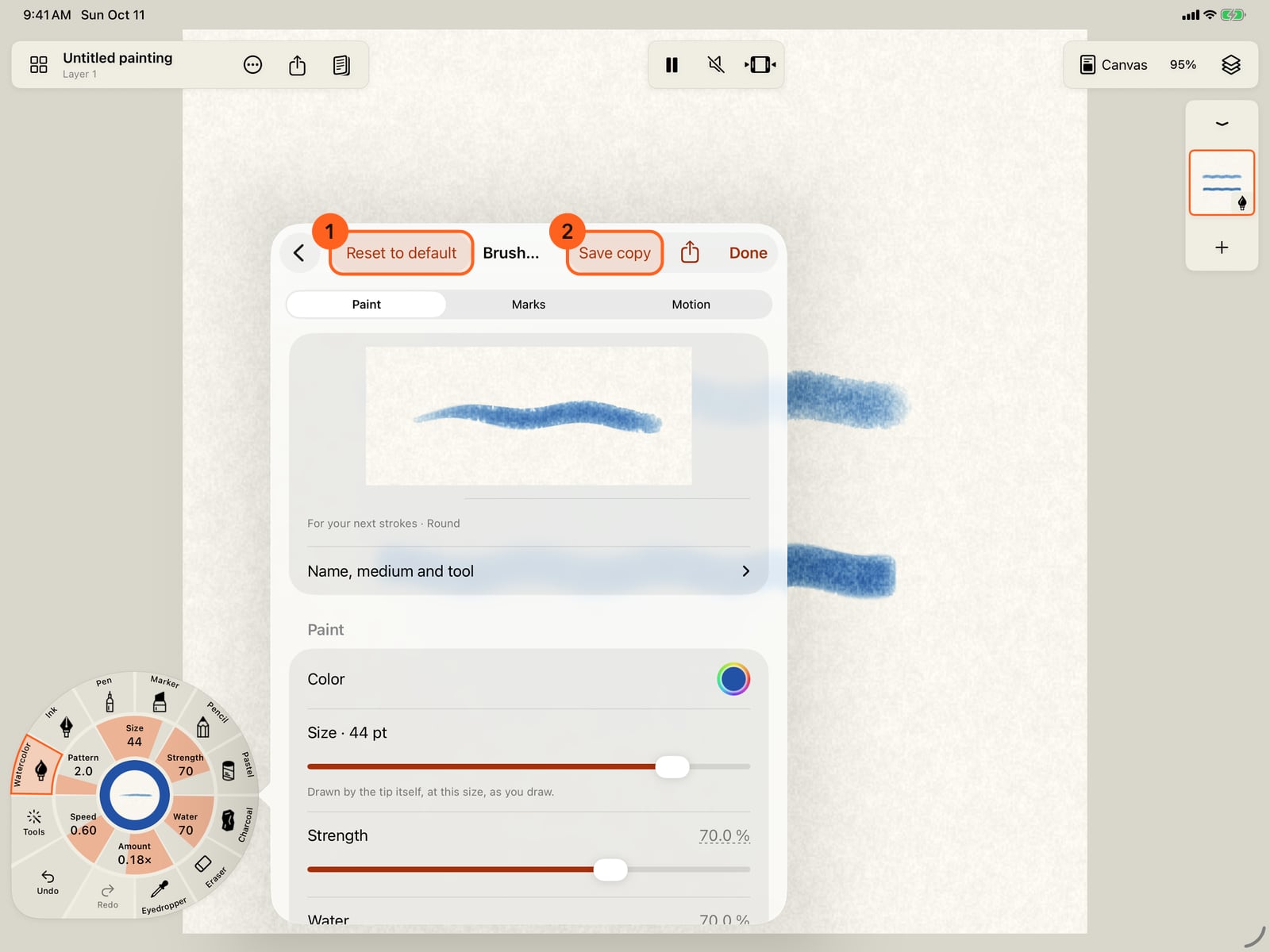
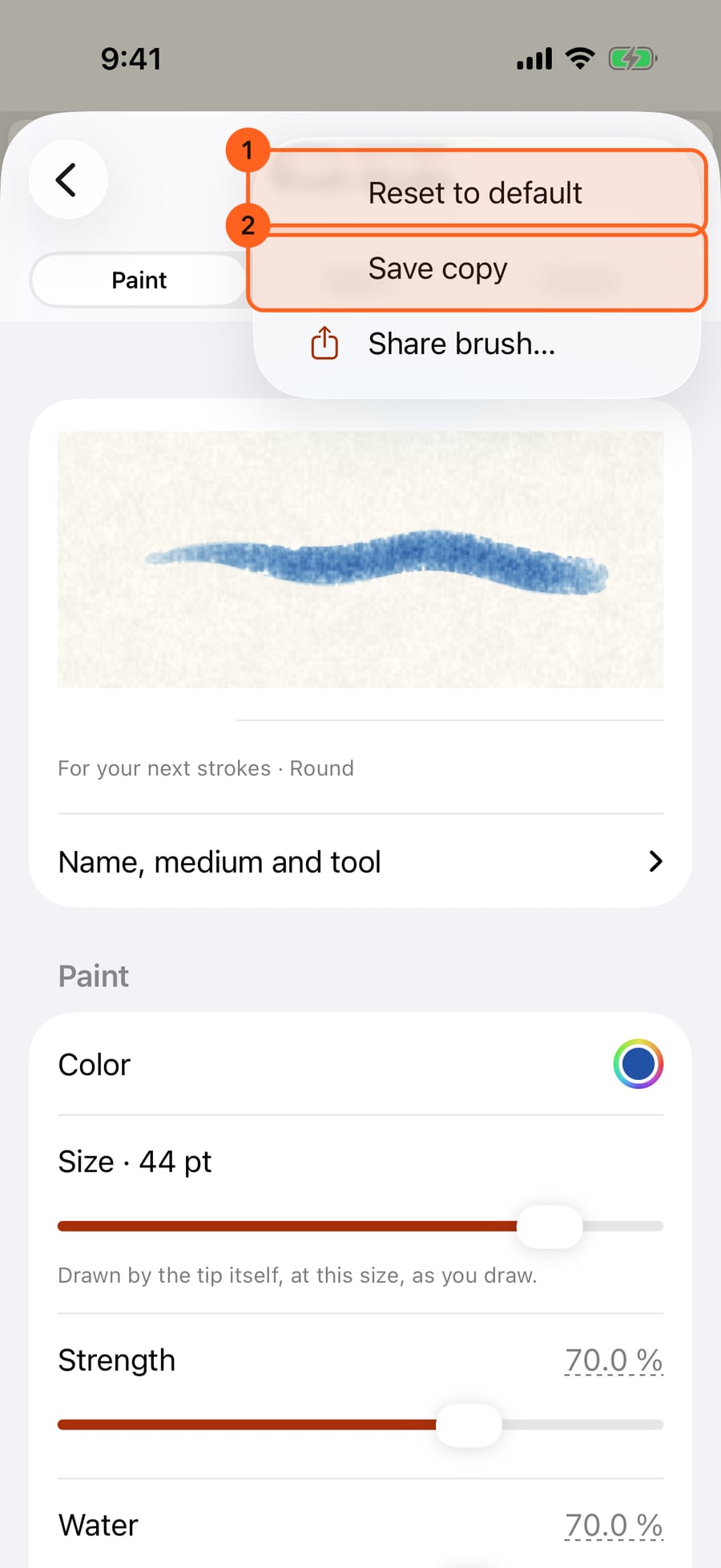
Open the studio again and tap More. Reset to default takes the brush back to how it came, and Save copy keeps this version in My brushes.
Opening Brush Studio
- From the wheel: tap the medium in hand, then Add brushes, then Settings beside the brush in hand.
- Or tap any gauge on the wheel for the brush's settings, then More under Paint, Marks or Motion to open that page, or All settings.
The sample at the top shows the brush For your next strokes. Changes apply as you make them, so you can paint, change something and paint again without closing the studio. They never change strokes already painted: for those, use Tools → Select stroke.
A brush is a recipe of three parts, Paint, Marks and Motion, and the studio has a page for each. Under the sample, Name, medium and tool 4 holds the brush itself:
| Control | What it does |
|---|---|
| Brush name | The brush's name. |
| Medium | Starts over as a brush of another medium. |
| Tool | What the brush does: Paint, or a tool the medium has, such as Lift, Smudge, Water or Dust. |
The Paint page 1
What you paint with.
Paint
| Control | What it does |
|---|---|
| Color (Tone for Pencil and Charcoal) | The brush's colour, with the system colour picker. |
| Size | The brush's width, on the same curve as the wheel's gauge, so small sizes have room. The line under it says the tip draws that width itself; a brush from a file that asks for more than the tip draws says the width it paints at. |
| Strength | How much colour a stroke lays, the same as the wheel's Strength gauge. |
| Water | How wet the brush is. Watercolor and Ink. |
Material
| Control | Media | What it does |
|---|---|---|
| Material library | All | Starts the brush from a named paint, such as a pigment in its own colour. |
| Grain | Watercolor, Pencil, Pastel, Charcoal | How much the paper's texture breaks up the mark. |
| Adhesion | Pastel, Charcoal | How well particles hold to the paper, and resist smudging. |
| Staining | Watercolor, Ink | How firmly pigment binds to the paper; staining pigment resists lifting. |
| Edge darkening | Watercolor, Ink | How much pigment gathers at the edge as a wash dries. |
| Spreading | Watercolor, Ink | How far wet paint runs. |
| Bleed | Marker | How far the ink bleeds into the paper. |
| Glow | Pen, Pencil, Pastel, Charcoal | Makes the mark add light, for dark paintings. |
| Edge grain | All | How far the paper breaks up the edge of a mark. On a toothy paper, watercolor and ink pull back from its peaks, and dry media from its valleys, so the edge follows the grain instead of lying over it. On smooth paper it changes little. A wet wash takes it where the paint ends, wherever its water carried the paint. |
| Pencil push | Watercolor, Ink, and the Flow Brush | How much the speed of your stroke pushes the water. |
Tip
| Control | What it does |
|---|---|
| Native tip | The footprint Apple Pencil draws with: Round, Brush, Pointed nib, Broad nib, Textured pencil, Crayon, Wash, Monoline or Reed. |
| Nib angle | For Pointed nib, Broad nib and Reed: the angle the nib's edge is held at. |
| Pressure → strength | How much lighter pressure leaves less paint, keeping the stroke's shape. |
Pressure and tilt shape the tip. Choosing a tip can change the Size range, because each tip draws its own range of widths.
Tap a slider's number to type an exact value.
Surface: Brush grain response is how strongly this brush answers the paper's grain, and Brush spread response how strongly its wet paint answers the paper's absorbency (wet media and Marker).
Tip: All parameters, at the end of the Paint page, lists every value the brush sends to the renderer. See Brush parameters and files.
The Marks page 2
Choose Line, Shapes, Hatching, Liquid marks or Effects. Below the tiles, Shape controls size, spacing, joining and softness; Pencil controls pressure, tilt and speed; Advanced marks controls variation. Effect parts splits main marks from their secondary sparks, foam, droplets or rings. Set these marks moving opens Motion.
The Motion page 3
Whole stroke holds Choose motion, Amount, Speed, Pattern, Advanced motion and Combine motions. Still stops the whole stroke and its stack.
Below it, Hatch movement, Liquid movement, Effect movement or Mark movement controls the selected marks. Use Marks move to hold or resume their local pose. Travel, Liveliness, effect gauges, Grow and fade, timing and lifetime live here. Inside the marks appears only for compatible marks and controls colour moving within them. Stop all motion stops every component.
A plain Line has no local movement; Explore moving marks opens Marks to choose one. Choosing a new mark keeps the whole-stroke motion and loads that mark's local defaults. See Marks, Effects and Add motion.
Keeping, reverting and resetting
| Control | What it does |
|---|---|
| Revert | Appears after your first change: puts the brush back as it was when the studio opened. |
| Reset to default 1 | Appears when the brush differs from its default: takes it back to the built-in brush it came from, or to the file it was imported from. A reset is itself an edit, so Revert can undo it. |
| Save copy 2 | Saves the brush as it is now in My brushes, and continues editing the copy. |
| Share brush… | Saves the brush as a file. |
| Done | Closes the studio, keeping the brush in hand as it is. |
On iPhone, the bar keeps Done in view, and Revert, Reset to default, Save copy and Share brush… are under More. Opened from the brush library, Back or a swipe from the screen's left edge returns to the library; a sideways drag anywhere else stays in the studio, so a finger that misses a slider doesn't leave it.
On iPhone, Done and some of the other buttons sit in the toolbar's More menu (⋯).
Plus: Brush Studio is Free, with every motion, All parameters, Share brush… and motion stacks. Nineteen effect looks are Free; on Free, a look marked · Plus on the Marks page opens Free and Plus over the Studio, as does a change that needs a sixth layer of your own.
Try it in the app.
Download on the App Store Free for iPad, iPhone and MacSomething not behaving as expected?
Visit support or write to support@doodlydoodle.app.