

Guides / Getting started
Gestures and the view
Zoom, pan and rotate the page, undo and redo with a tap of two or three fingers, use the Zoom menu and the Hand tool, and hide the interface.
- Free
- Everything in this guide works in Free.
Paint a stroke or two first, so you can see the page move.
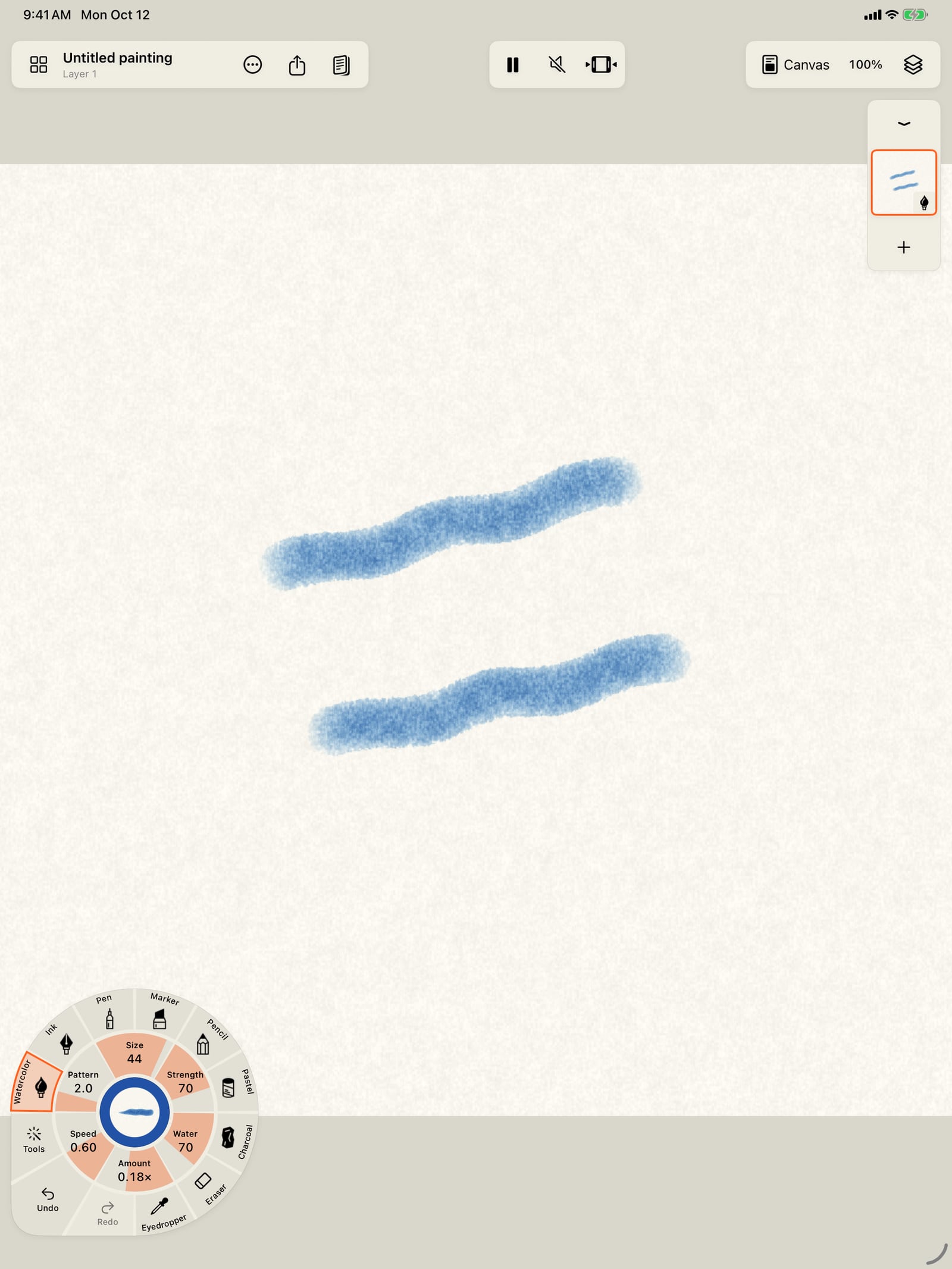
Paint a stroke or two first, so you can see the page move.
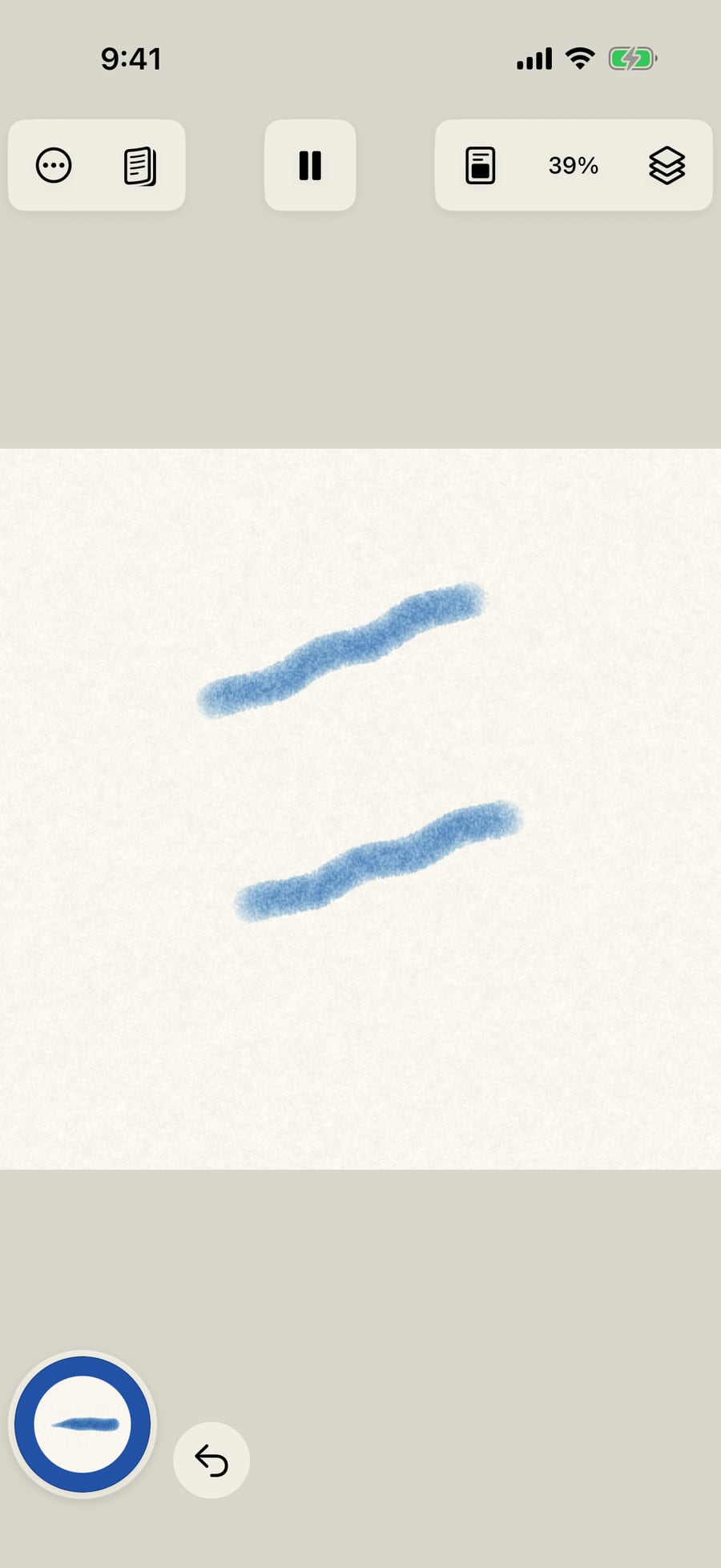
Tap the page with two fingers to undo the last stroke.
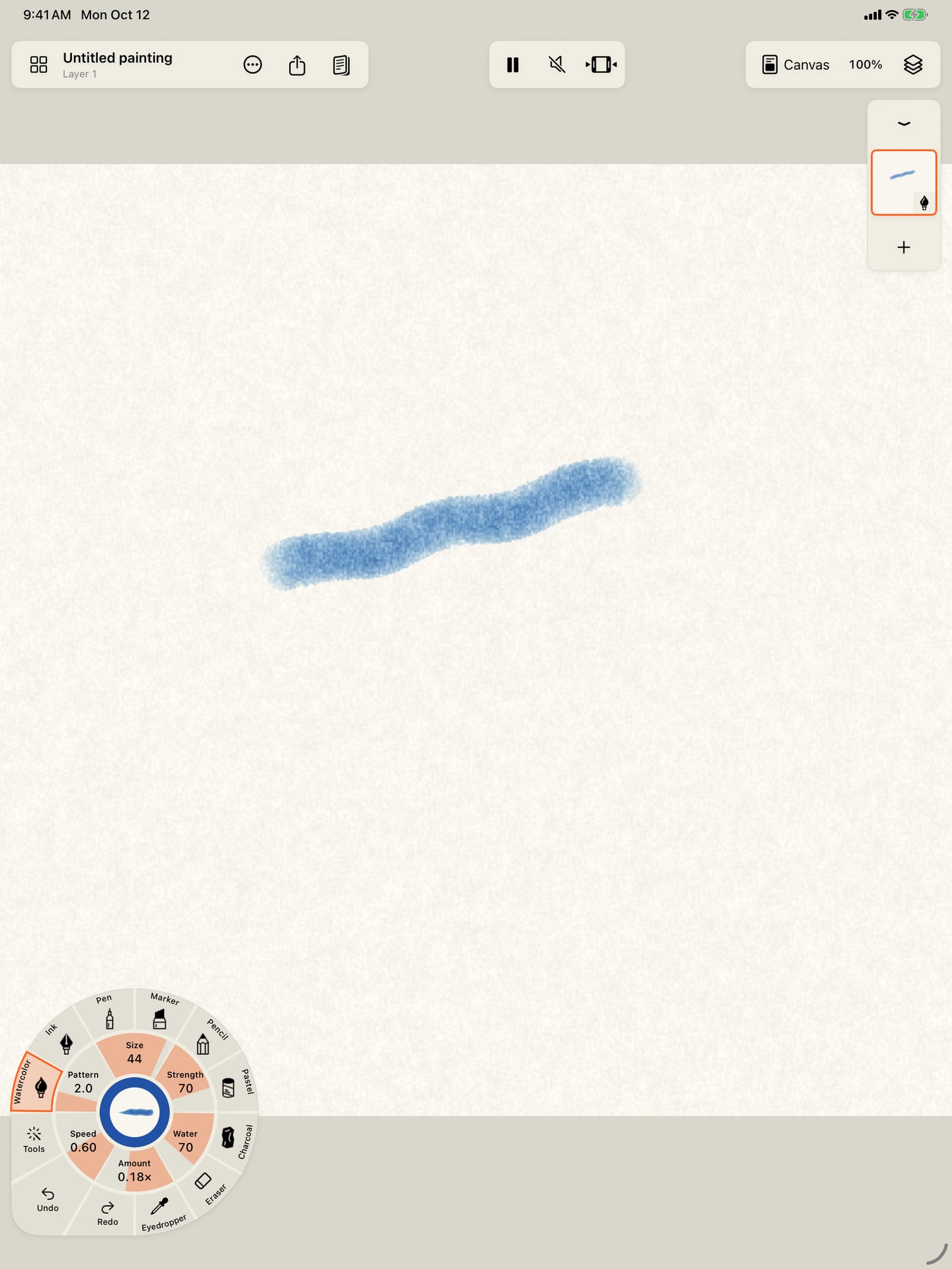
Tap the page with two fingers to undo the last stroke.
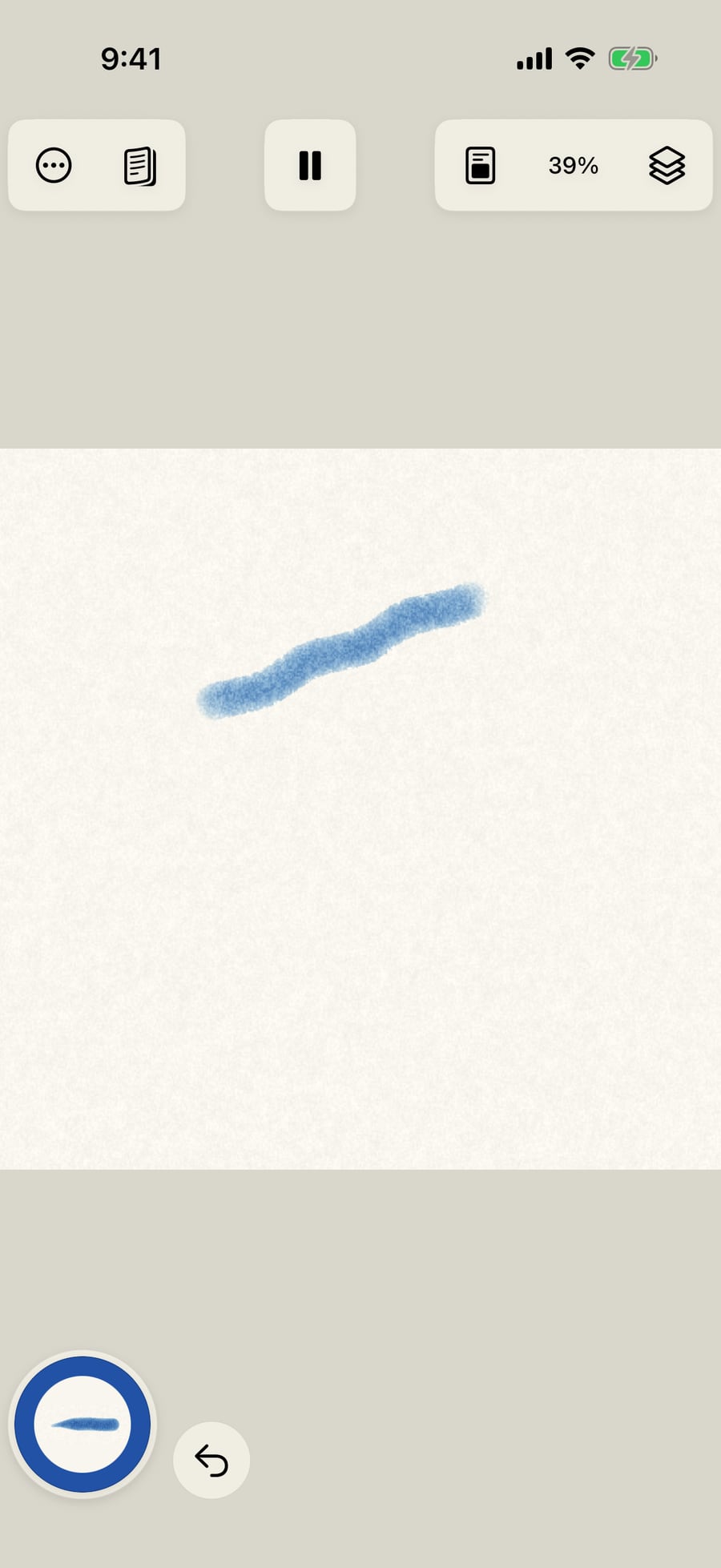
Click the page with two fingers to undo the last stroke.
Tap with three fingers to redo it. Tap again to undo or redo one more step.
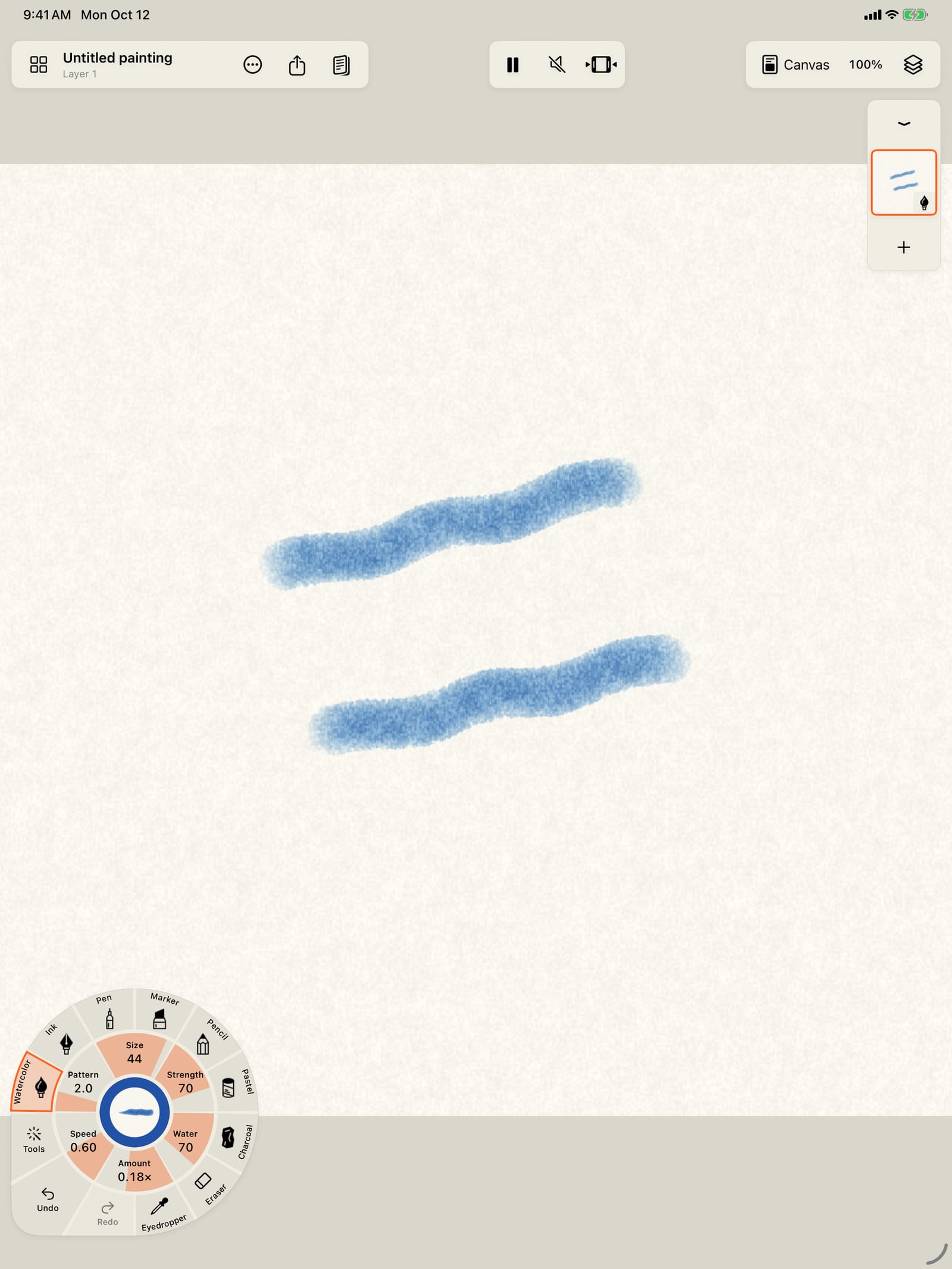
Tap with three fingers to redo it, or use Redo in the wheel's corner. Tap again to undo or redo one more step.
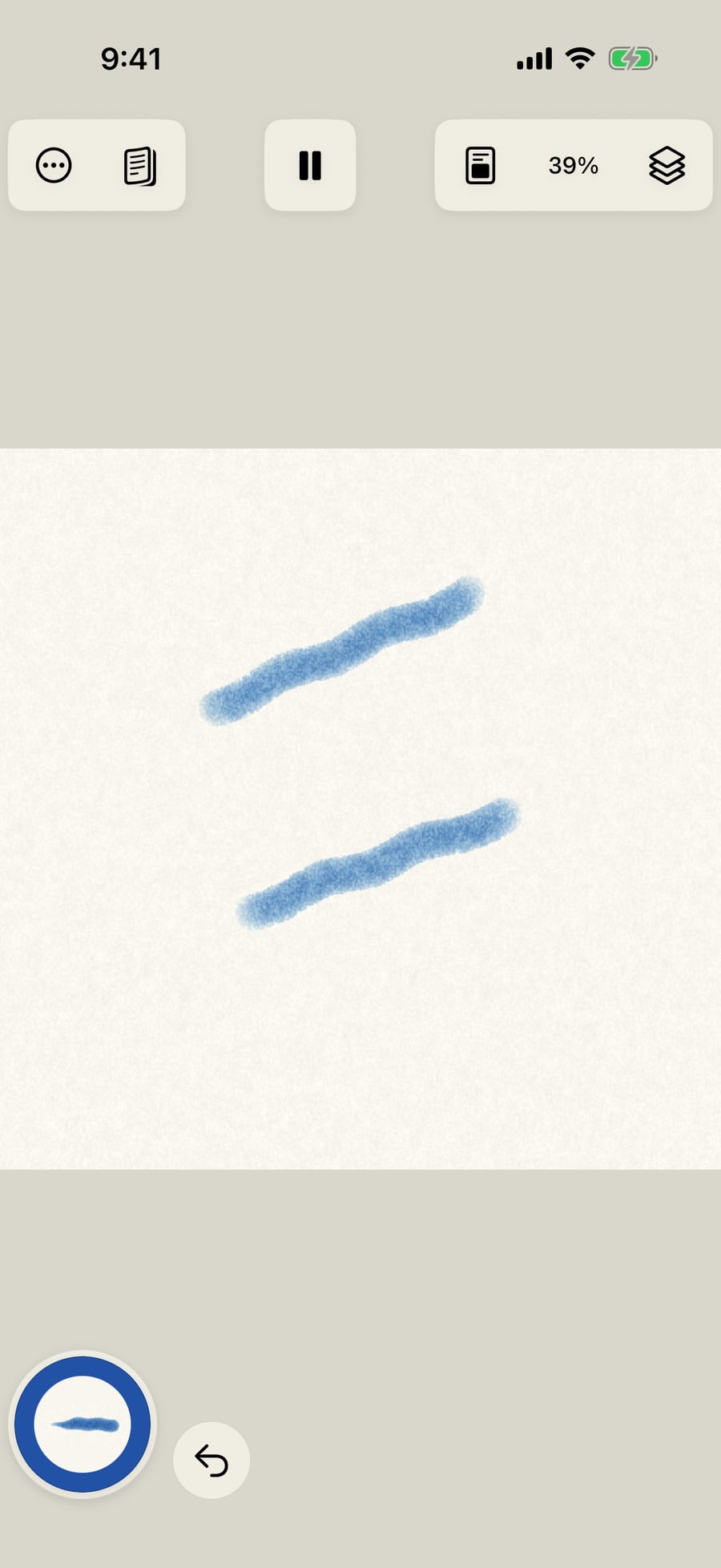
Click with three fingers to redo it. Click again to undo or redo one more step.
Pinch with two fingers to zoom, twist them to rotate, and drag with two fingers to move the page. The percentage in the top bar follows the zoom.
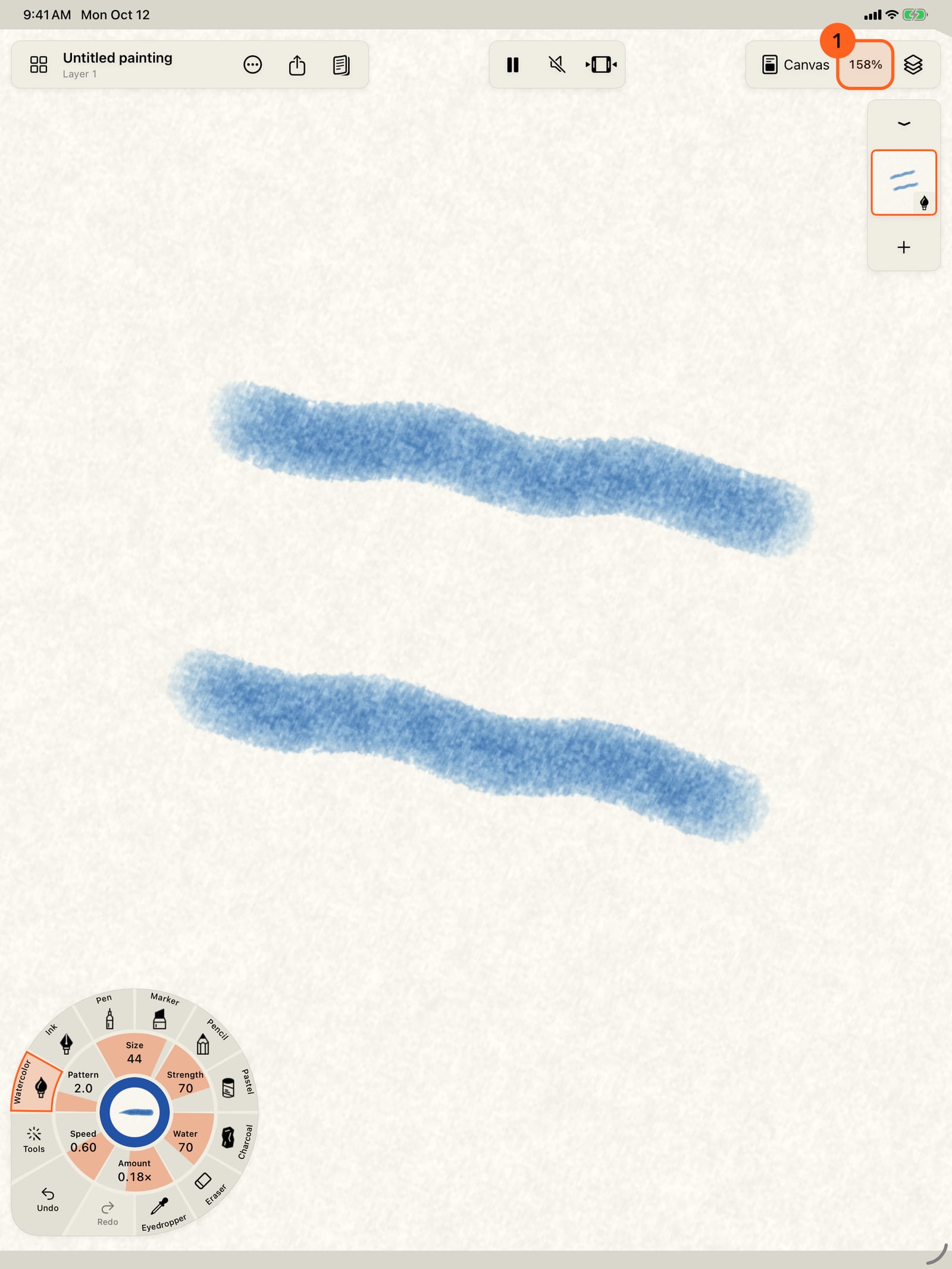
Pinch with two fingers to zoom, twist them to rotate, and drag with two fingers to move the page. The percentage in the top bar follows the zoom.
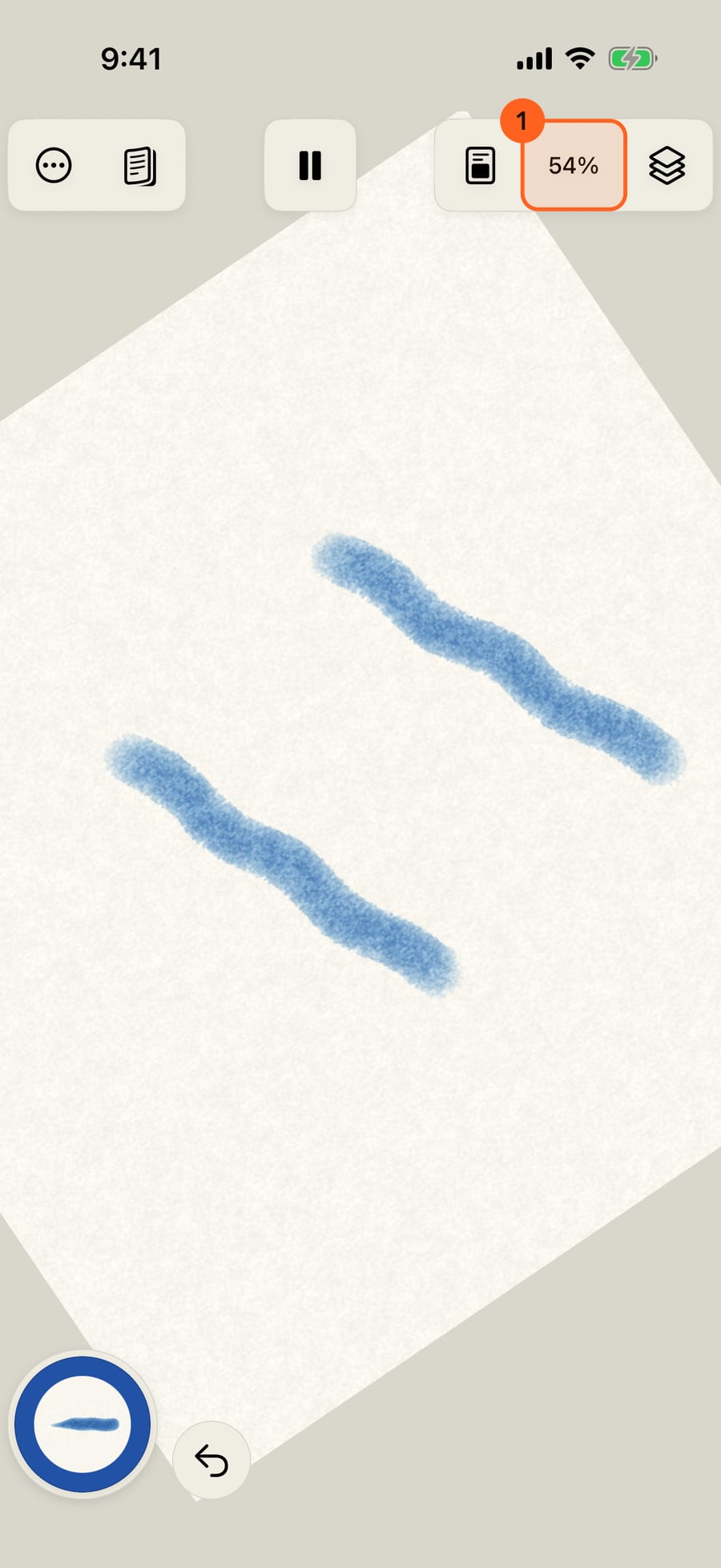
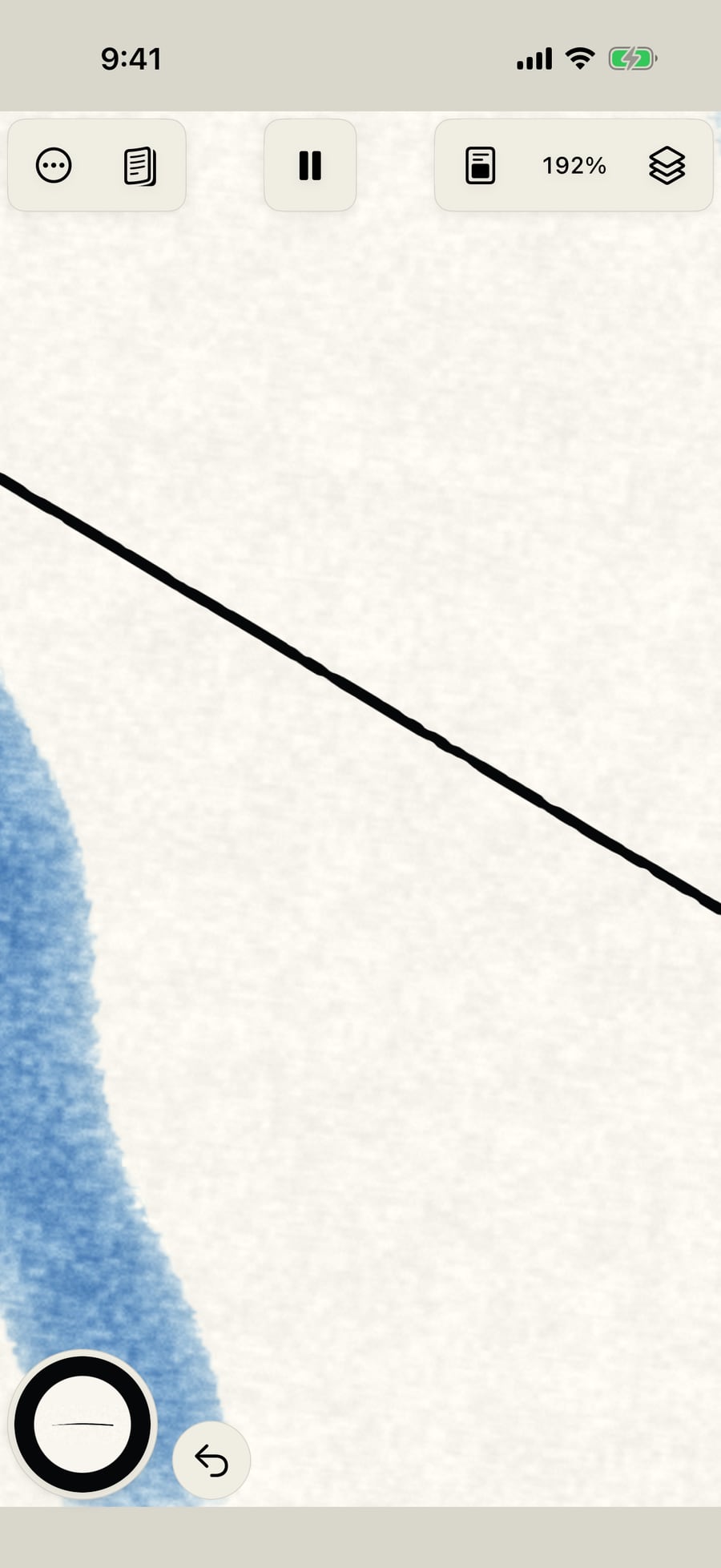
Zoom in close and the paint stays sharp. Pen lines, grain and the paper are drawn for what is on screen, at the screen's own sharpness, as you paint. A watercolor wash is as fine as the water that moves it.
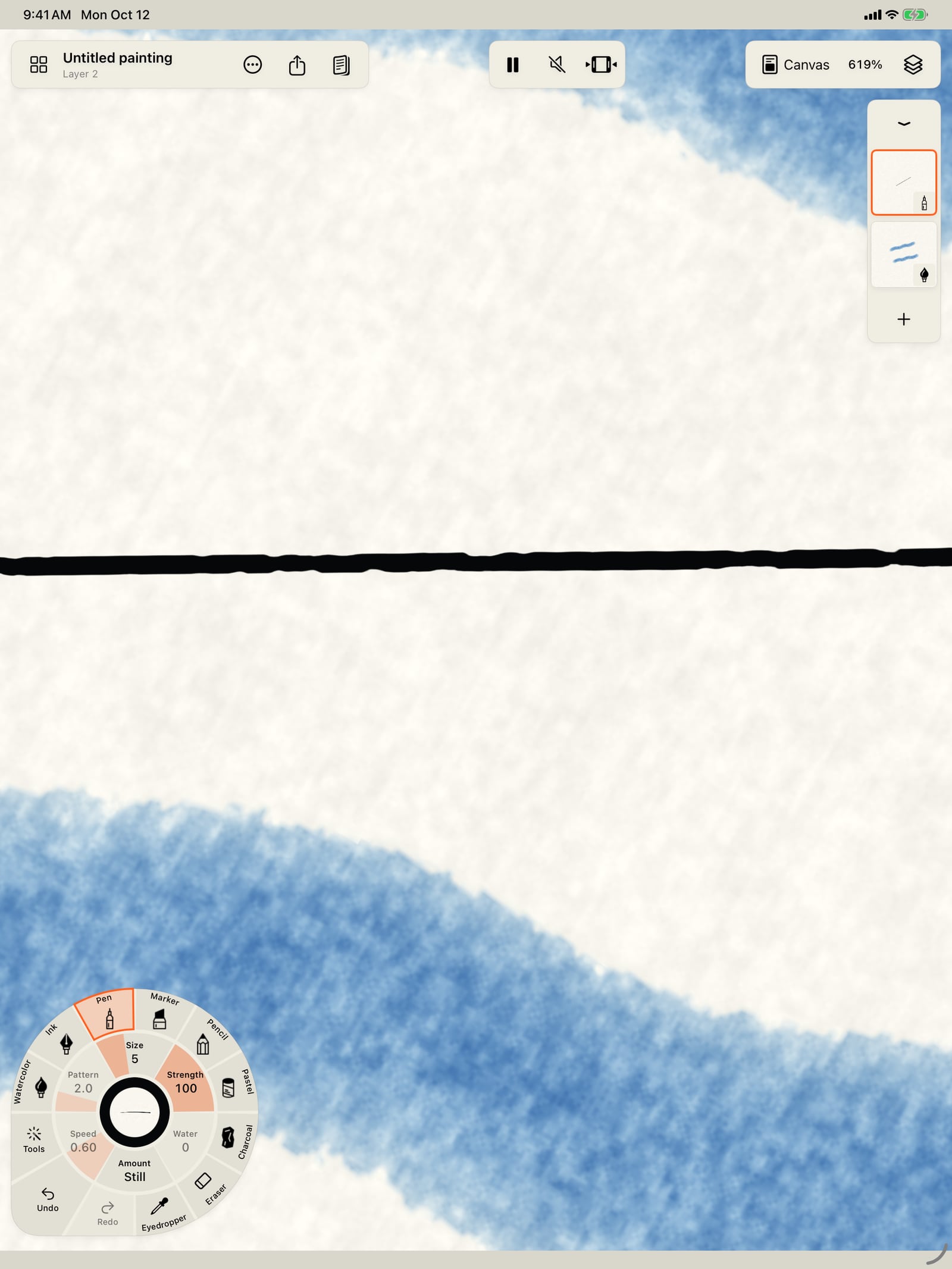
Zoom in close and the paint stays sharp. Pen lines, grain and the paper are drawn for what is on screen, at the screen's own sharpness, as you paint. A watercolor wash is as fine as the water that moves it.
Tap the percentage for the Zoom menu. Fit canvas brings the whole page back, straight, and Reset rotation only straightens it.
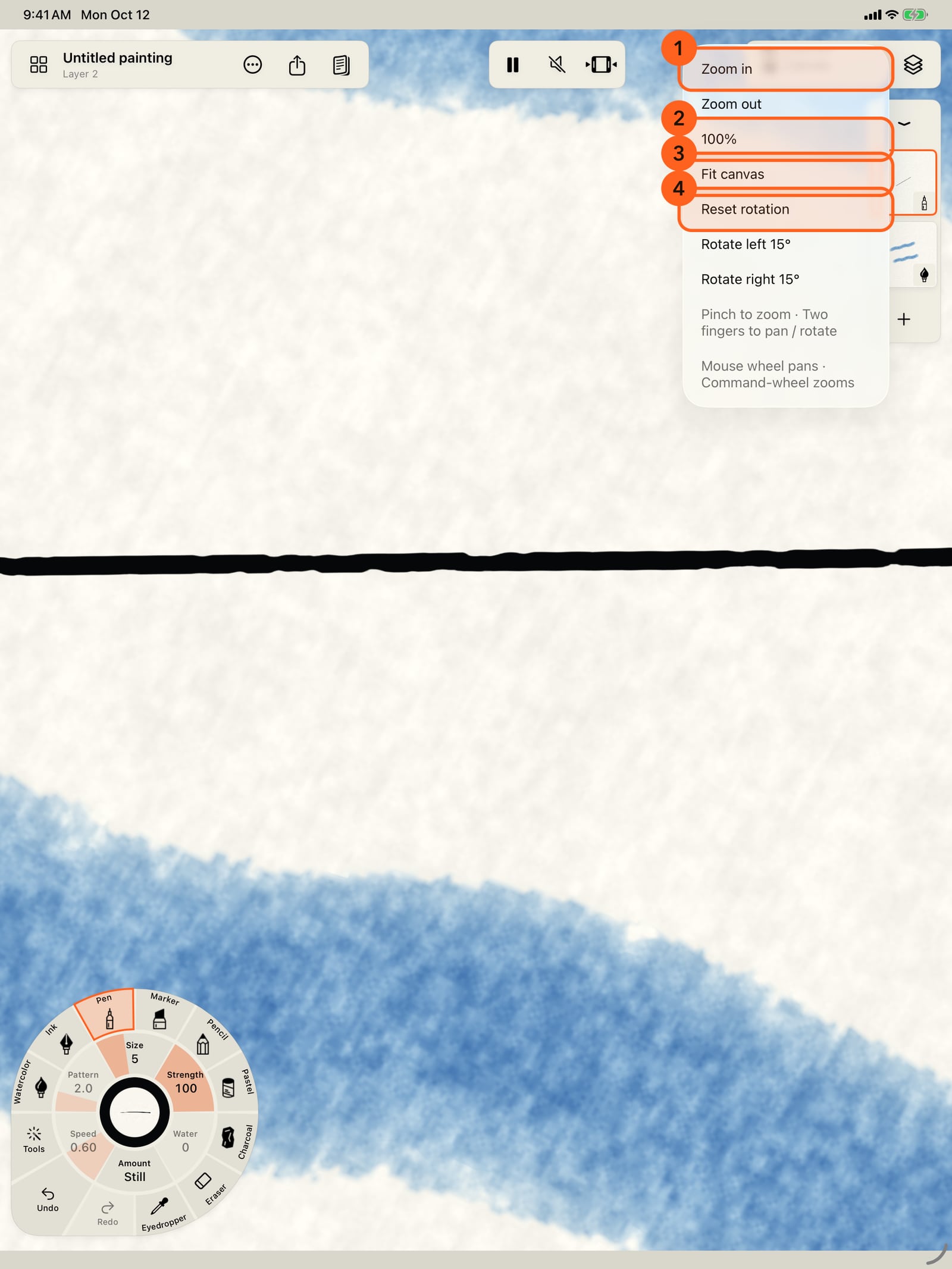
Tap the percentage for the Zoom menu. Fit canvas brings the whole page back, straight, and Reset rotation only straightens it.
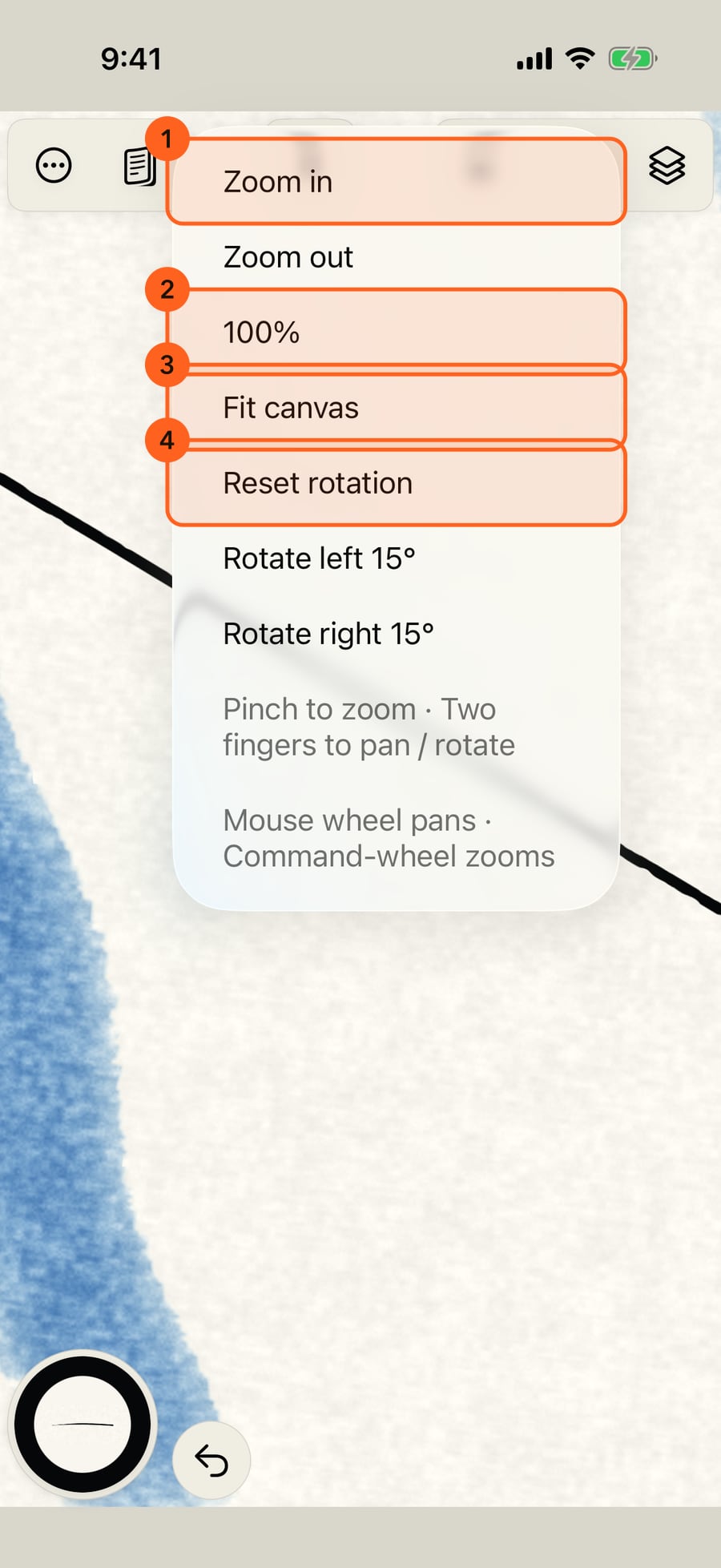
Click the percentage for the Zoom menu. Fit canvas brings the whole page back, straight, and Reset rotation only straightens it.
Tap Fit canvas. For moving the page with one finger or the pencil, open Tools in the wheel's corner and choose the Hand tool.
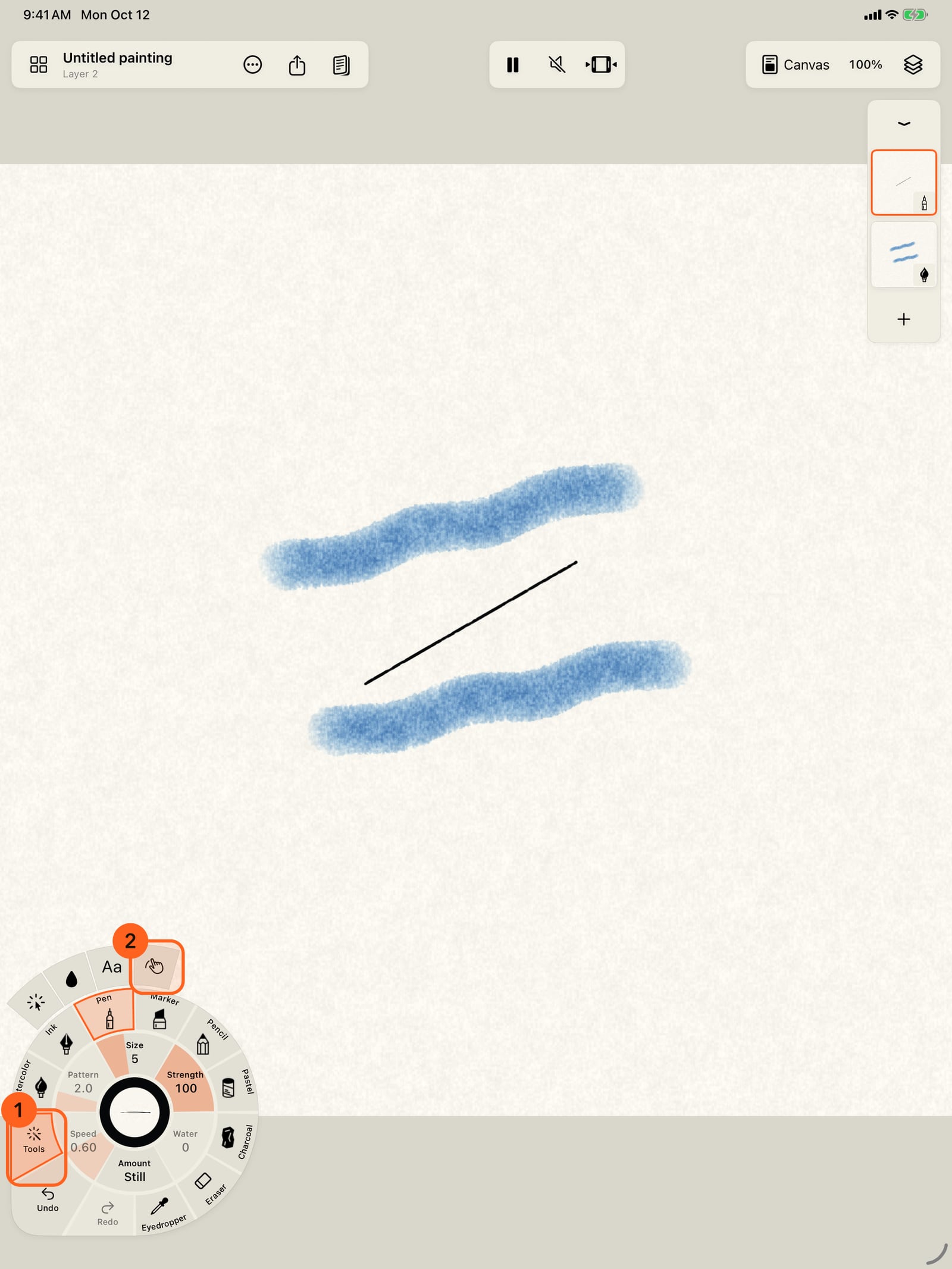
Tap Fit canvas. For moving the page with one finger, unfold the wheel, open Tools in its corner, and choose the Hand tool.
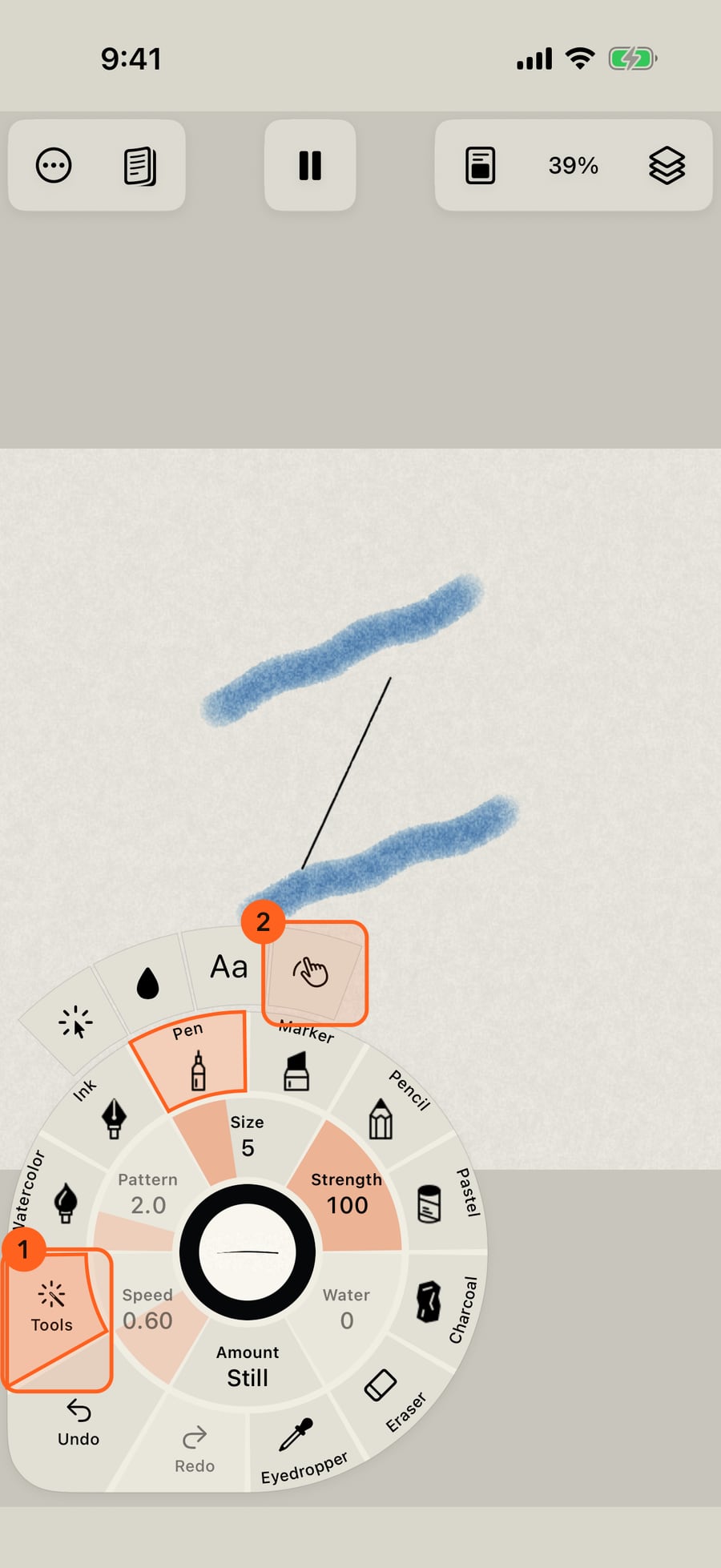
Click Fit canvas. For moving the page with one finger or the pencil, open Tools in the wheel's corner and choose the Hand tool.
Now a drag moves the page instead of painting. When you're done, tap Done at the top of the page.
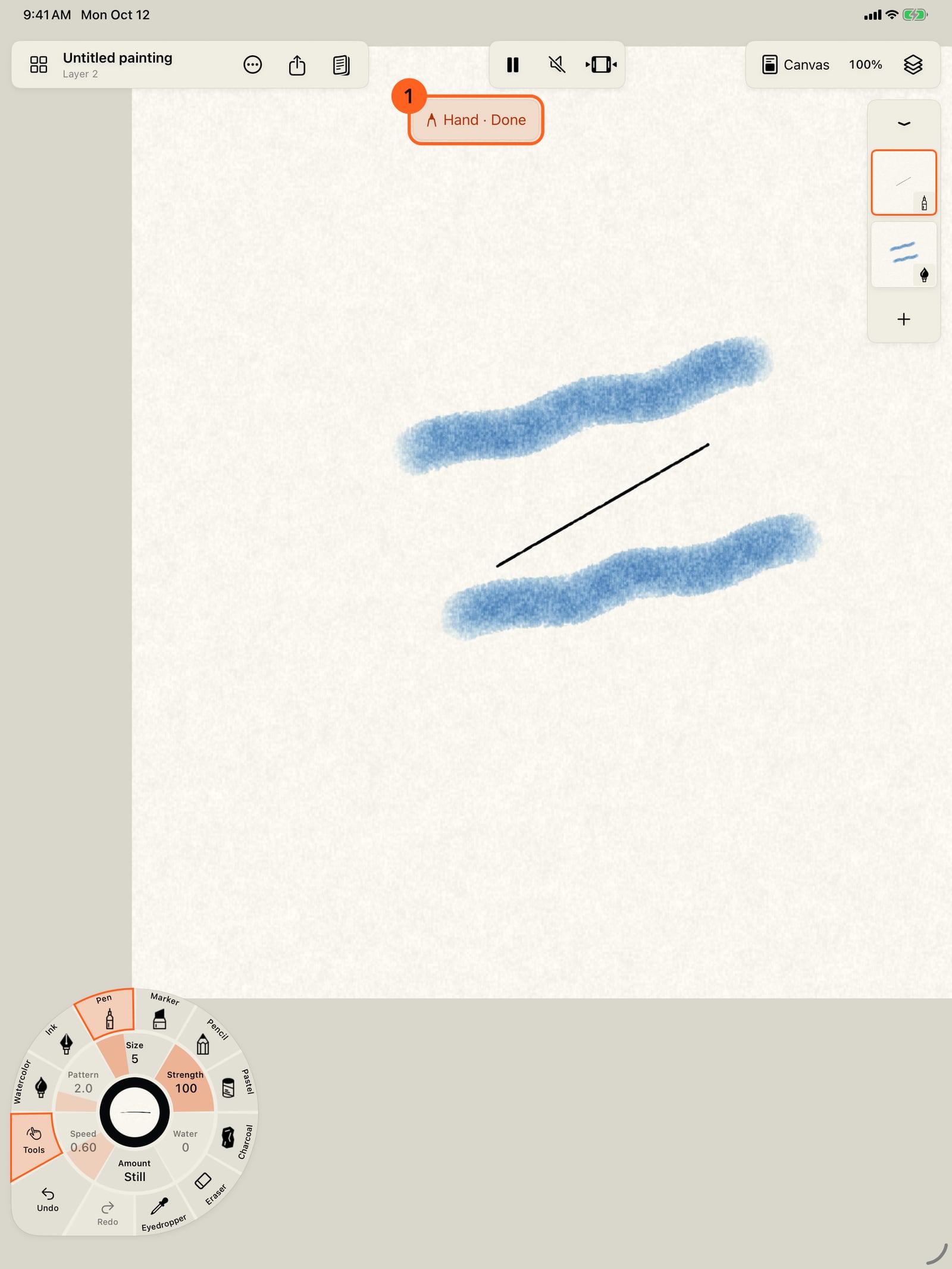
Now a drag moves the page instead of painting. When you're done, tap Done at the top of the page.
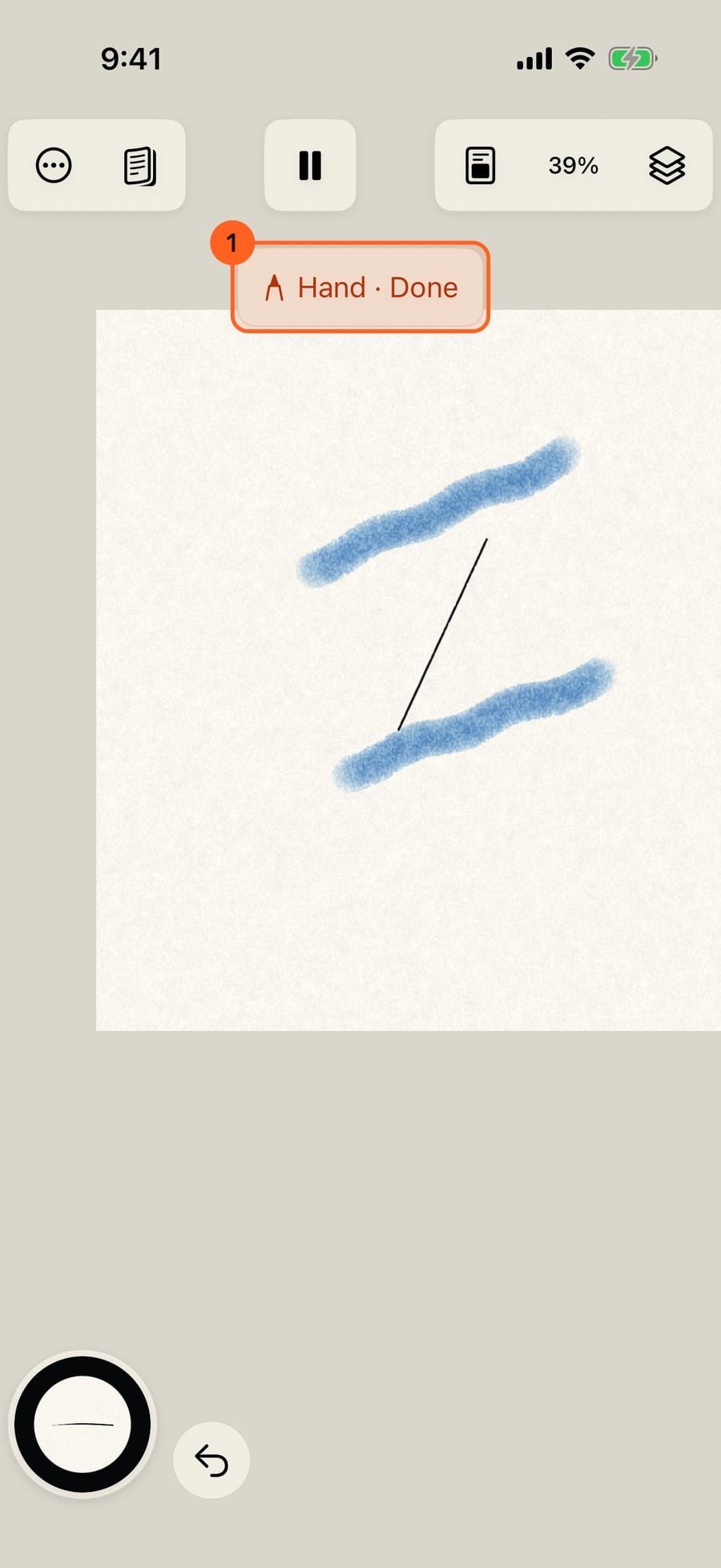
Now a drag moves the page instead of painting. When you're done, click Done at the top of the page.
To look at the painting on its own, tap Actions, then Hide interface, or tap with four fingers. Show interface, in the corner, brings everything back.
To look at the painting on its own, tap Actions, then Hide interface, or tap with four fingers. Show interface, in the corner, brings everything back.
To look at the painting on its own, click Actions, then Hide interface, or click with four fingers. Show interface, in the corner, brings everything back.
Two-finger gestures
| Gesture | What it does |
|---|---|
| Pinch | Zooms in and out around your fingers |
| Twist | Rotates the page |
| Two-finger drag | Moves the page |
| Two-finger tap | Undo |
| Three-finger tap | Redo |
| Four-finger tap | Hides the interface, or shows it again |
Pinch, twist and drag work together in one movement. The taps act when your fingers lift, and they never leave marks on the page. They work whether or not your finger paints. The third time you undo with the button, a tip at the wheel mentions the two-finger tap, once.
With Finger draws turned off in Settings, a single finger moves the page too, and only Apple Pencil paints. See Apple Pencil and touch.
The Zoom menu
Tap the percentage 1 in the top bar:
| Item | What it does |
|---|---|
| Zoom in | 125% of the current zoom |
| Zoom out | 80% of the current zoom |
| 100% | One canvas pixel to one screen point |
| Fit canvas | The whole page, centred and straight |
| Reset rotation | Straightens the page, keeping the zoom |
| Rotate left 15°, Rotate right 15° | Turns the page in steps |
The menu's last lines remind you of the gestures. Fit canvas is also where to go if you lose the page off screen. Zoom reaches from a tenth of the page's size up to sixteen screen points for each point of the canvas.
Sharp at any zoom
However close you zoom, what is on screen is drawn at the screen's own sharpness: brush edges, pencil and pastel grain, ink lines, marks and the paper's texture. It stays sharp as you paint, pan and turn the page. When you move to another part of the painting it shows softer for a moment and then sharpens.
Zooming in shows more of the same paper and paint; it never changes how light or dark a stroke looks.
A few things have their own limits:
- Watercolor washes and the bleed of Ink are as fine as the water that moves them, so a wash's body stays soft close up while the marks and paper around it are sharp.
- Scanned papers hold grain down to about a quarter of a point; past that, it is enlarged smoothly. Nothing is added to the paper as you zoom.
- A layer whose Smudge or Blend strokes reach far across the page shows as it is at the painting's own size.
- On a painting with many layers, a device with less memory draws what is on screen a little less sharply rather than run out of room.
On the Mac, scroll to move the page and hold ⌘ while scrolling to zoom. ⌘= zooms in, ⌘− zooms out and ⌘0 fits the canvas. See Mouse, trackpad and keyboard.
The Hand tool
Tools, in the wheel's corner, holds the tools that act on the page rather than paint on it. The Hand tool 2 makes one finger, Apple Pencil or the pointer move the page. While it's on, a note at the top of the page reads Hand · Done; tap it, or choose the Hand tool again, to paint. The Tools button shows the Hand's symbol while it's on.
Press H to turn the Hand tool on or off.
Hide the interface
Actions → Hide interface (the menu reminds you: Or tap with four fingers) leaves only the painting. The small Show interface button in the top-left corner, or another four-finger tap, brings the bars, the wheel and the layers back. Playback carries on while the interface is hidden.
With the interface hidden, squeezing or double-tapping Apple Pencil can still bring the brush controls to the pencil, if you've set it to in Settings → Apple Pencil.
Tip: Undo and Redo are also on the wheel, beside Tools. Touch and hold either to repeat it.
Try it in the app.
Download on the App Store Free for iPad, iPhone and MacSomething not behaving as expected?
Visit support or write to support@doodlydoodle.app.