

Guides / Color: paint by number
Coloring books
Colour the books that come with the app, or turn your own PDF into a book of colouring pages.
- Free
- Nature, Animals at Home, the three single pictures, page 1 of every other book, and your own PDFs.
- Plus
- Every page of Buildings of the World, Flowers in the Breeze and Seasons, and new Plus books as they come.
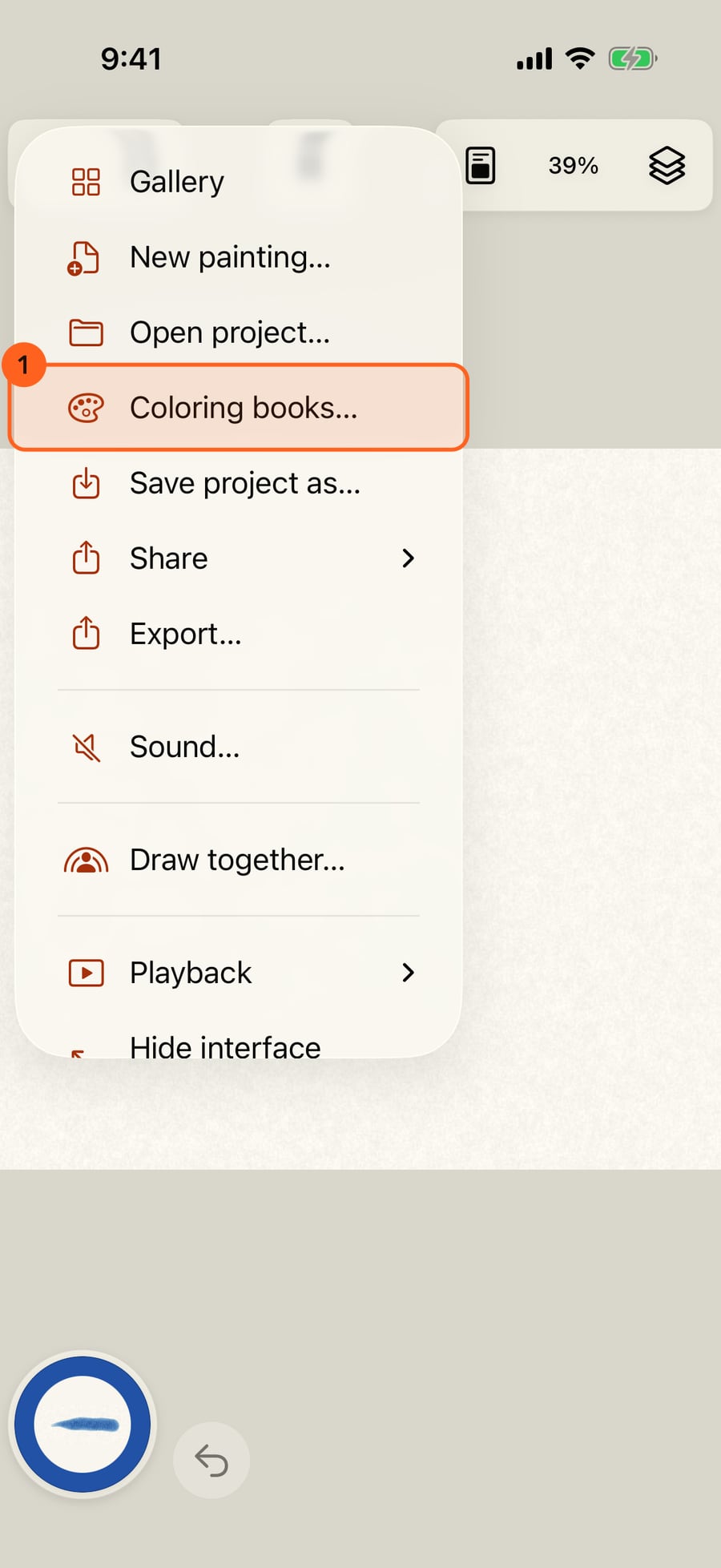
Open the Actions menu and choose Coloring books. Everything to colour is in one place.
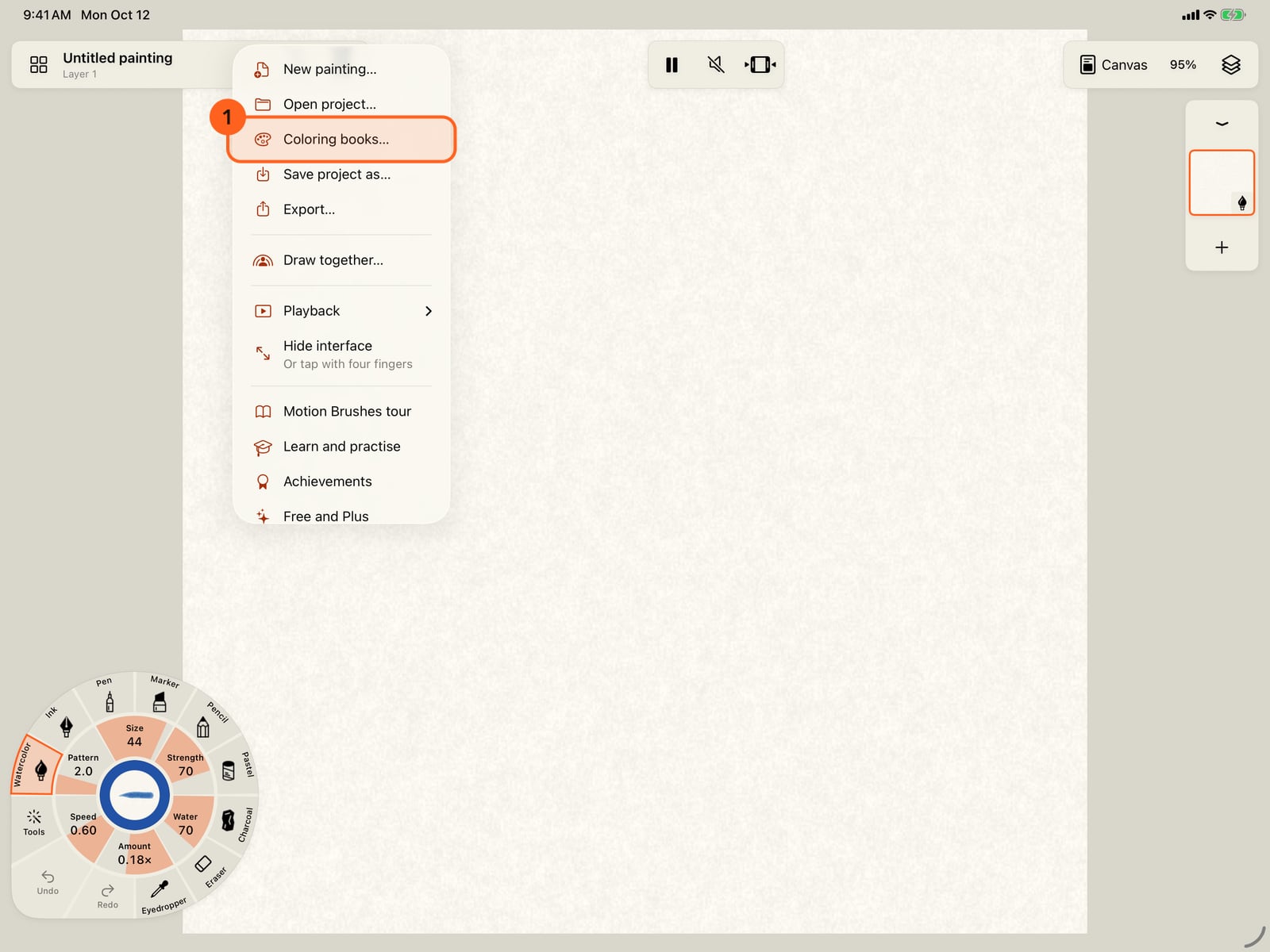
Open the Actions menu and choose Coloring books. Everything to colour is in one place.
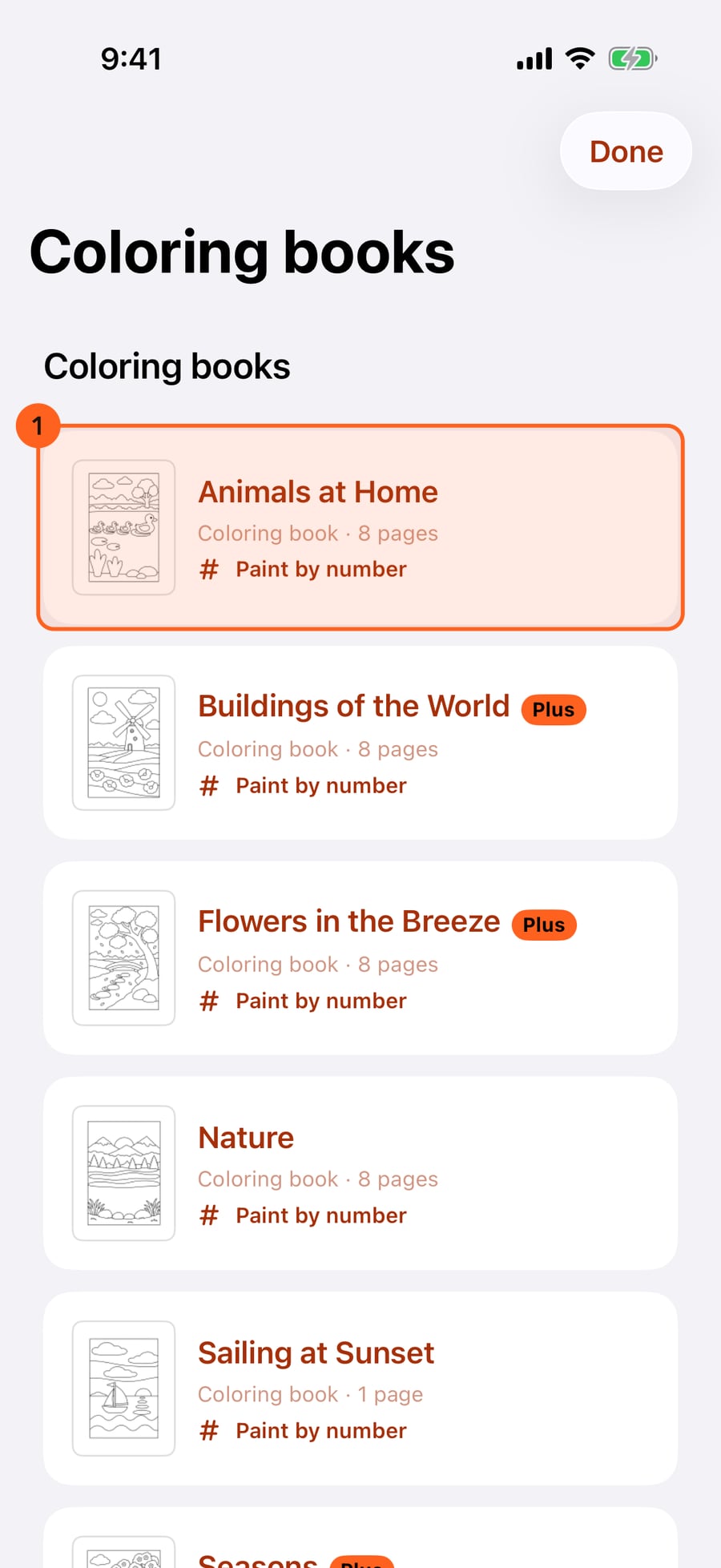
The app's coloring books come first, then a way to bring in your own PDF.
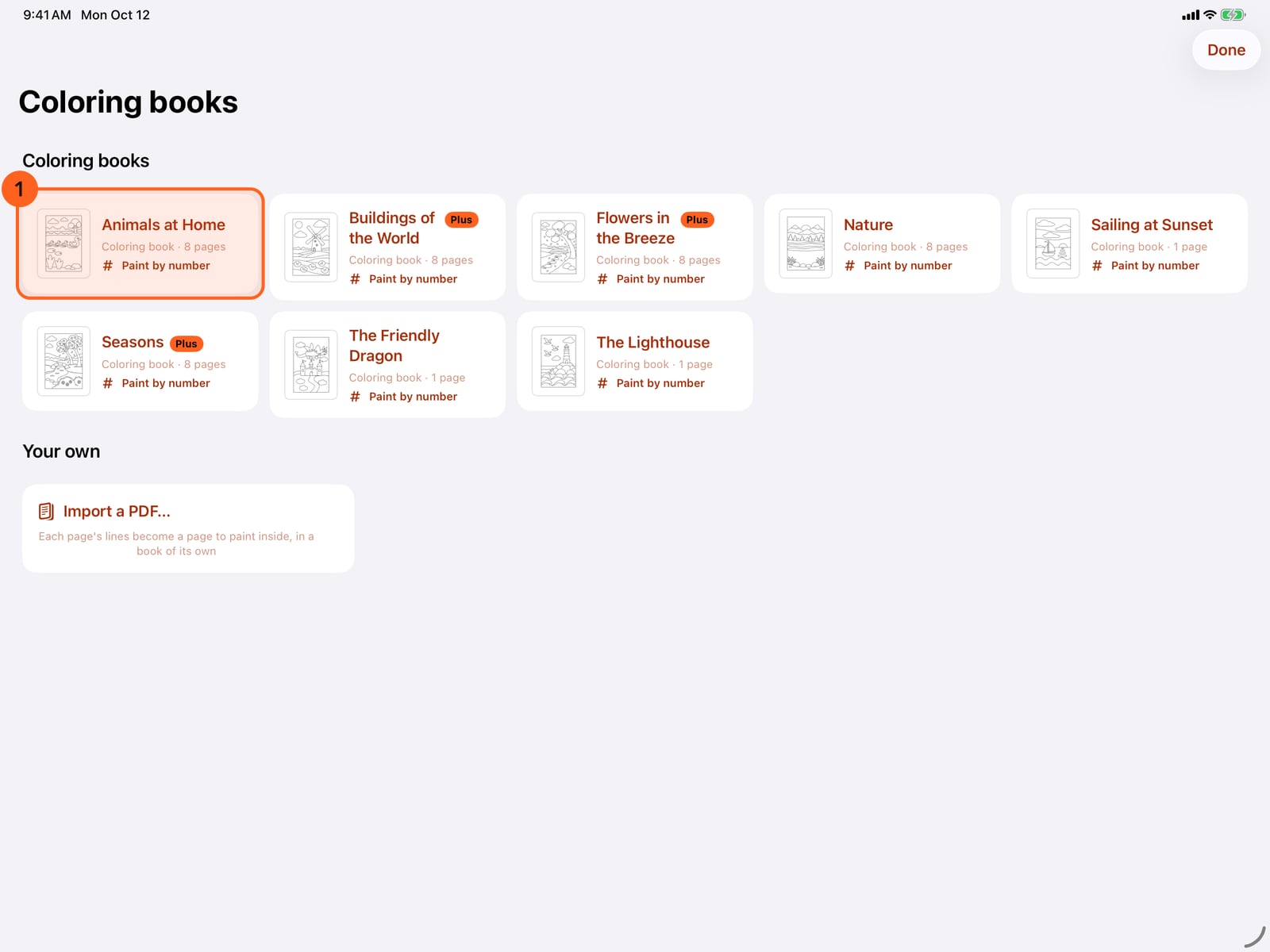
The app's coloring books come first, then a way to bring in your own PDF.
Tap a book to look through every page before you start.
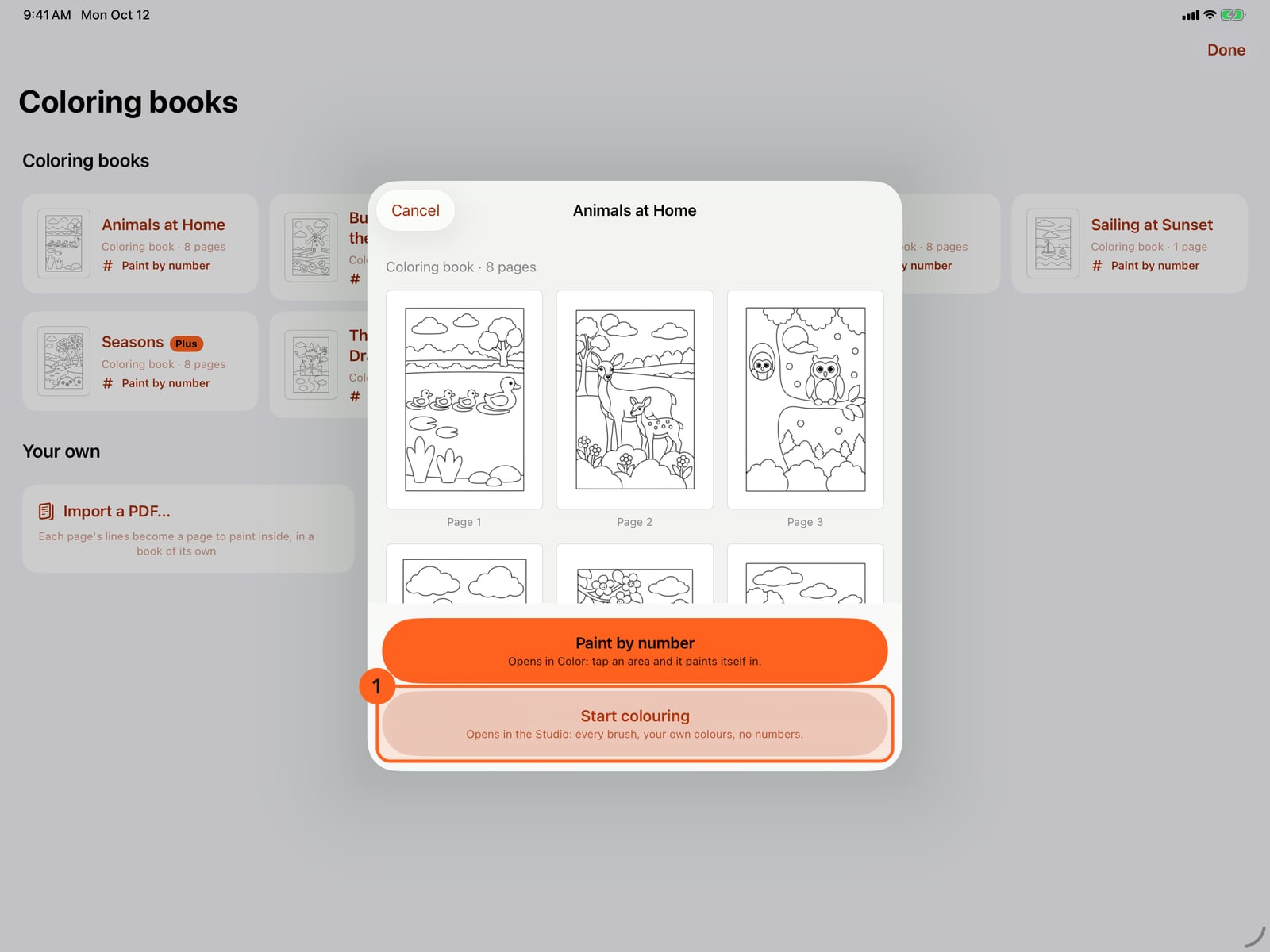
Tap a book to look through every page before you start.
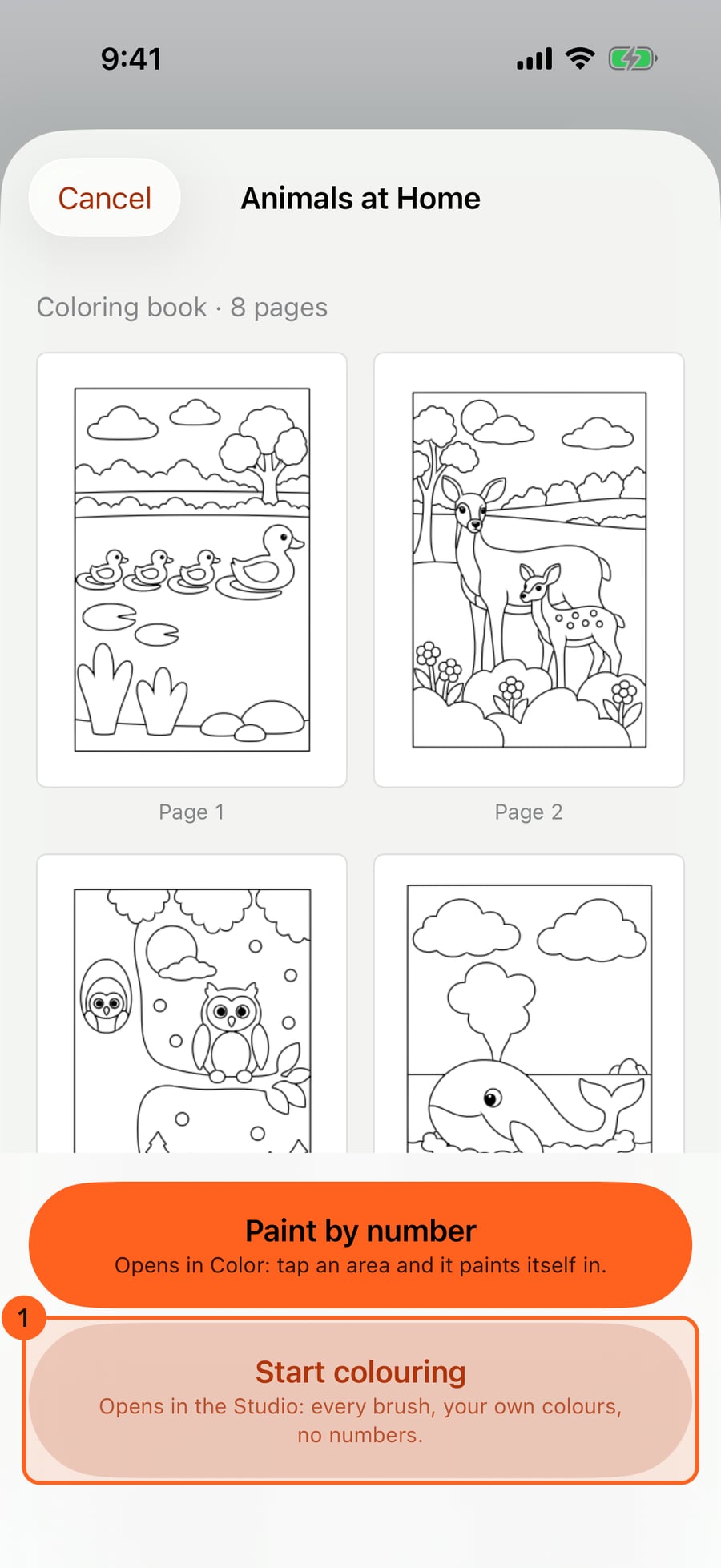
Click a book to look through every page before you start.
Tap Start colouring. You get your own copy, as a book, with the book's own colours on the wheel. The first time a book opens, it also offers its music.
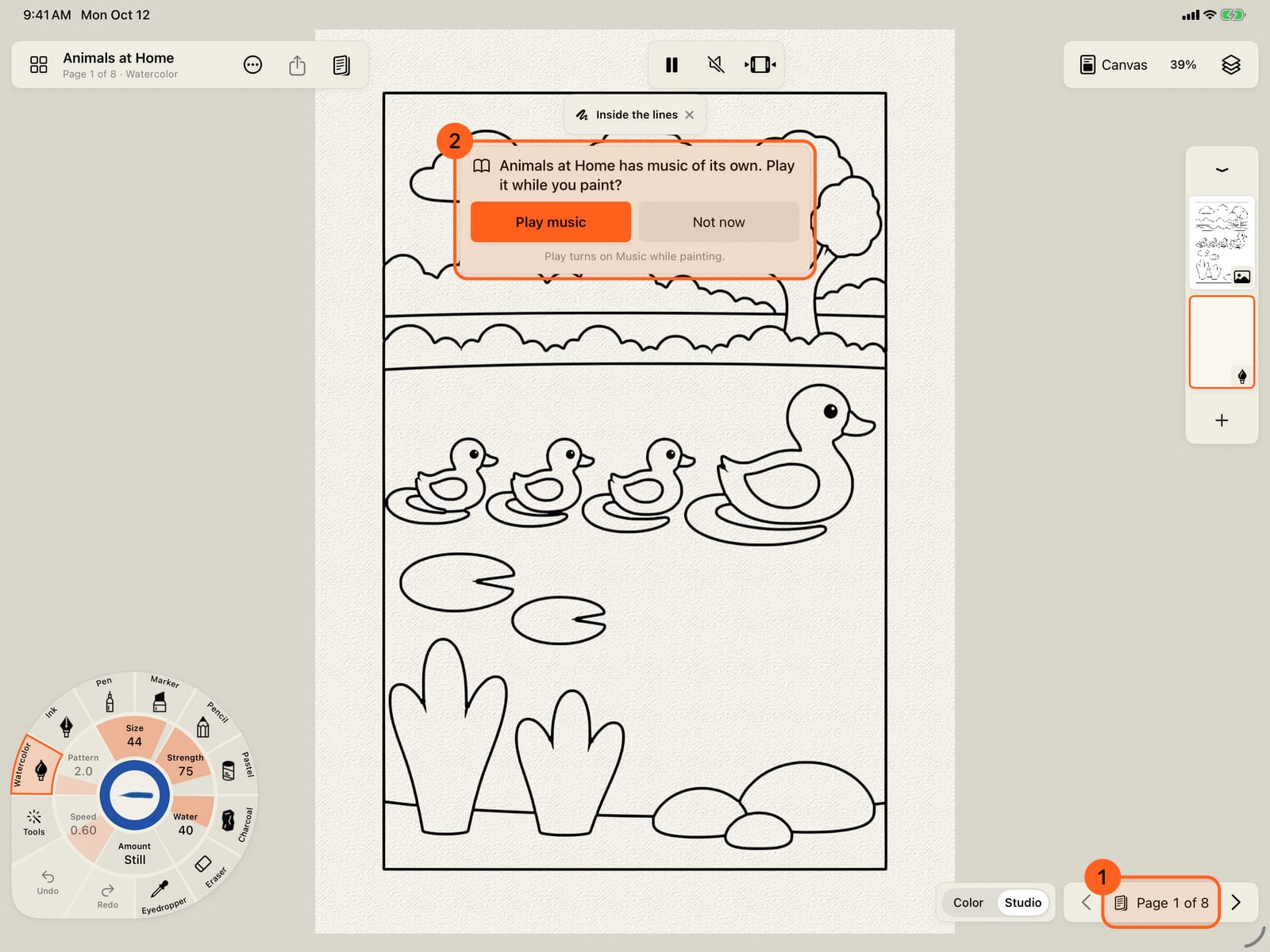
Tap Start colouring. You get your own copy, as a book, with the book's own colours on the wheel. The first time a book opens, it also offers its music.
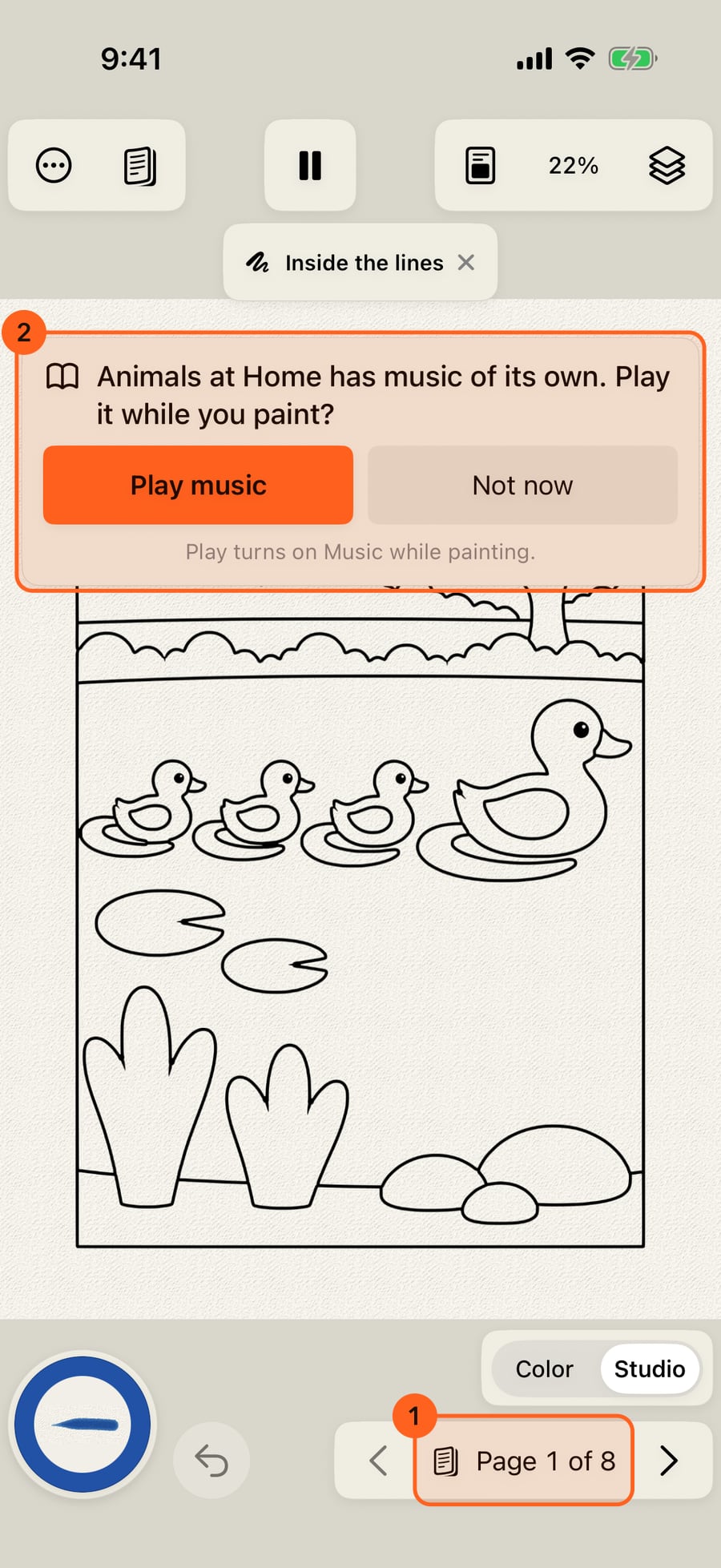
Click Start colouring. You get your own copy, as a book, with the book's own colours on the wheel. The first time a book opens, it also offers its music.
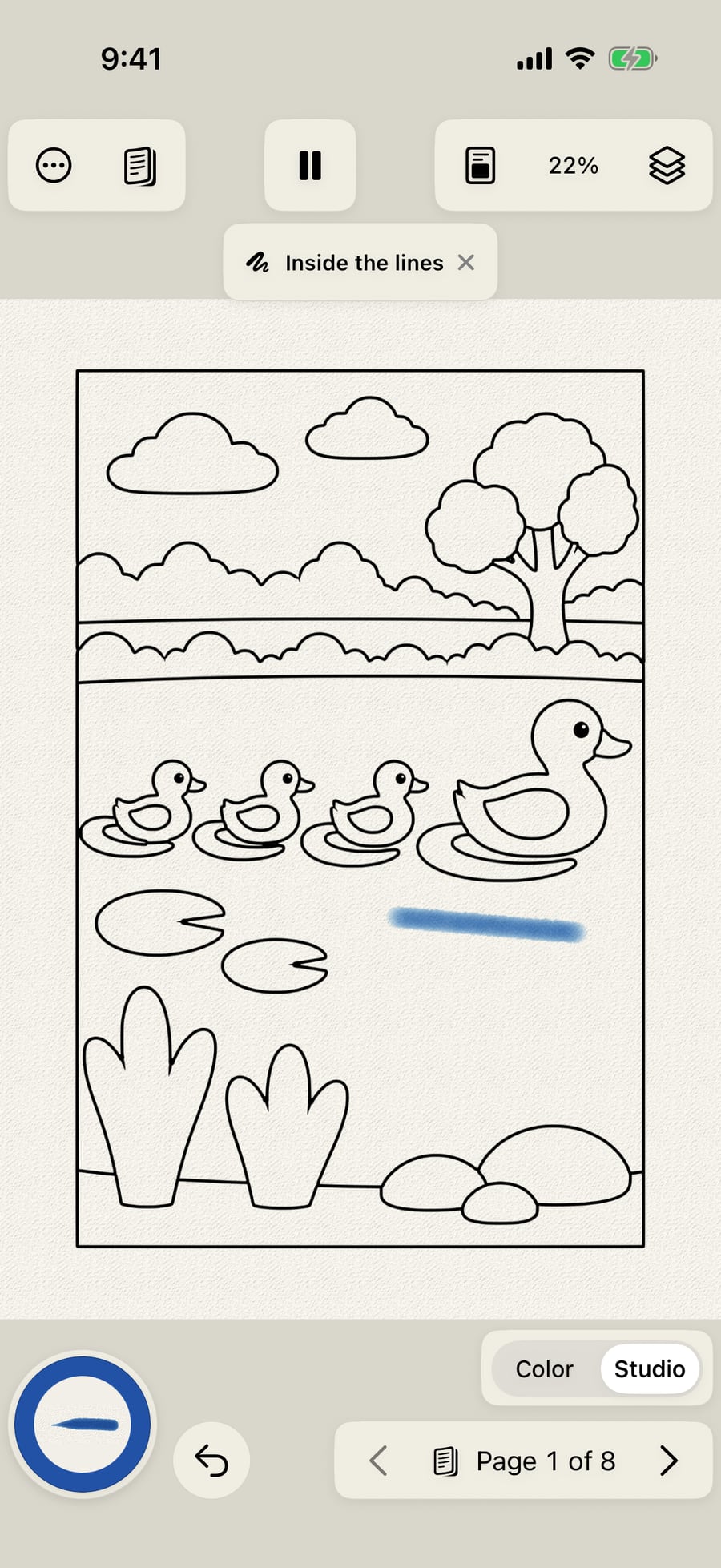
Here, Not now keeps it quiet. Paint across an area. Each stroke stays inside the area where it starts, and the lines stay crisp on top.
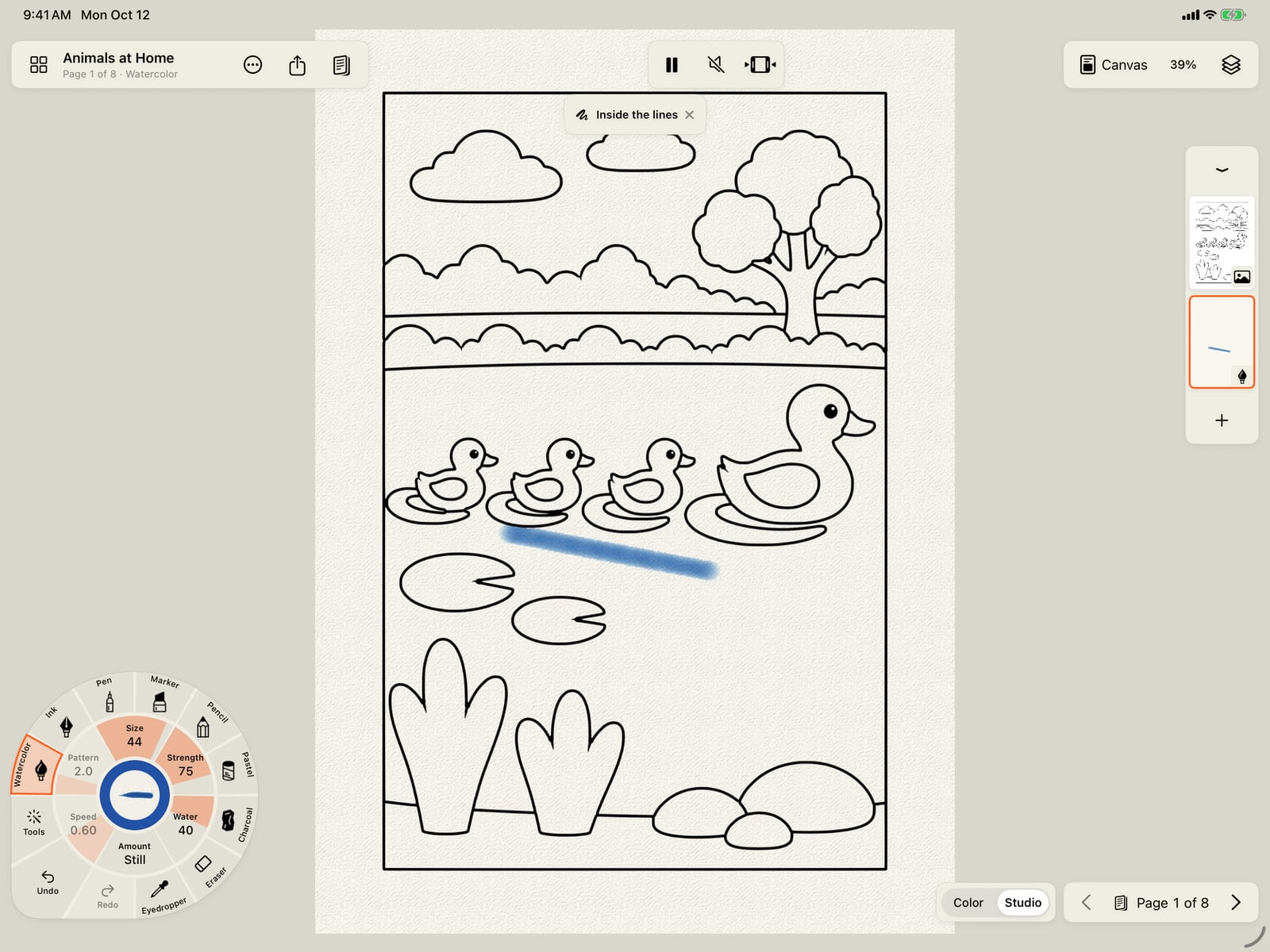
Here, Not now keeps it quiet. Paint across an area. Each stroke stays inside the area where it starts, and the lines stay crisp on top.
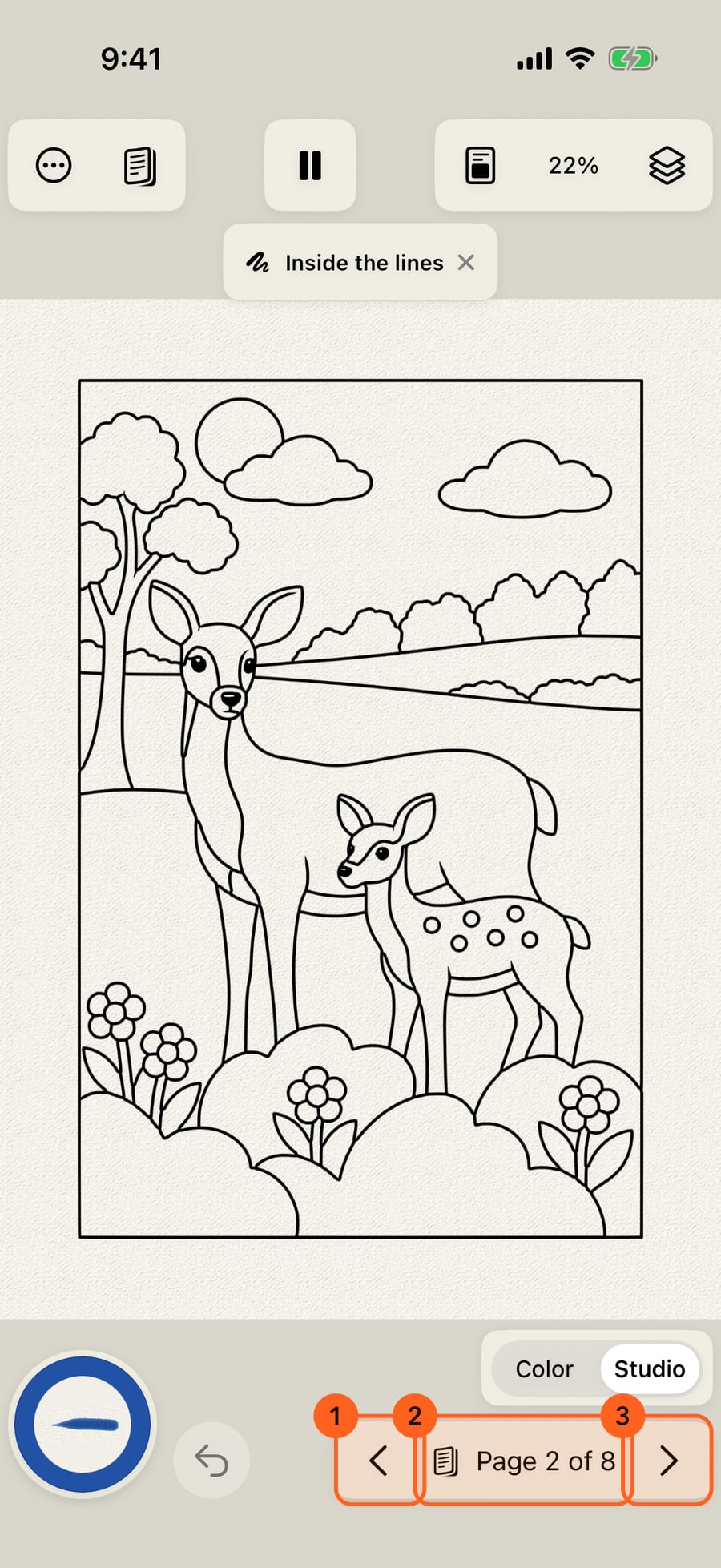
The page bar shows where you are in the book. The arrows turn to the next or previous page, and the page number shows them all.
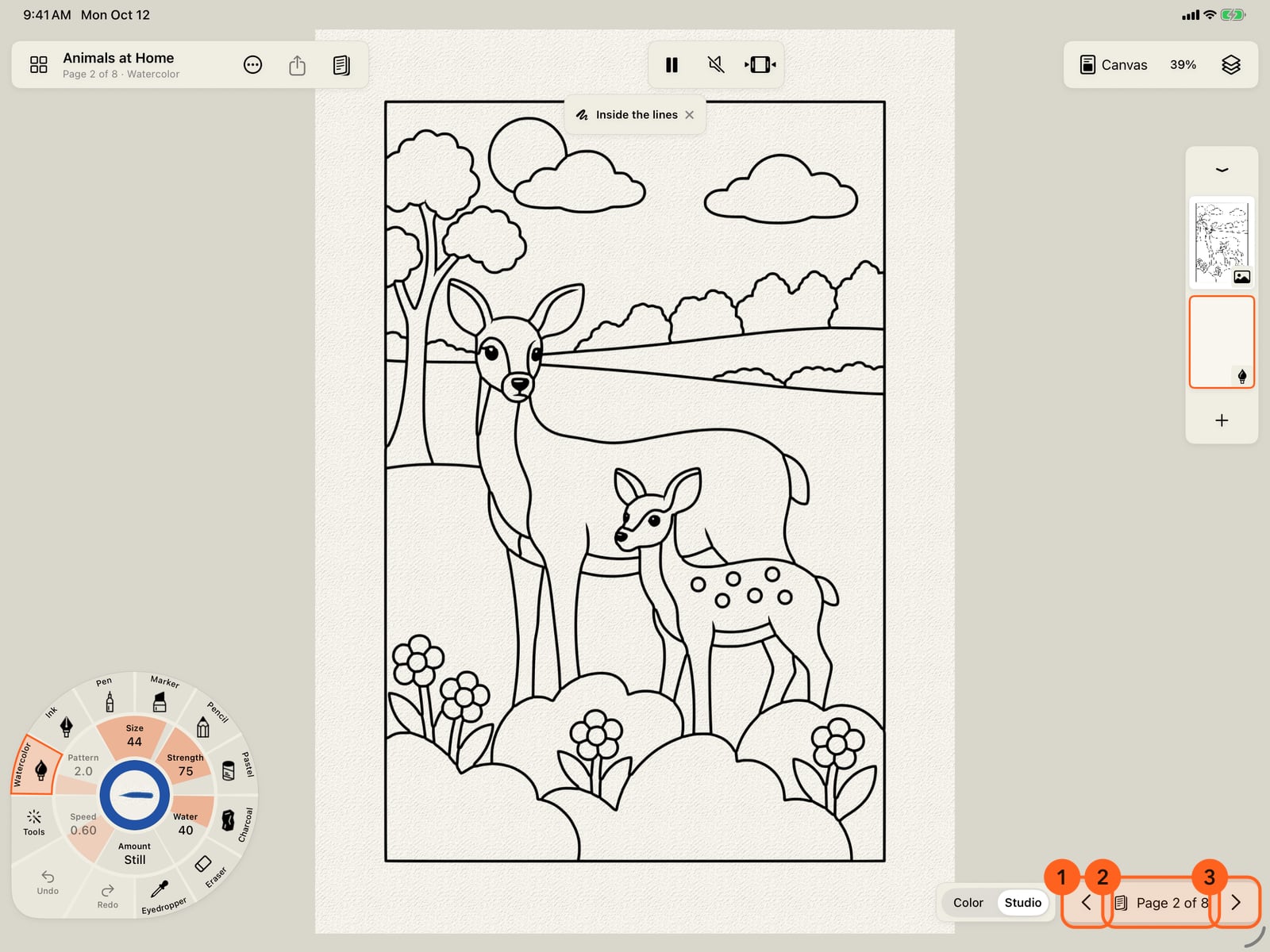
The page bar shows where you are in the book. The arrows turn to the next or previous page, and the page number shows them all.
To colour your own coloring book, open Coloring books again and tap Import a PDF.
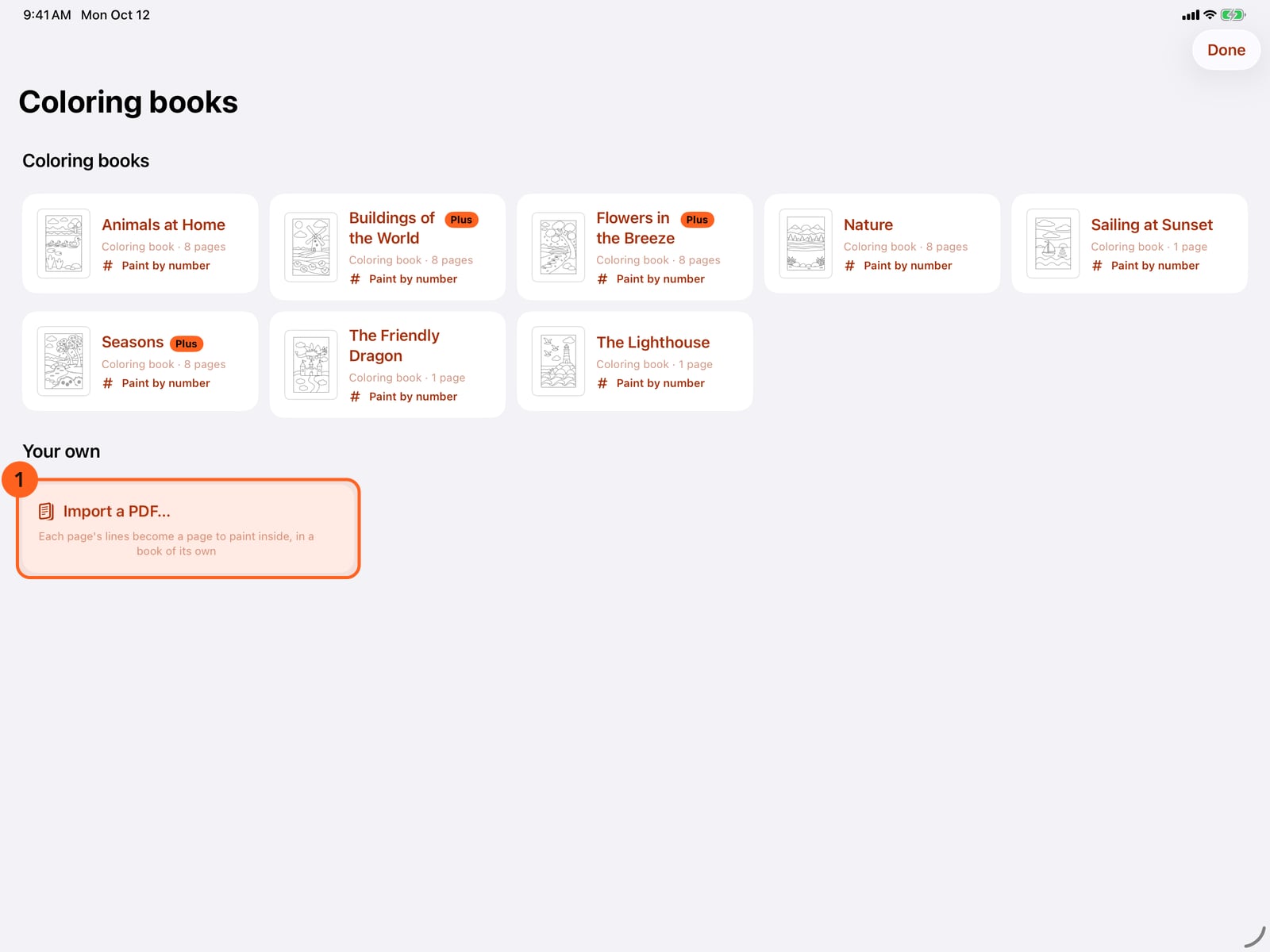
To colour your own coloring book, open Coloring books again and tap Import a PDF.
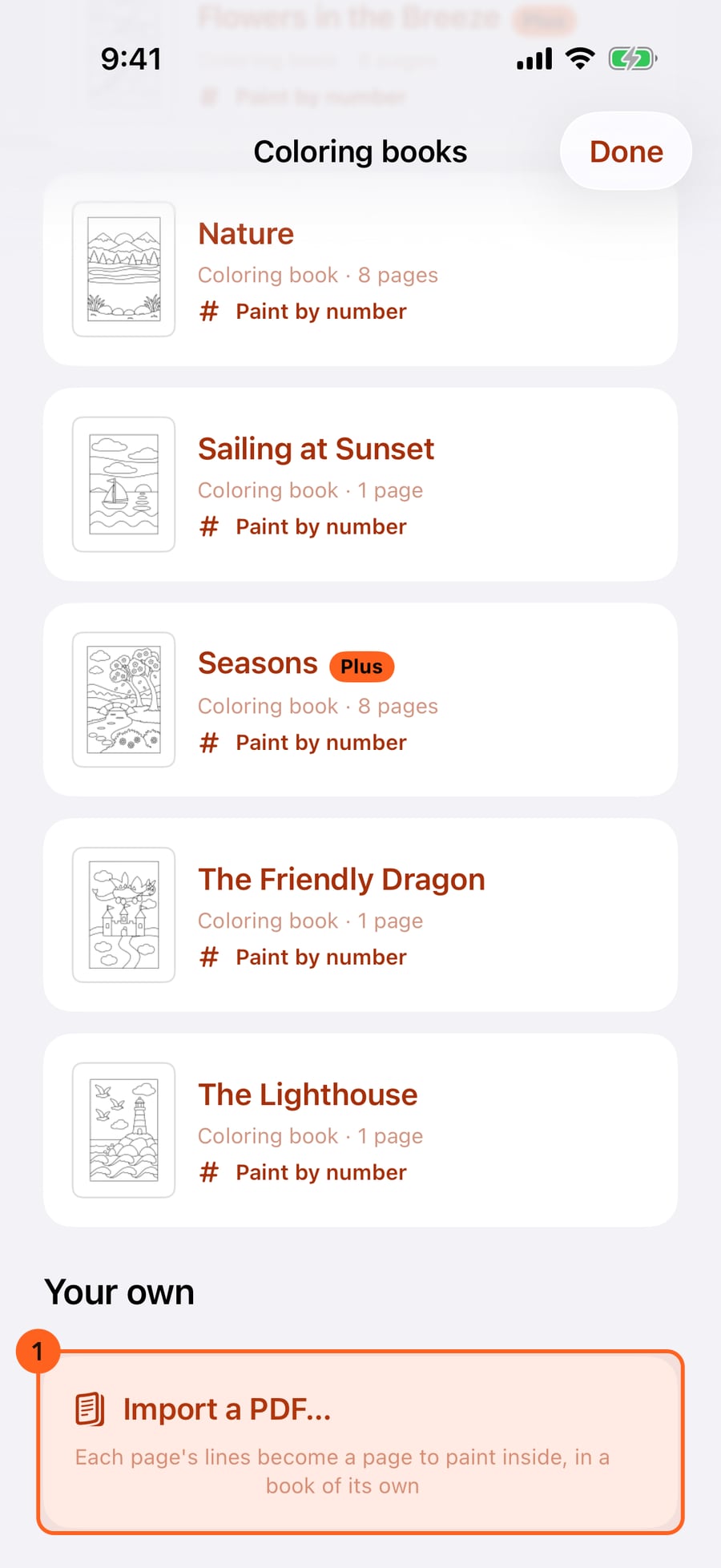
To colour your own coloring book, open Coloring books again and click Import a PDF.
Find the PDF in Files.
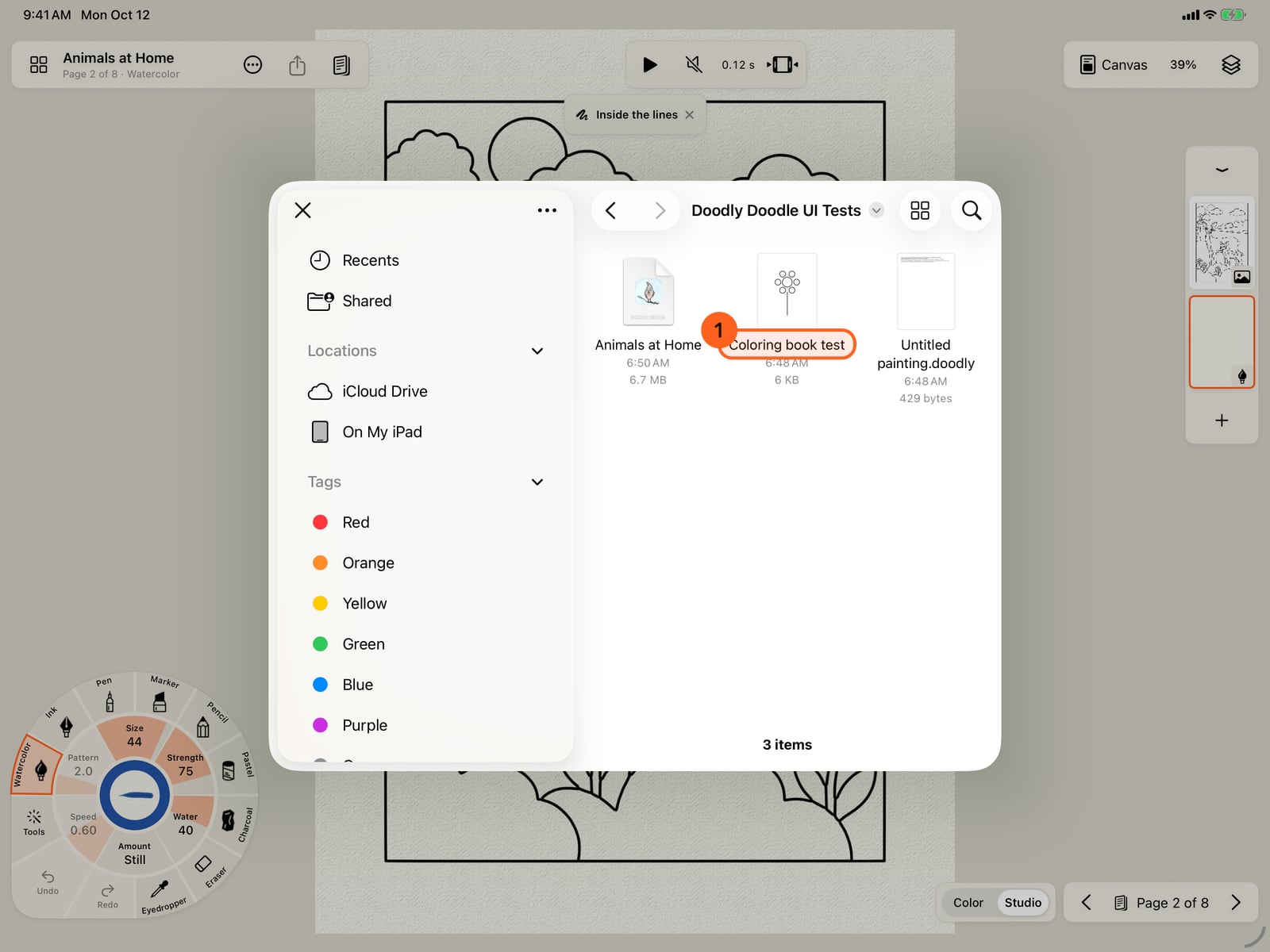
Find the PDF in Files.
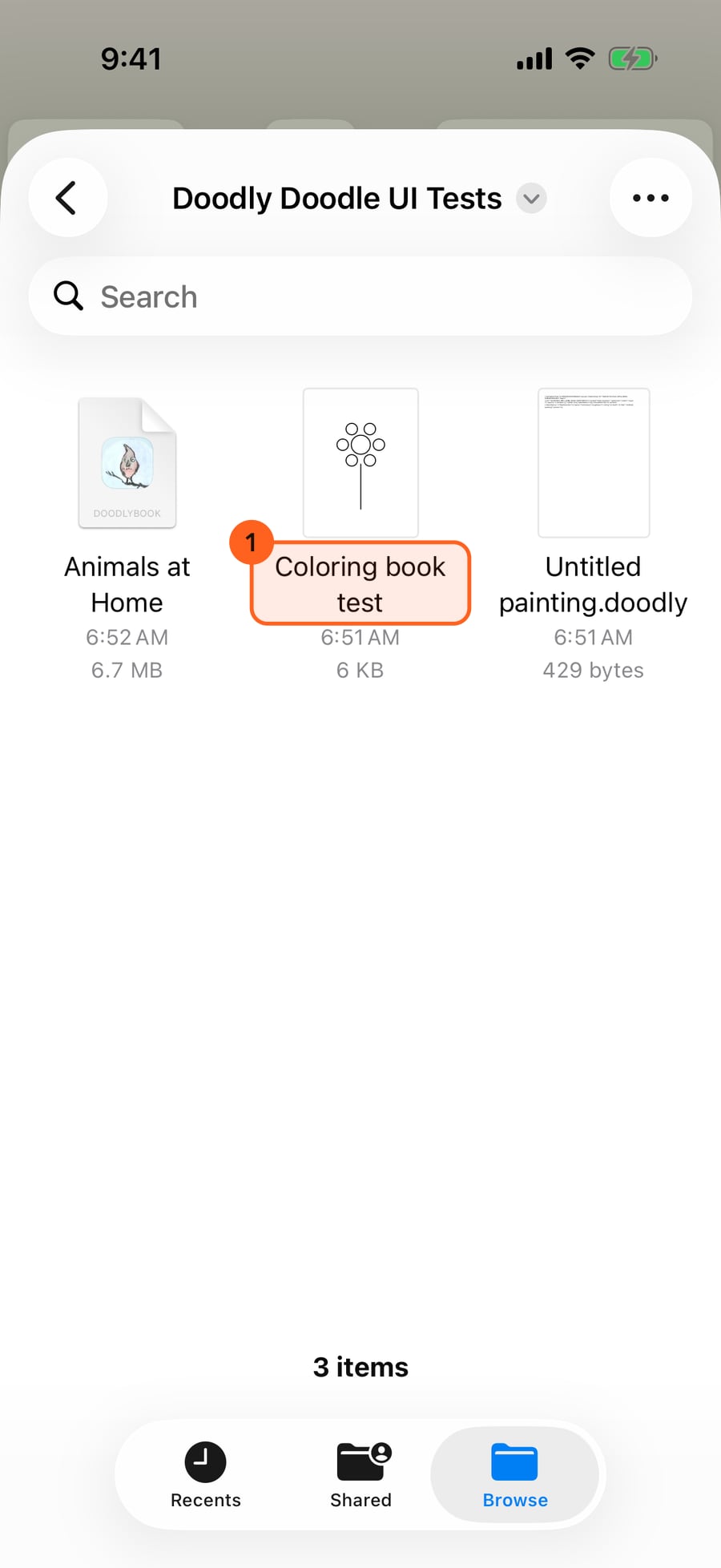
Tap it. Each page of the PDF becomes a page of a new book, its lines on top and the areas between them found, with a watercolor layer underneath.
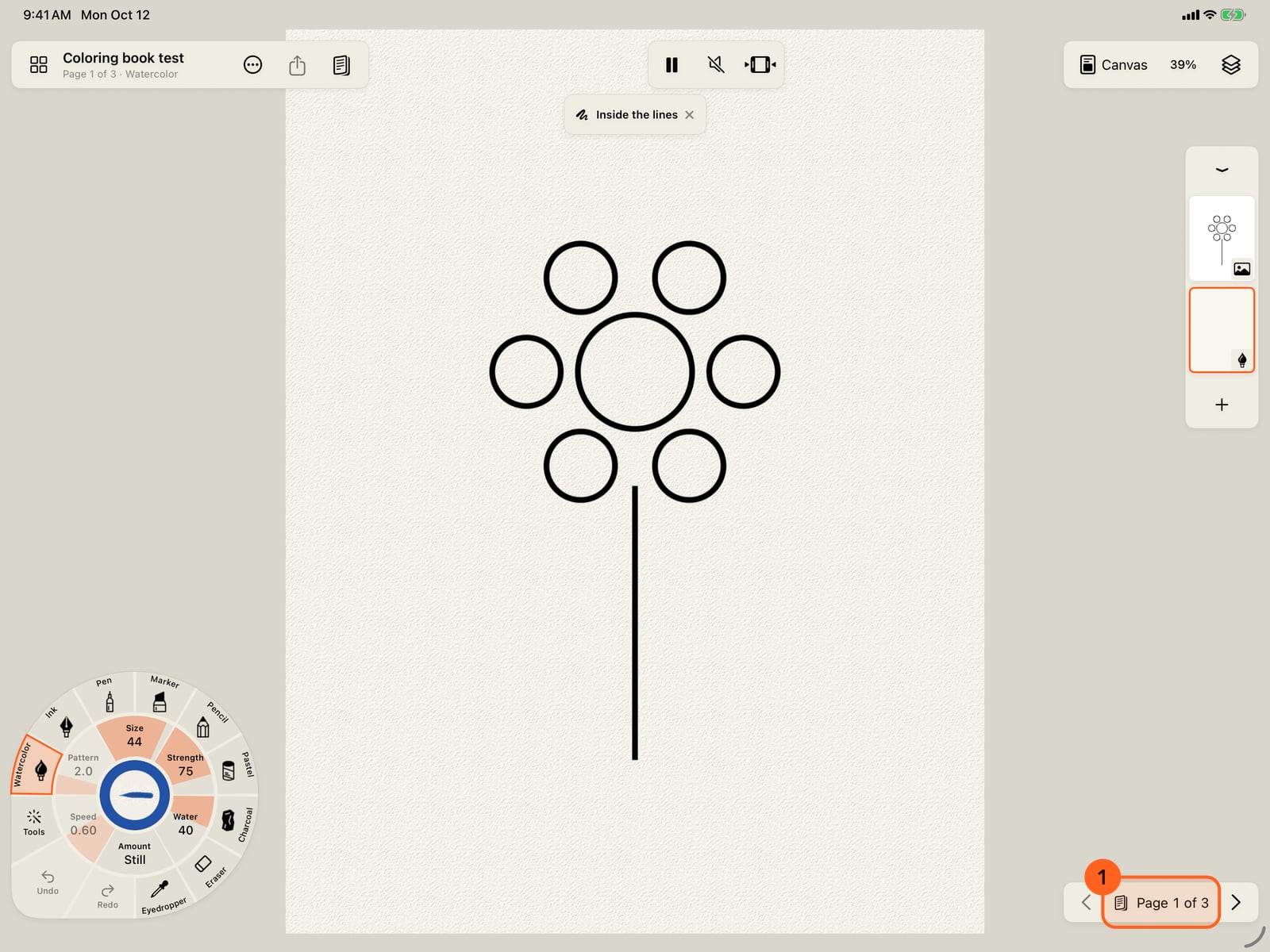
Tap it. Each page of the PDF becomes a page of a new book, its lines on top and the areas between them found, with a watercolor layer underneath.
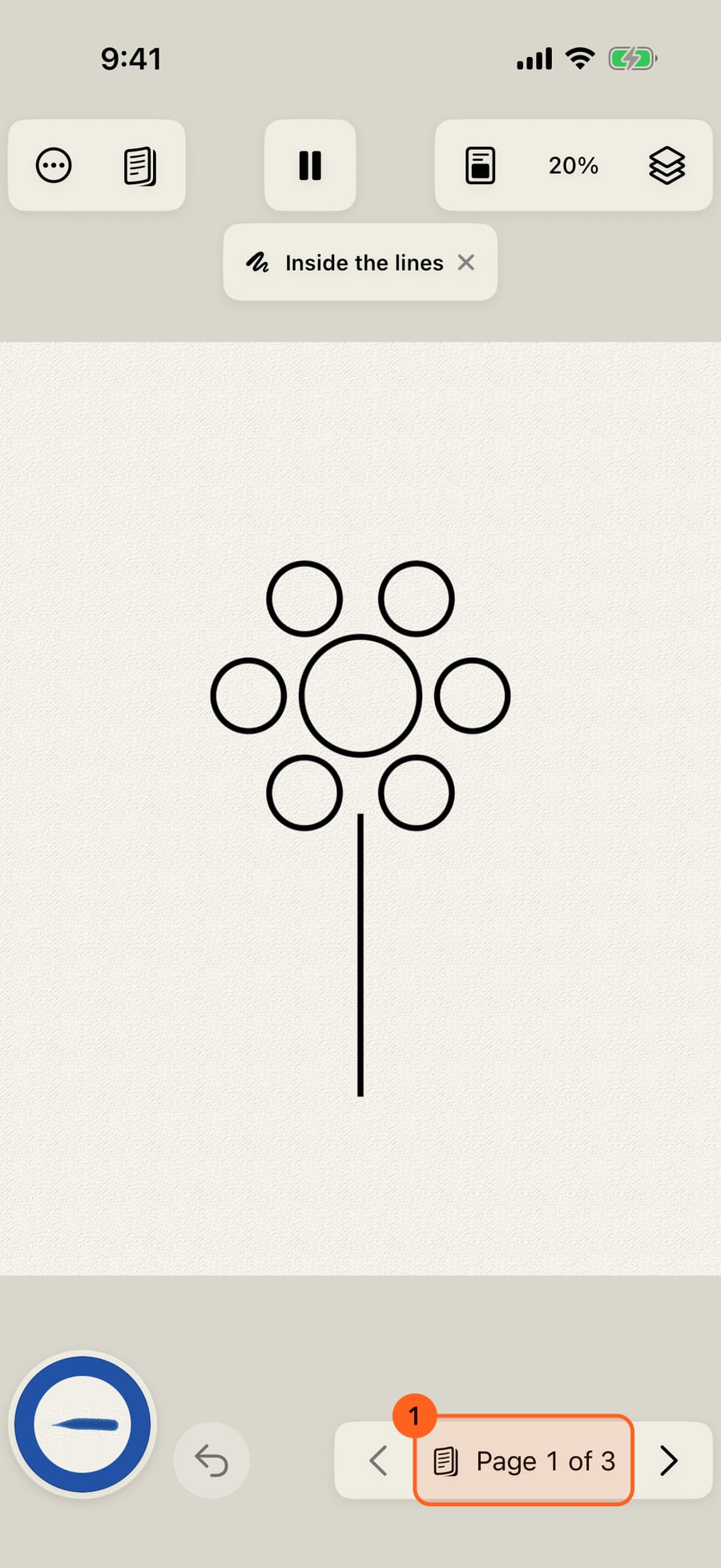
Click it. Each page of the PDF becomes a page of a new book, its lines on top and the areas between them found, with a watercolor layer underneath.
Coloring books
Actions → Coloring books… 1 opens everything to colour in one place. The Gallery's Coloring books card, and Paint by number on the first launch, open it too. It has three parts:
- Coloring books: the books that come with the app, each marked Paint by number. Tap one to see every page 1, then Start colouring to make your own copy, or Paint by number to have every area numbered, with colours and brushes for each number (see Paint by number).
- Your own: Import a PDF… turns your own coloring book into a book.
While a book is open, the page bar at the bottom, opposite the wheel, shows Page 3 of 12 1. Its arrows go to the previous and next page, and tapping the page number opens Pages, with every page of the book. See Books and pages.
From a PDF
Most coloring books you buy or download are PDFs. Choose Import a PDF… under Your own 1 and pick the PDF. Open project… in the Actions menu takes a PDF the same way.
Each page of the PDF becomes a page of a new book, named after the file:
- the page's picture, 2480 pixels on its long side (A4 at 300 DPI), on an image layer at the top in Multiply, so its lines show over your paint;
- the areas its lines enclose, found as a colouring page finds them;
- a Watercolor layer underneath to paint on, on cold press cotton paper.
Inside the lines turns on, so each stroke stays in the area where it starts. Choose area, fills and every medium work as on any colouring page. Change the medium of the paint layer, or add layers, as you like.
A PDF of up to 200 pages comes in at once. For a longer one, split it first.
Packs
Eight coloring books come with the app, all made to paint by number: five books of eight pictures each, Animals at Home, Buildings of the World, Flowers in the Breeze, Nature and Seasons, and three single pictures, Sailing at Sunset, The Lighthouse and The Friendly Dragon. Every picture stands on its own and is built around something that moves: water, grass, petals, smoke, mist, flags. Painted by number, each comes alive as it is finished, with an effect of its own over the whole picture: snow, falling leaves, rain, bubbles, fireflies at night, birds. They are the first row of Coloring books. Tap one to look through its pages; Start colouring makes your own copy, as a book. Each brings its own palette of up to 24 colours: while you paint its pages, it is the palette on the wheel's colour ring, and it comes first in the colour panel.
Line art made with AI assistance.
Free and Plus books
Nature, Animals at Home and the three single pictures are free, every page. Buildings of the World, Flowers in the Breeze and Seasons are Plus books: their cards wear a Plus badge, and the preview says Page 1 free. Without Plus, the card and the preview have Unlock with Plus, which opens Free and Plus on the books. Anyone can start one and paint its first page. Its other pages come with Doodly Doodle Plus, the one-time purchase, as do new Plus books as they arrive.
Without Plus, Unlock with Plus takes the place of the next page's arrow and marks the page in Pages; they, Book View and the finished page's card open the Free and Plus page instead of the page; page 1 stays open behind it. Nothing you painted is changed or removed, and pages you add to the book yourself are always free. Buy Plus, and every page opens.
Tip: Lines that don't quite close leave two areas joined. Paint there with Inside the lines off, in the Canvas and paper menu.
Plus: Your own PDFs, two of the bundled books, the three single pictures and page 1 of every Plus book are Free. Every page of every book comes with Plus.
Try it in the app.
Download on the App Store Free for iPad, iPhone and MacSomething not behaving as expected?
Visit support or write to support@doodlydoodle.app.