

Guides / Getting started
Motion Brushes tour and lessons
A short tour, on the first launch and in Actions → Motion Brushes tour, of what Motion Brushes are and what you can make. Then lessons in Actions → Learn and practise that teach the tools, Motion Brushes and effects. Set the tools with a ring pointing the way, trace a small scene, and press Play.
- Free
- Everything in this guide works in Free.
The tour opens by itself the first time, and any time from Actions. Tap Actions, then Motion Brushes tour.
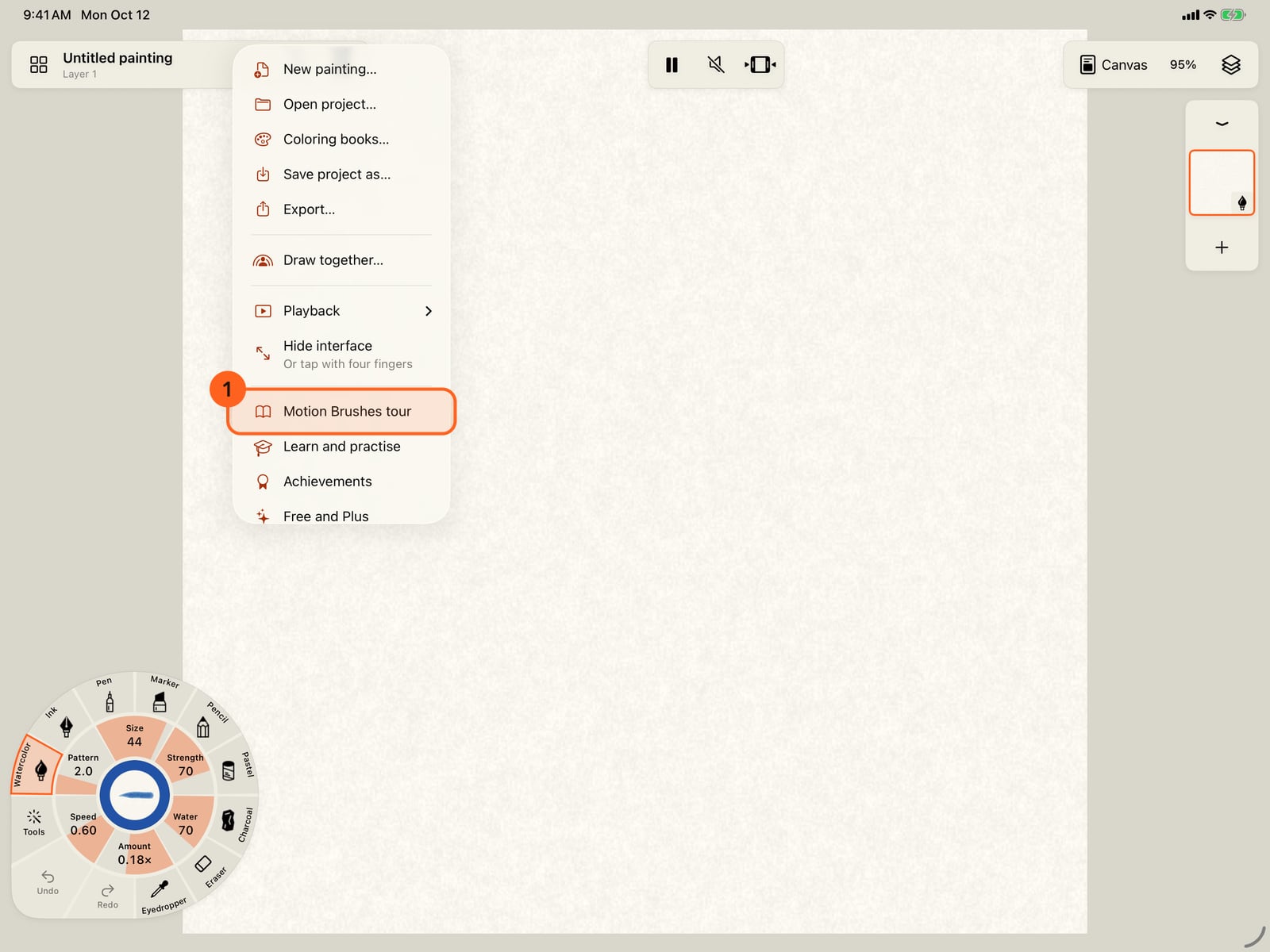
The tour opens by itself the first time, and any time from Actions. Tap Actions, then Motion Brushes tour.
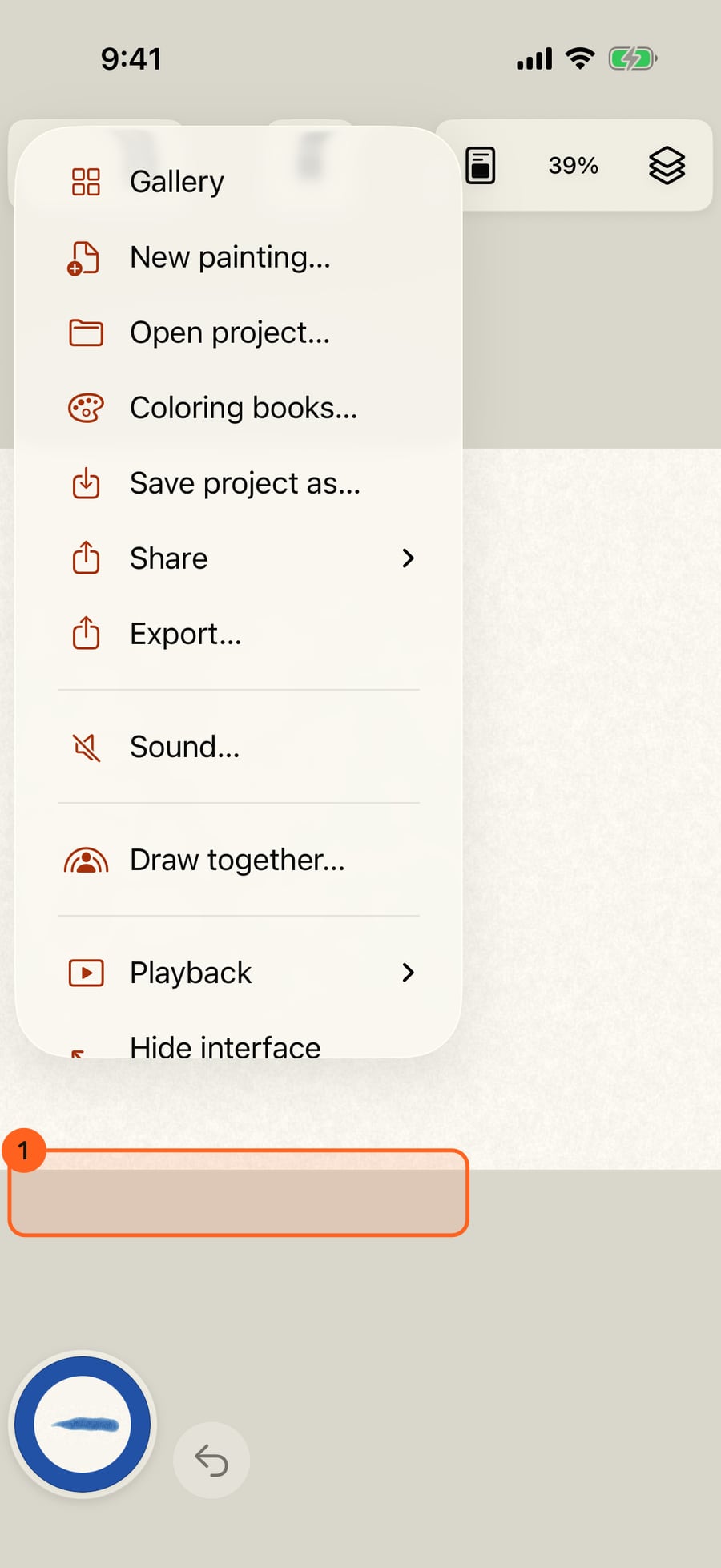
The tour opens by itself the first time, and any time from Actions. Click Actions, then Motion Brushes tour.
It opens on Motion Brushes. Paint a stroke, and it keeps moving. Tap Show me, or swipe, to go on. Every page can also start right away, by number or in the Studio.
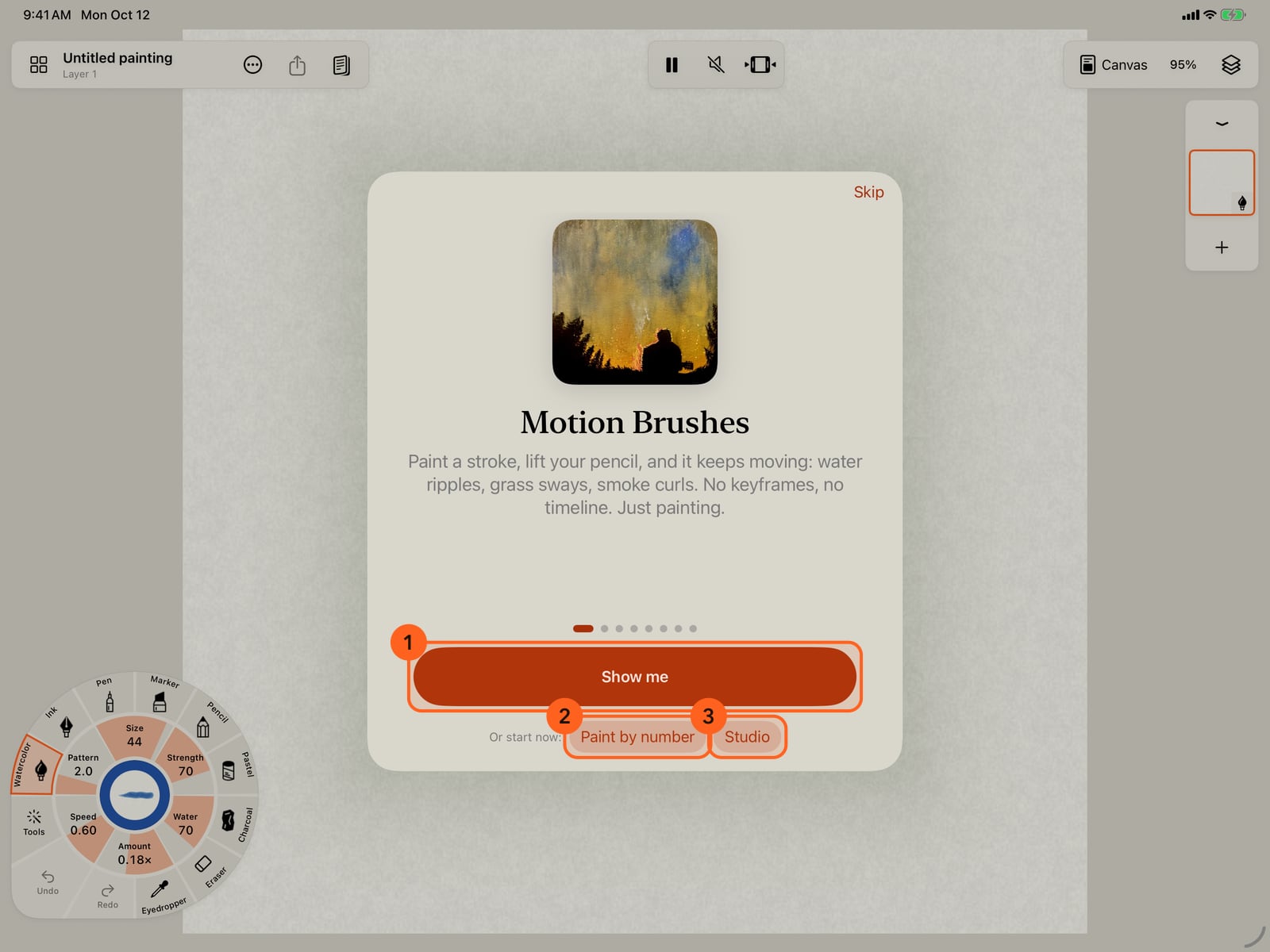
It opens on Motion Brushes. Paint a stroke, and it keeps moving. Tap Show me, or swipe, to go on. Every page can also start right away, by number or in the Studio.
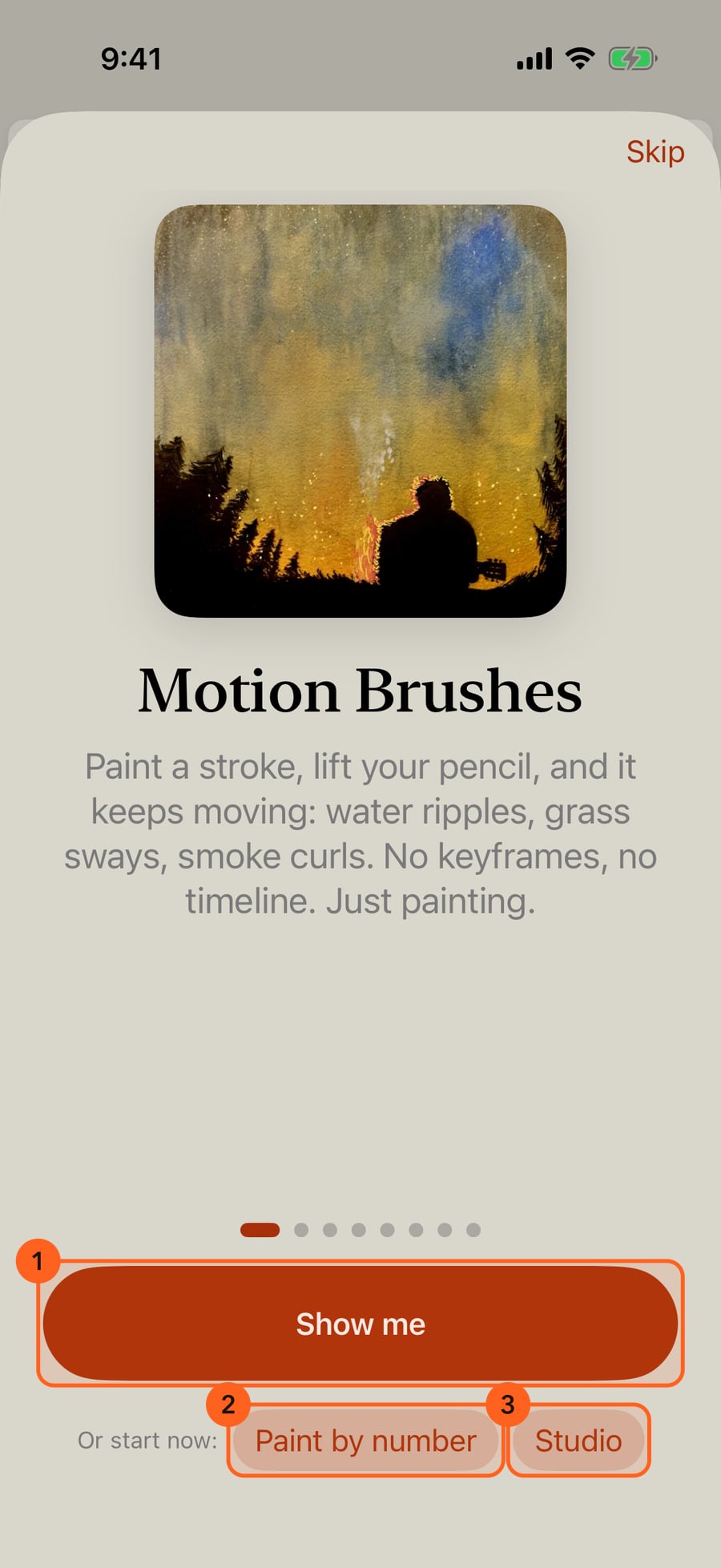
It opens on Motion Brushes. Paint a stroke, and it keeps moving. Click Show me, or swipe, to go on. Every page can also start right away, by number or in the Studio.
Then paint by number. The books that come with the app paint by number. Tap a number, then an area, and it paints itself in, then moves.
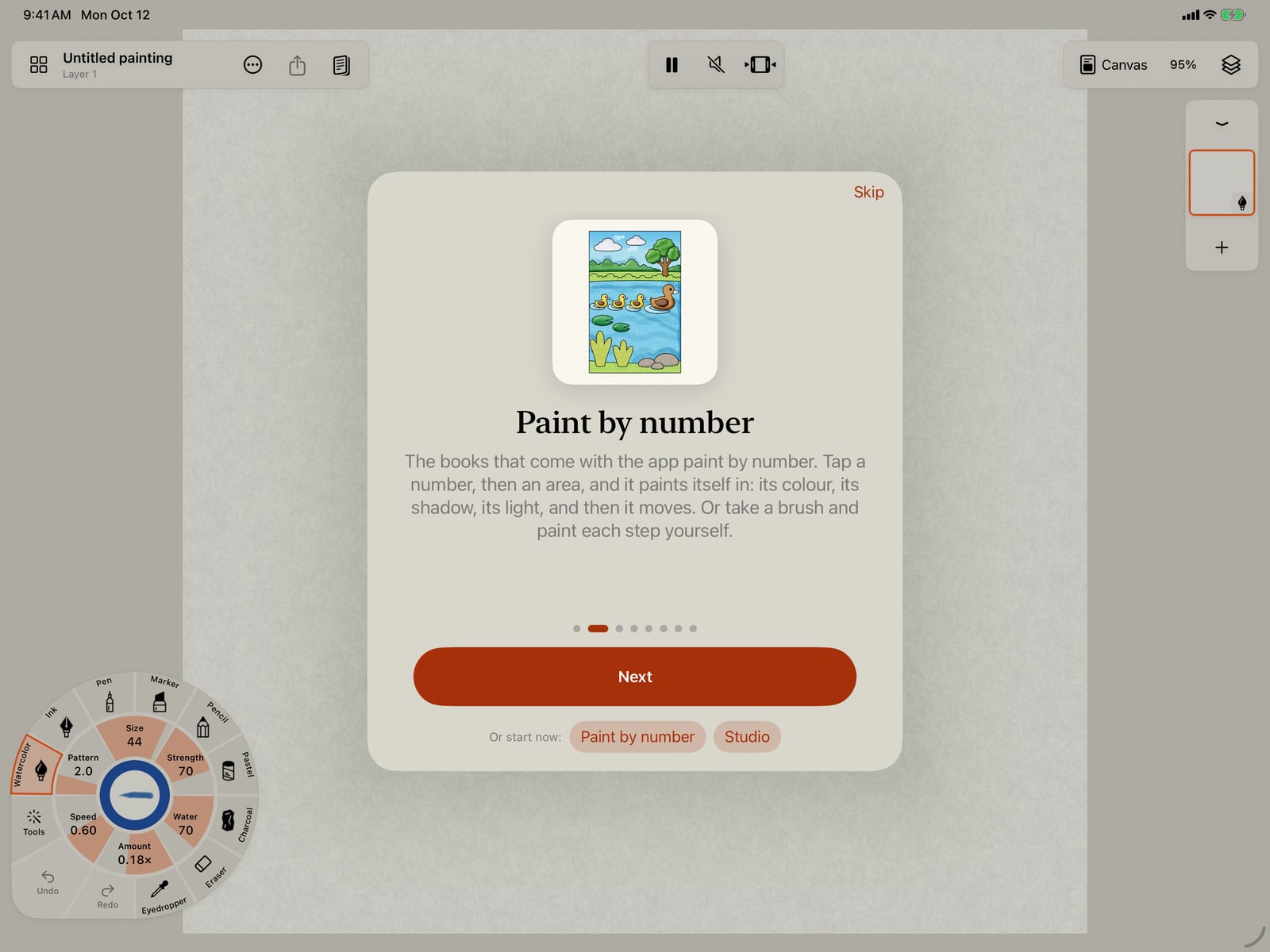
Then paint by number. The books that come with the app paint by number. Tap a number, then an area, and it paints itself in, then moves.
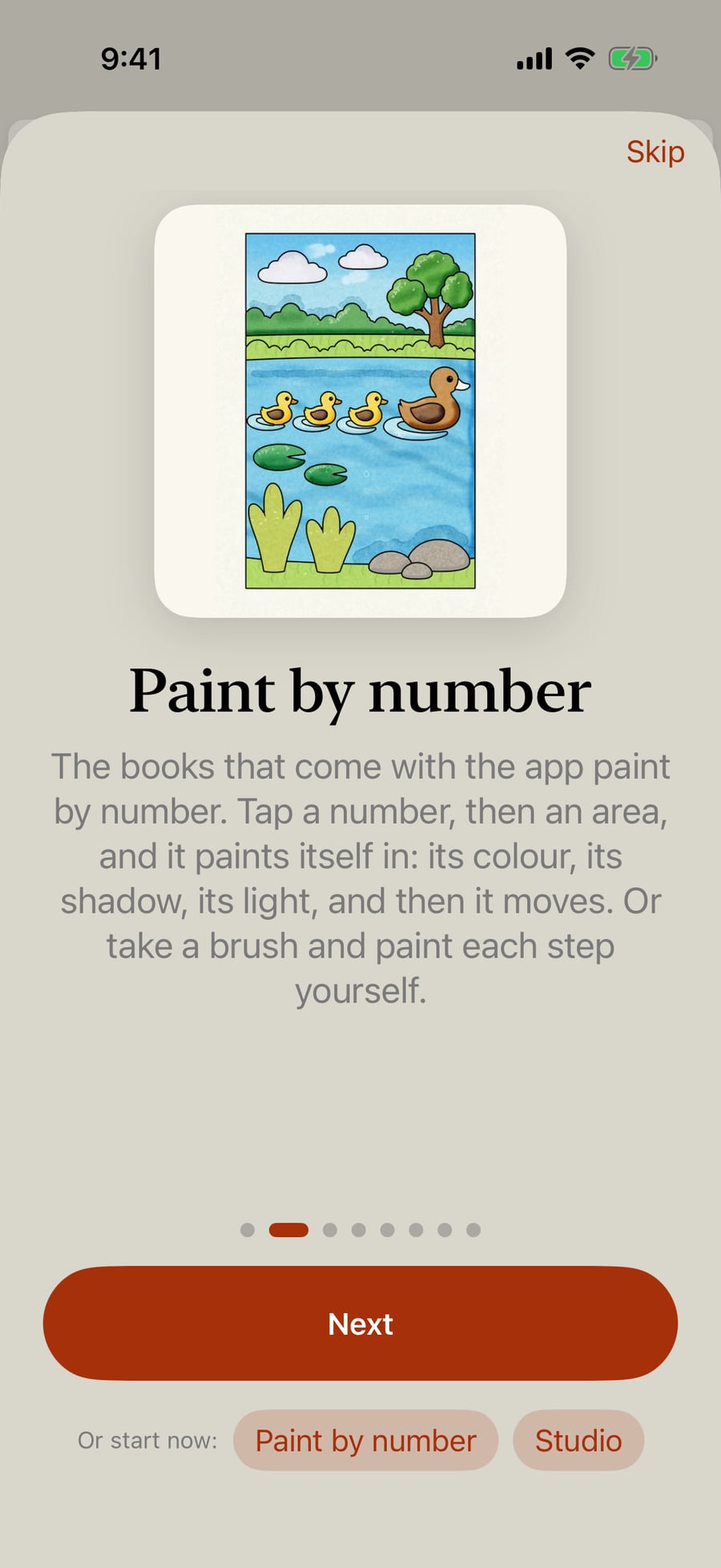
Then paint by number. The books that come with the app paint by number. Click a number, then an area, and it paints itself in, then moves.
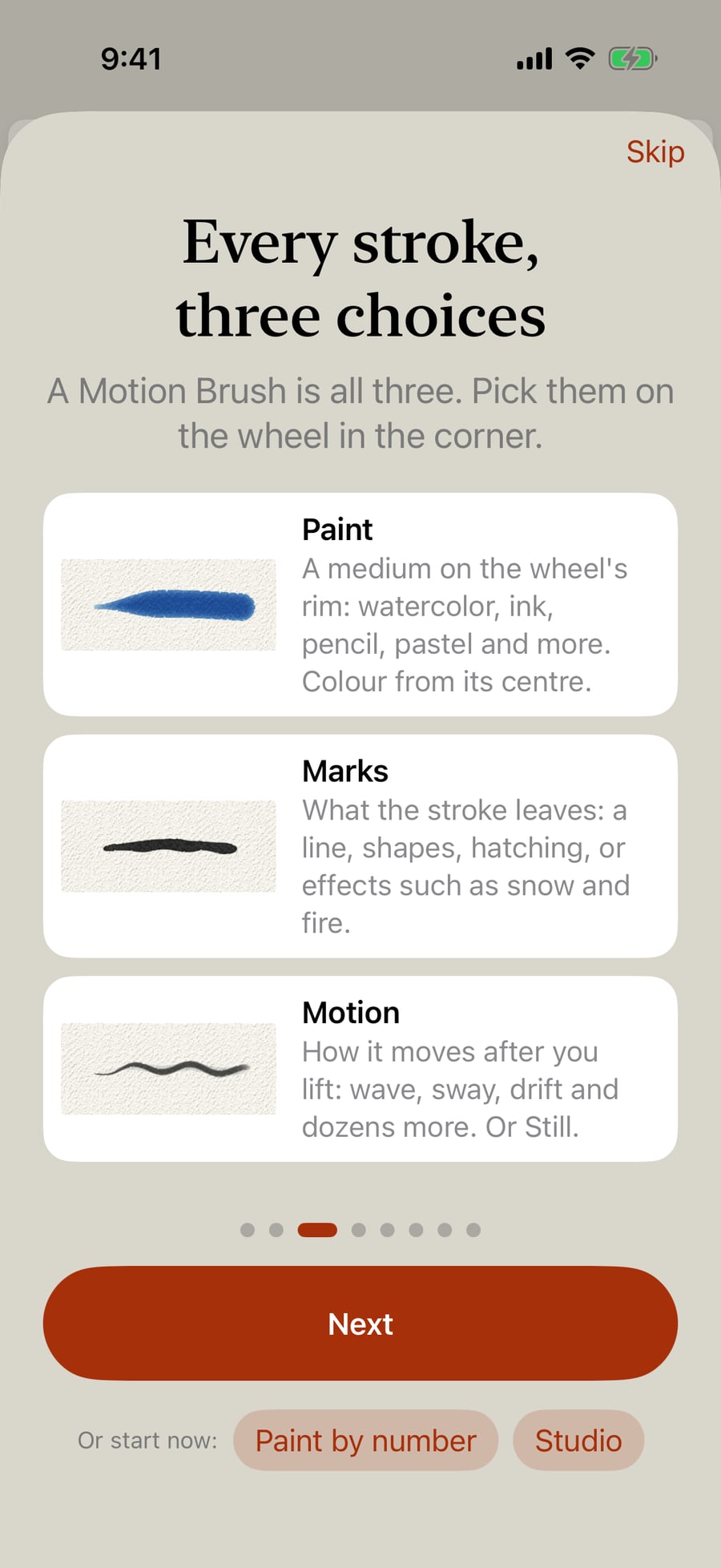
Every stroke is three choices, the paint, its marks and its motion. Together they make a Motion Brush.
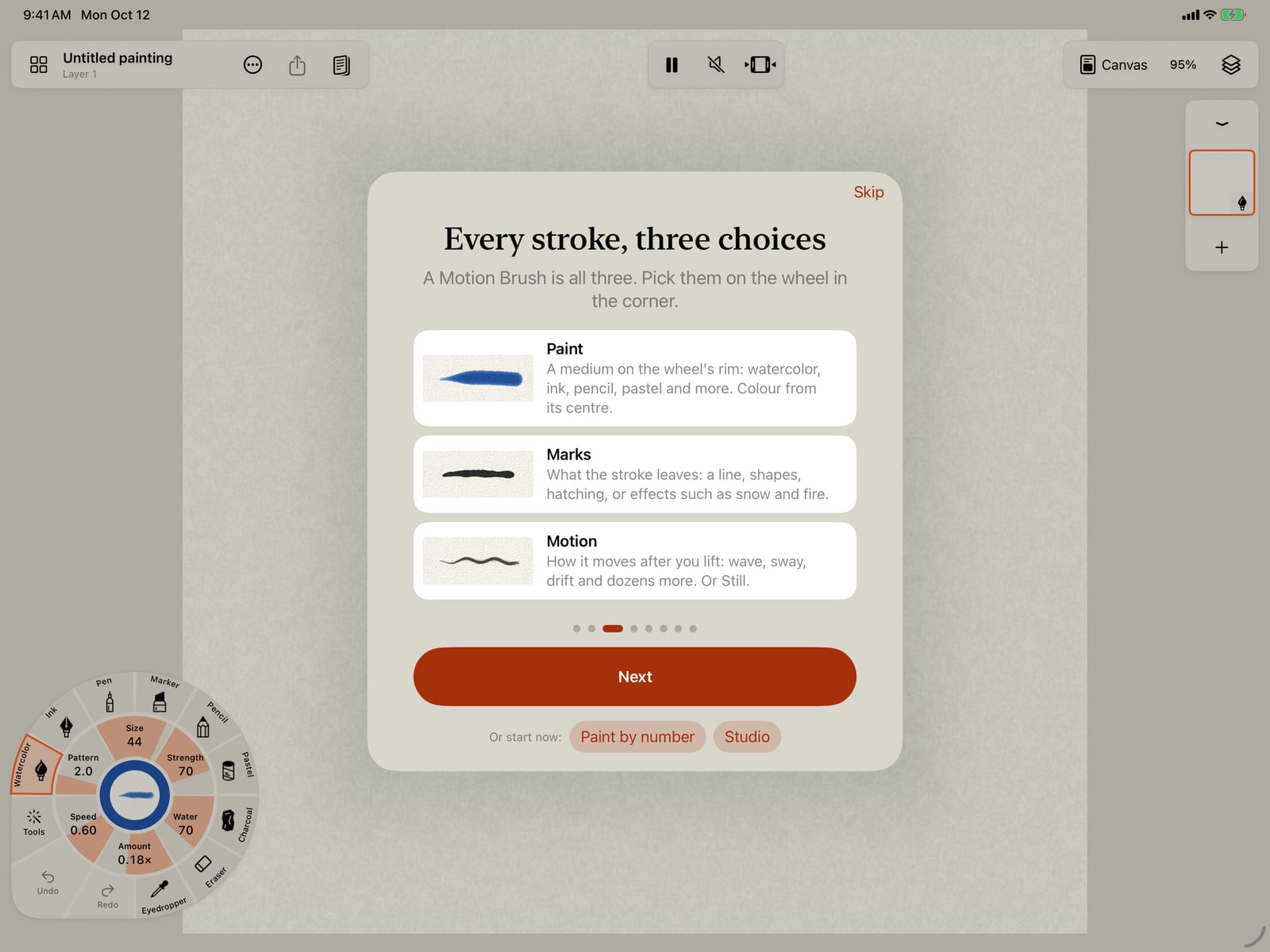
Every stroke is three choices, the paint, its marks and its motion. Together they make a Motion Brush.
Then, what you can make. Coloring books that come alive, moving illustrations, moving comics and books, or learning and practising. Tap a card to start it.
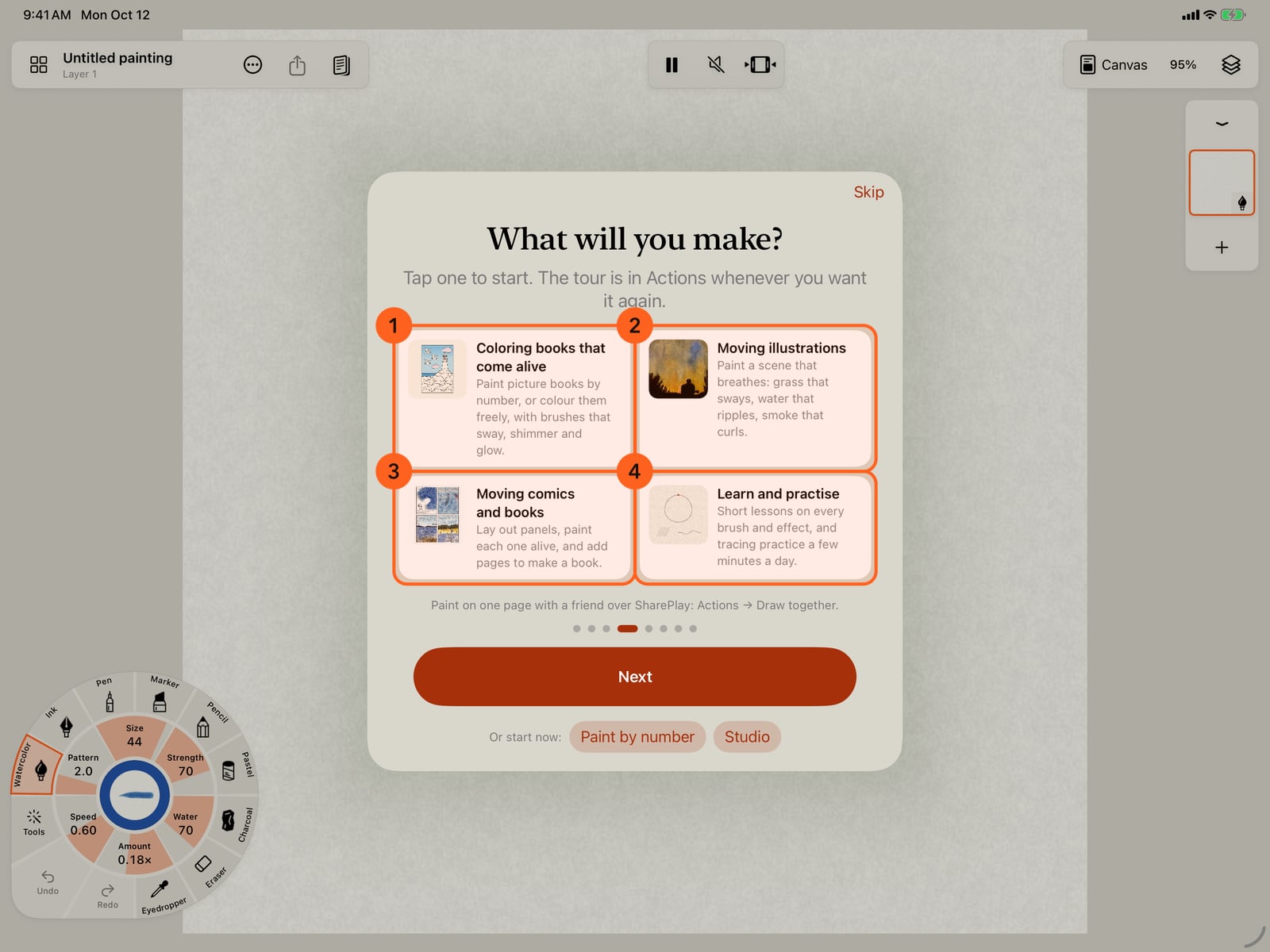
Then, what you can make. Coloring books that come alive, moving illustrations, moving comics and books, or learning and practising. Tap a card to start it.
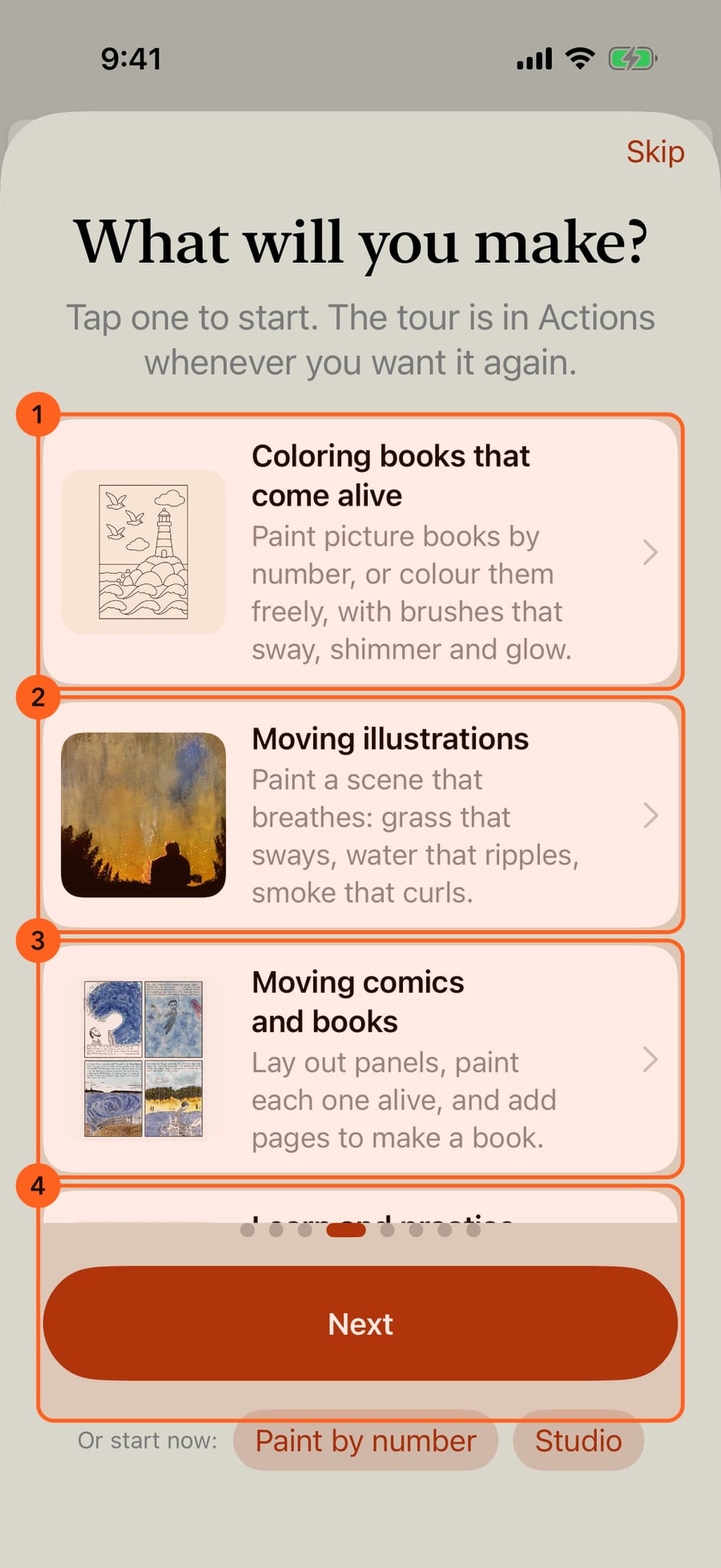
Then, what you can make. Coloring books that come alive, moving illustrations, moving comics and books, or learning and practising. Click a card to start it.
Achievements are optional badges for your strokes, drawing days, the brushes you try and your practice. Turn on Count my achievements to start earning them. They are counted only on your devices.
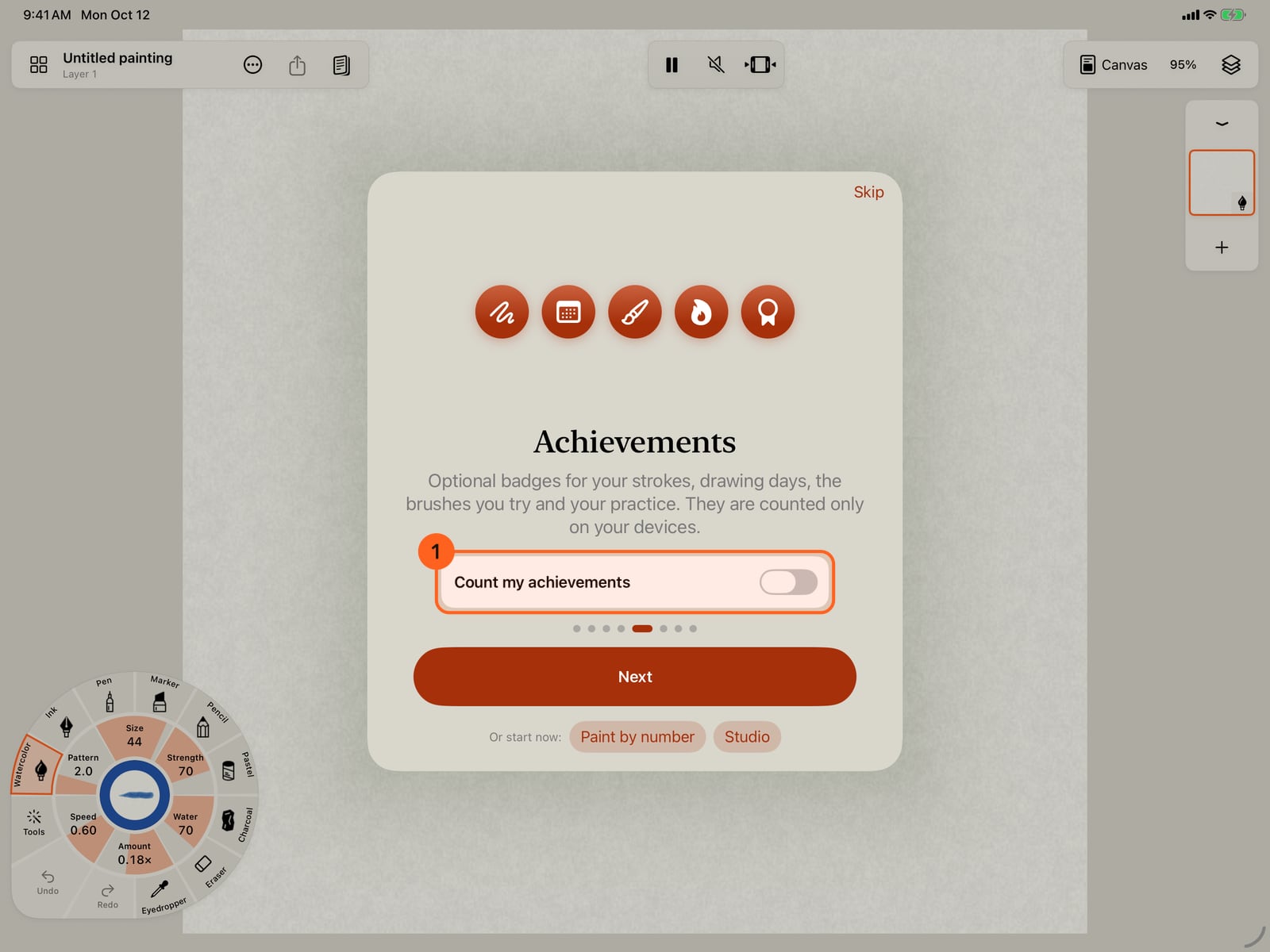
Achievements are optional badges for your strokes, drawing days, the brushes you try and your practice. Turn on Count my achievements to start earning them. They are counted only on your devices.
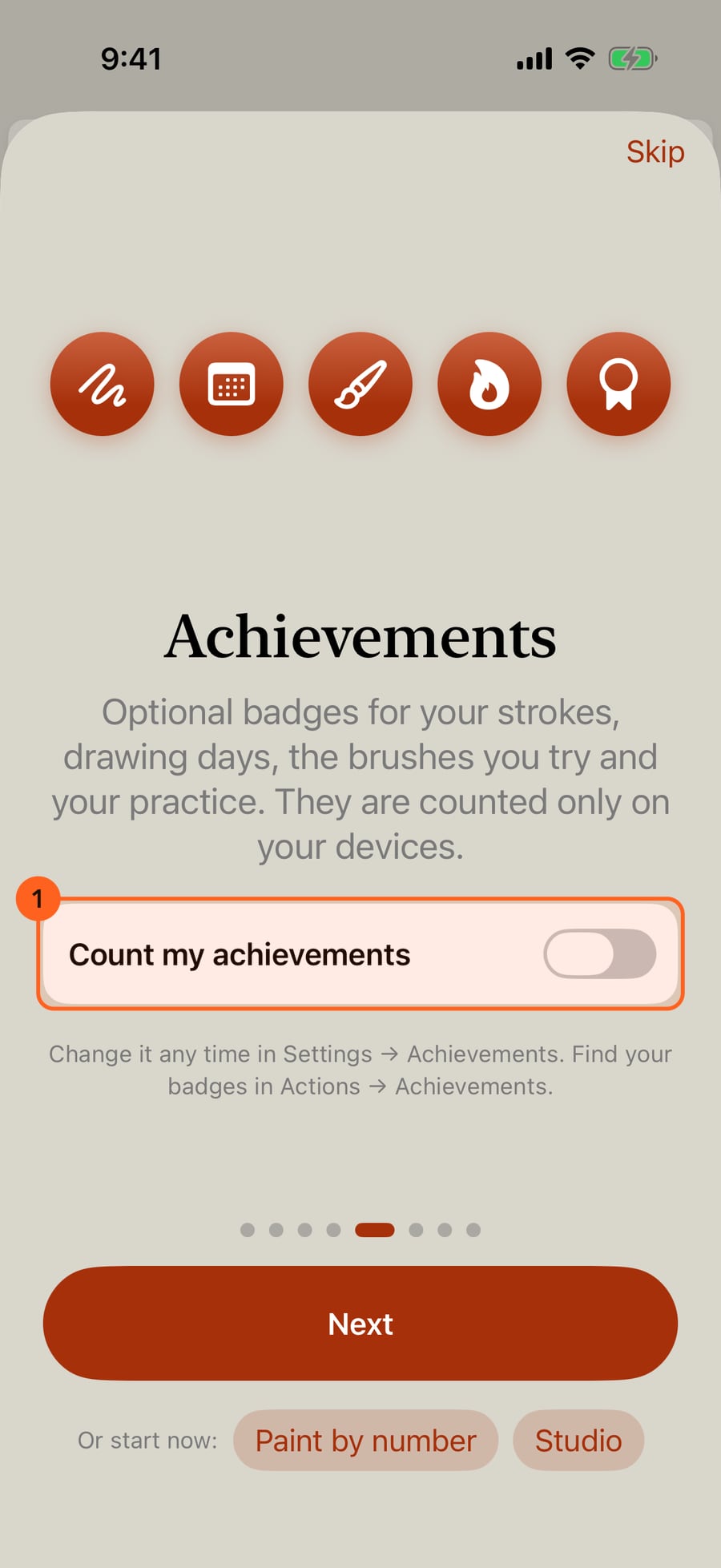
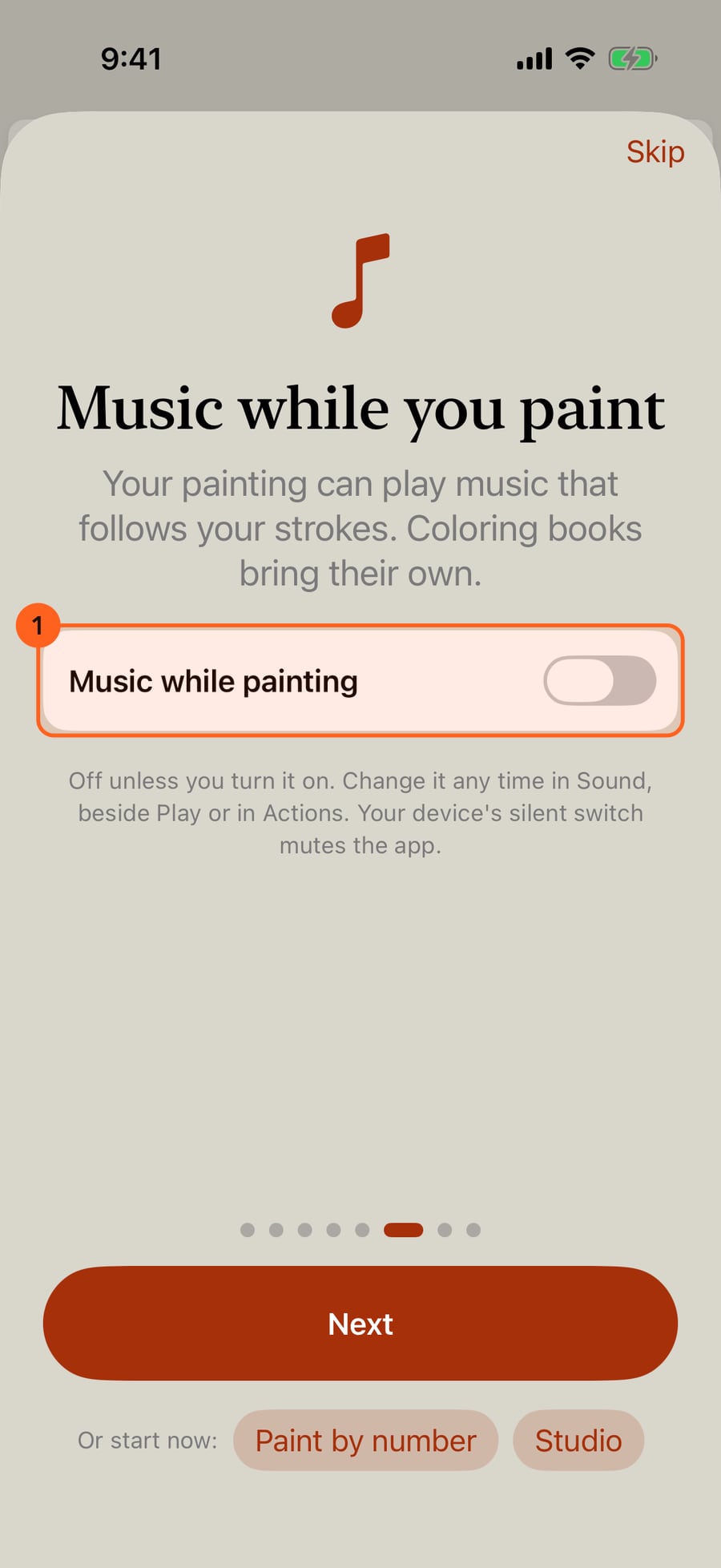
The app has music that follows your painting, and coloring books bring their own. It's off unless you turn it on here, and your device's silent switch always mutes it.
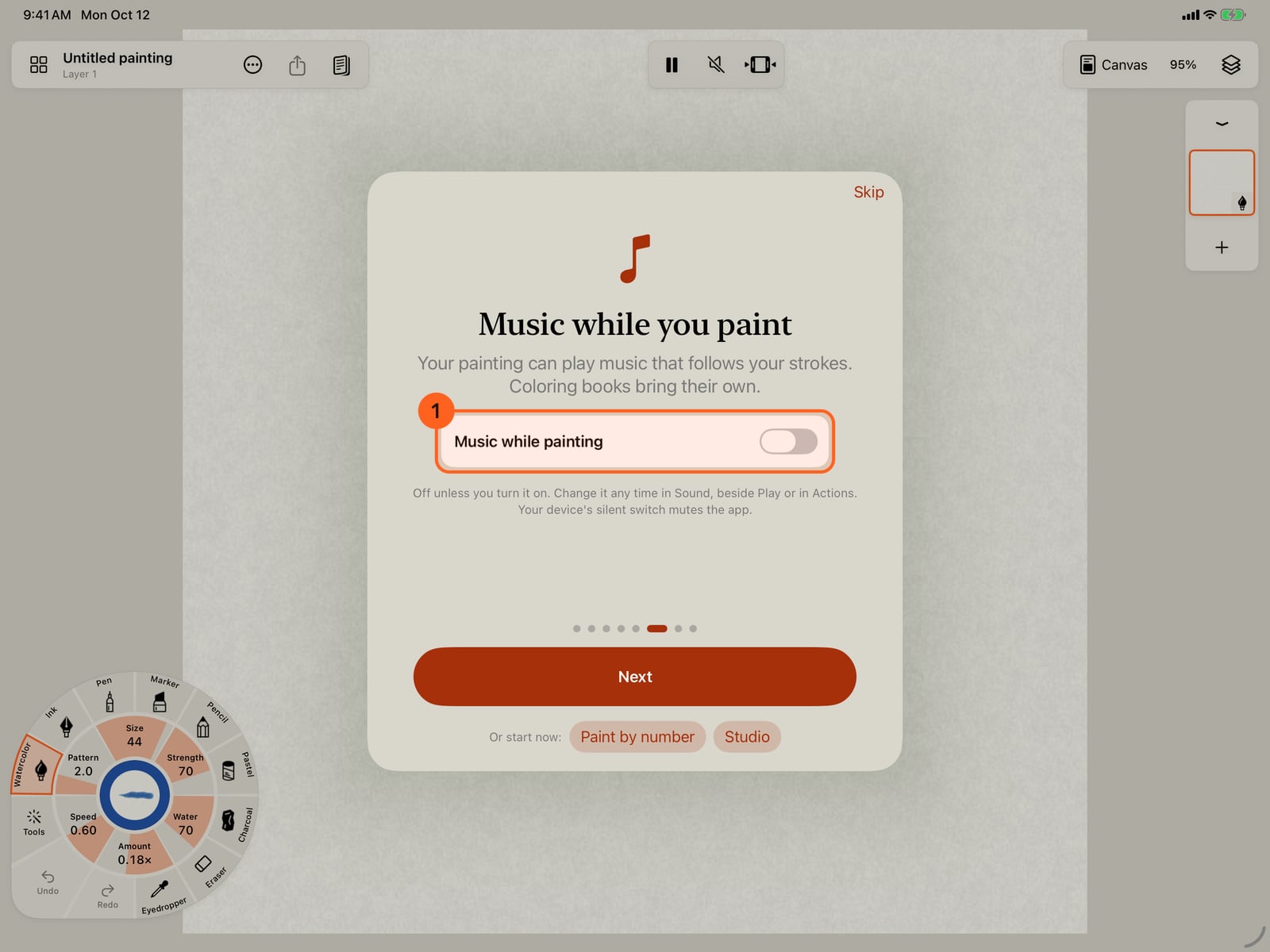
The app has music that follows your painting, and coloring books bring their own. It's off unless you turn it on here, and your device's silent switch always mutes it.
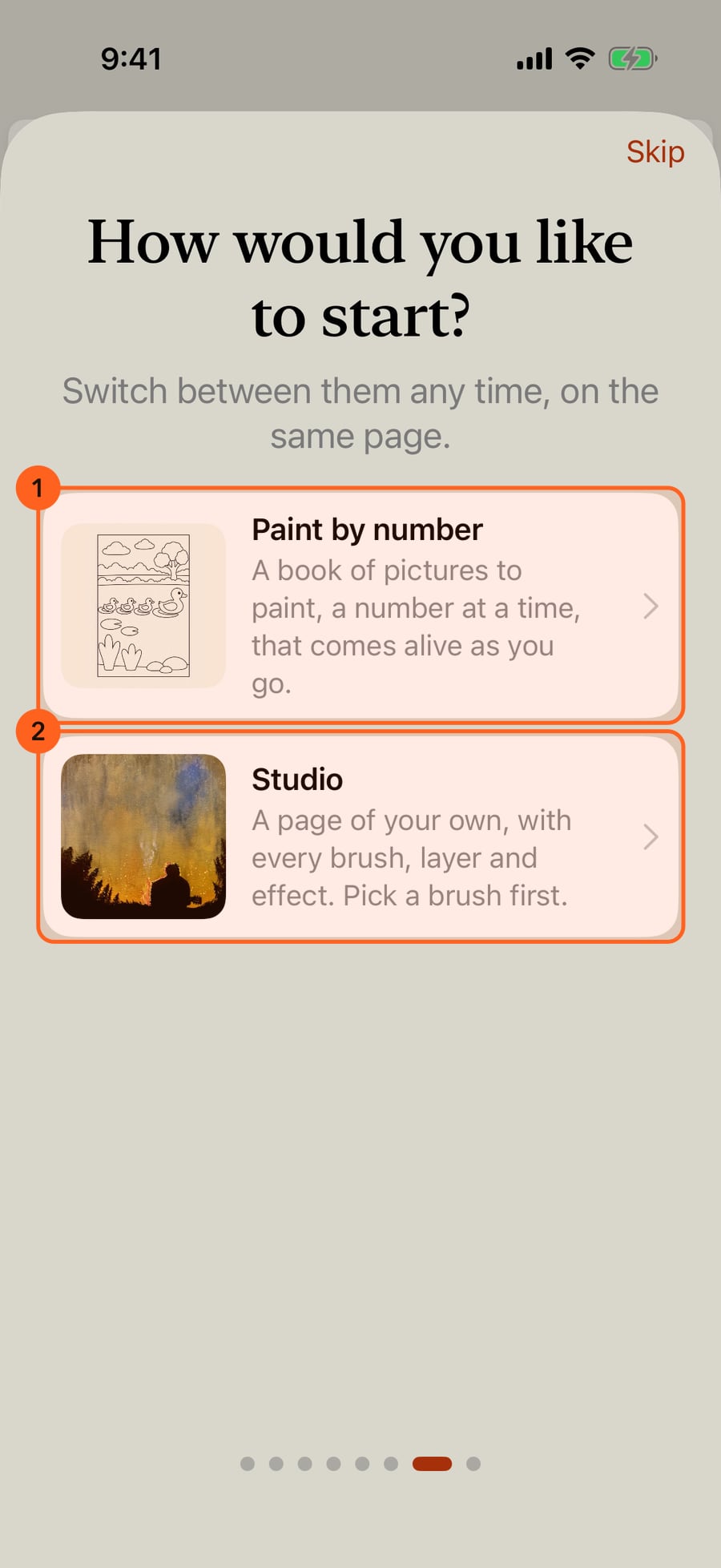
Last, how would you like to start? Paint by number opens the coloring books. Studio is a page of your own, with every brush.
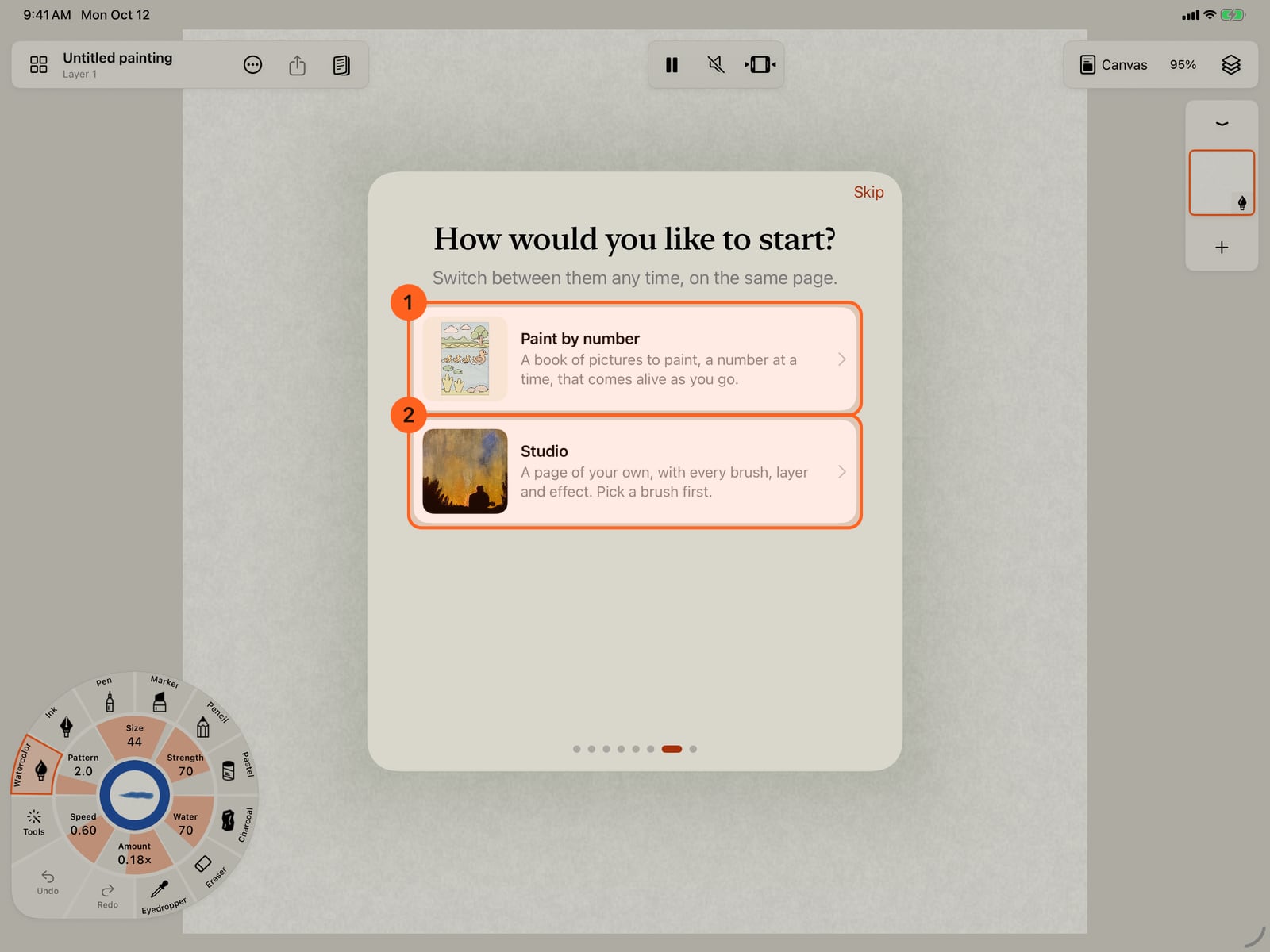
Last, how would you like to start? Paint by number opens the coloring books. Studio is a page of your own, with every brush.
The Studio starts with a brush, wet watercolor, swaying petals or a pencil. Pick one and tap Start painting.
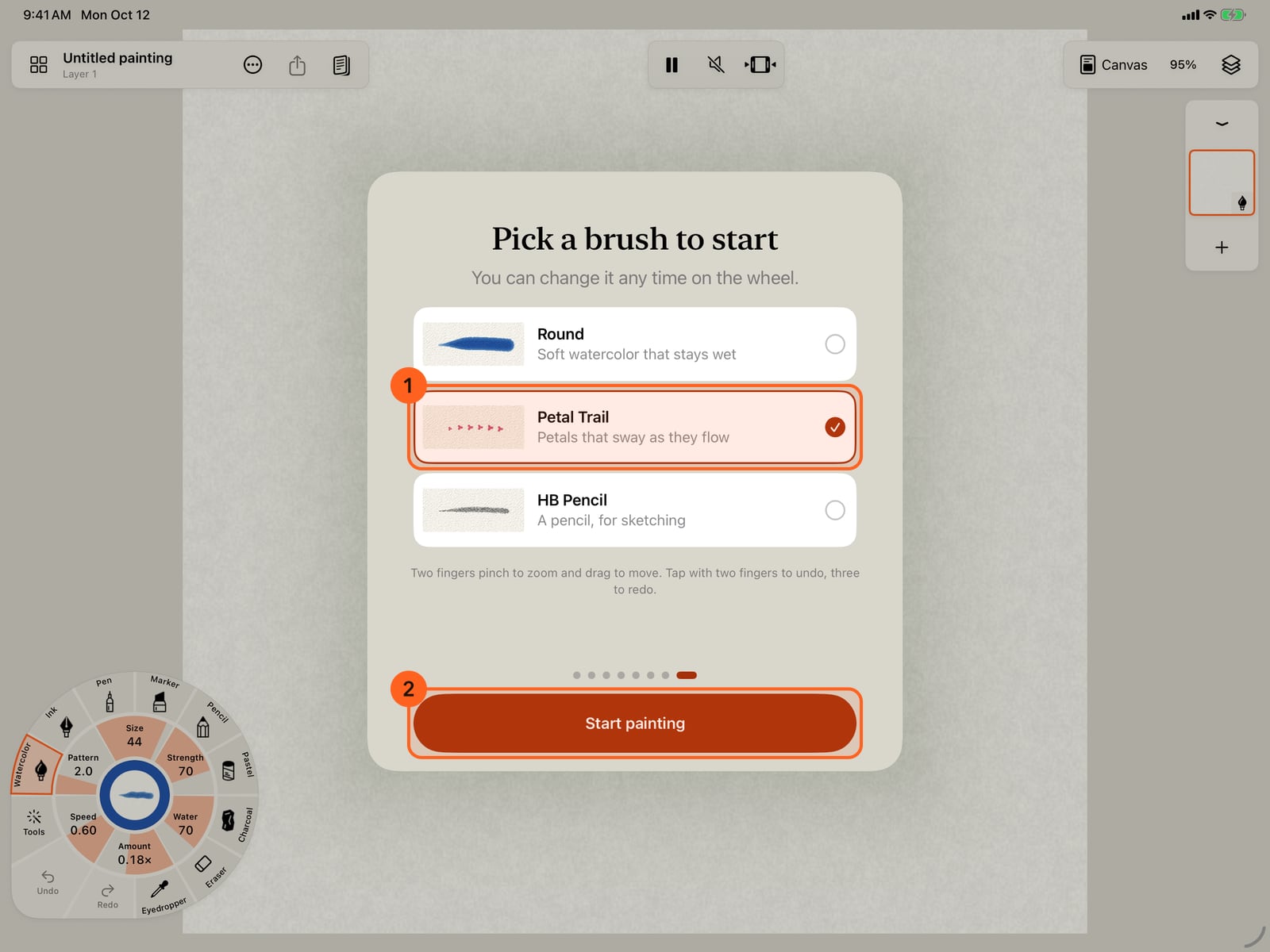
The Studio starts with a brush, wet watercolor, swaying petals or a pencil. Pick one and tap Start painting.
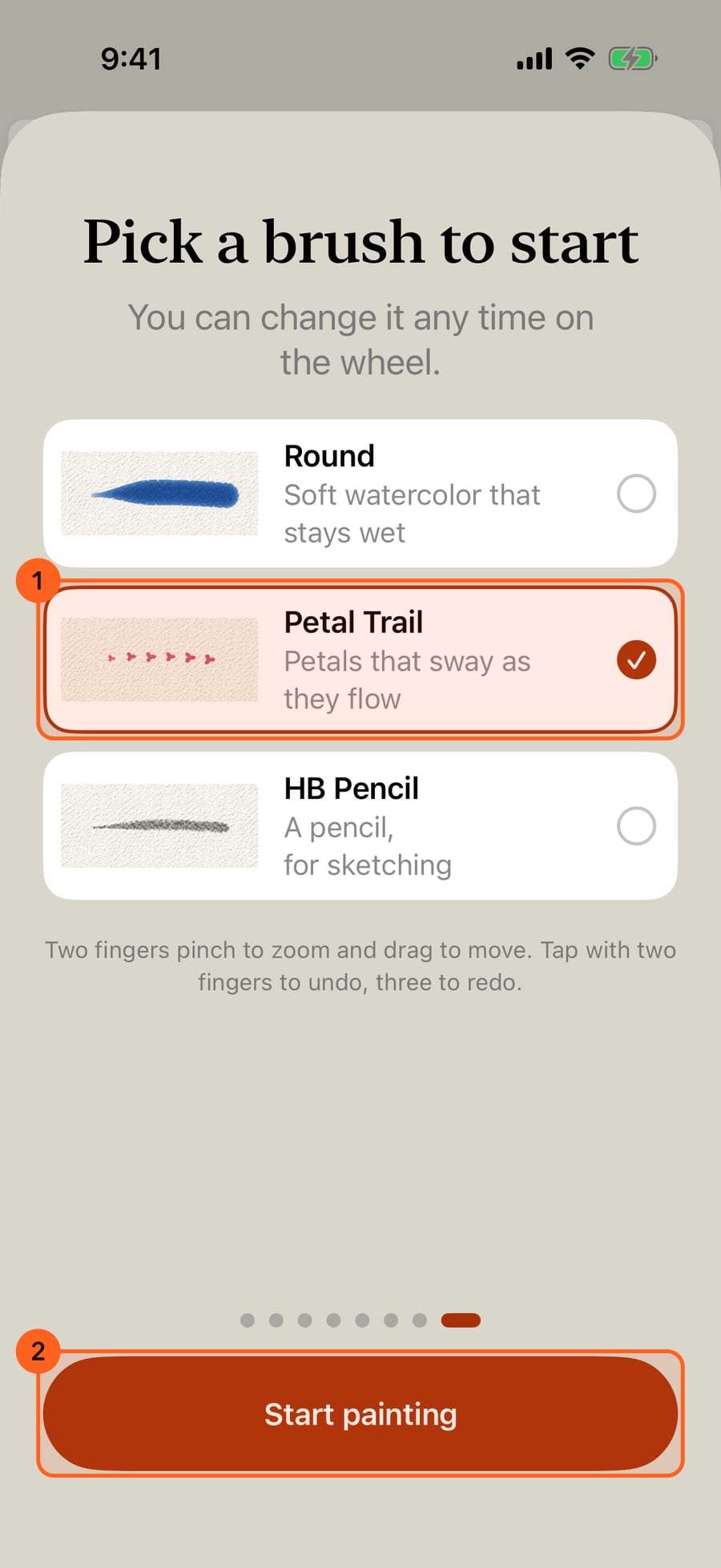
The Studio starts with a brush, wet watercolor, swaying petals or a pencil. Pick one and click Start painting.
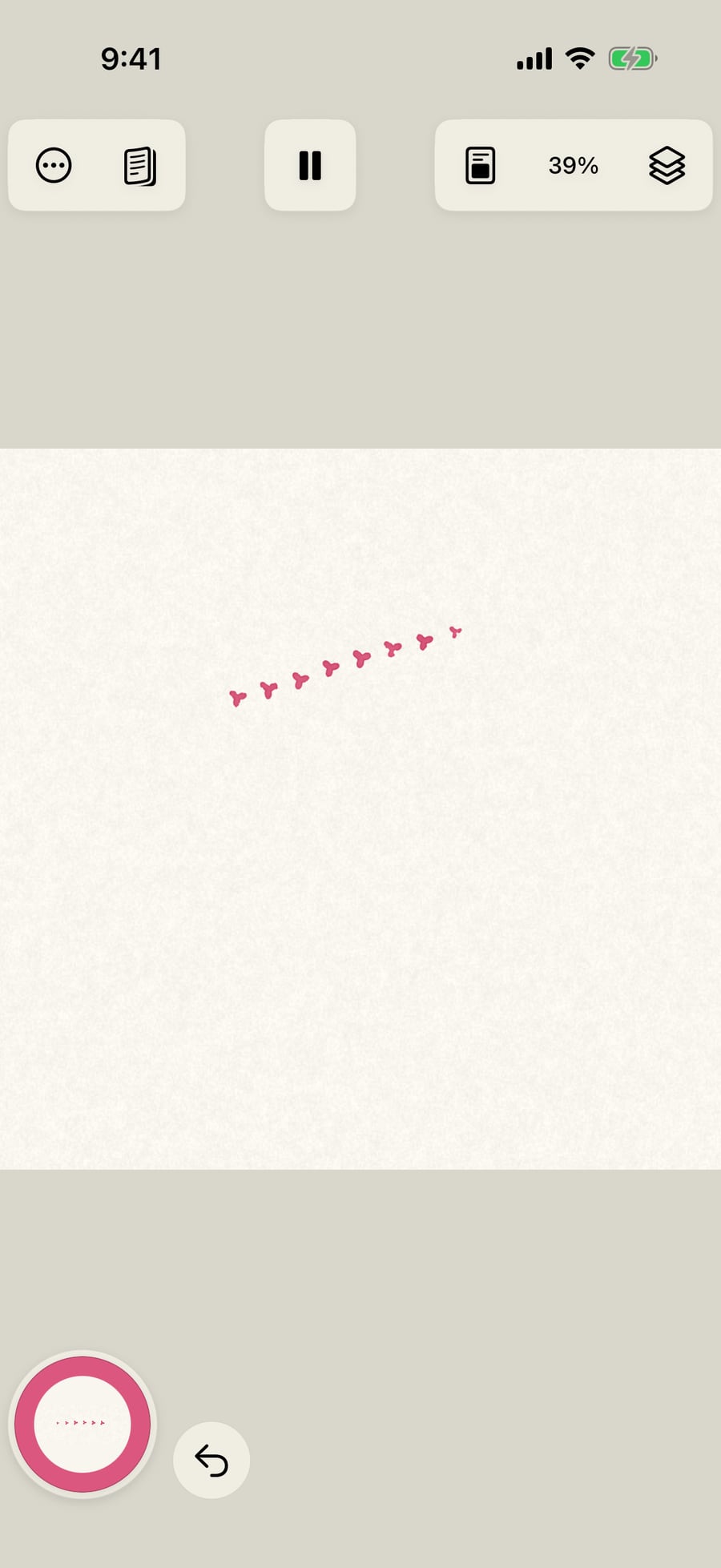
The tour closes with that brush in hand, ready to paint.
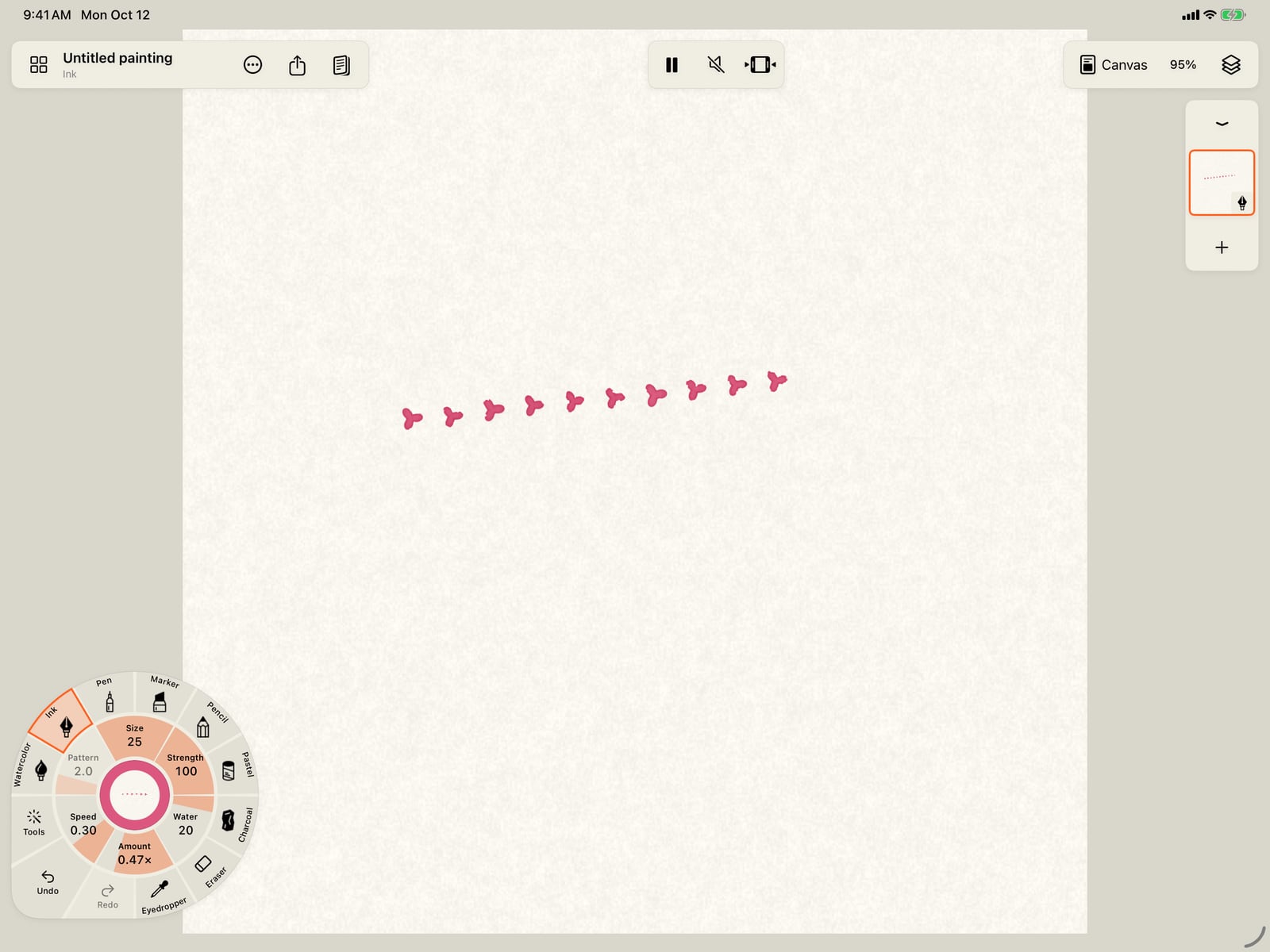
The tour closes with that brush in hand, ready to paint.
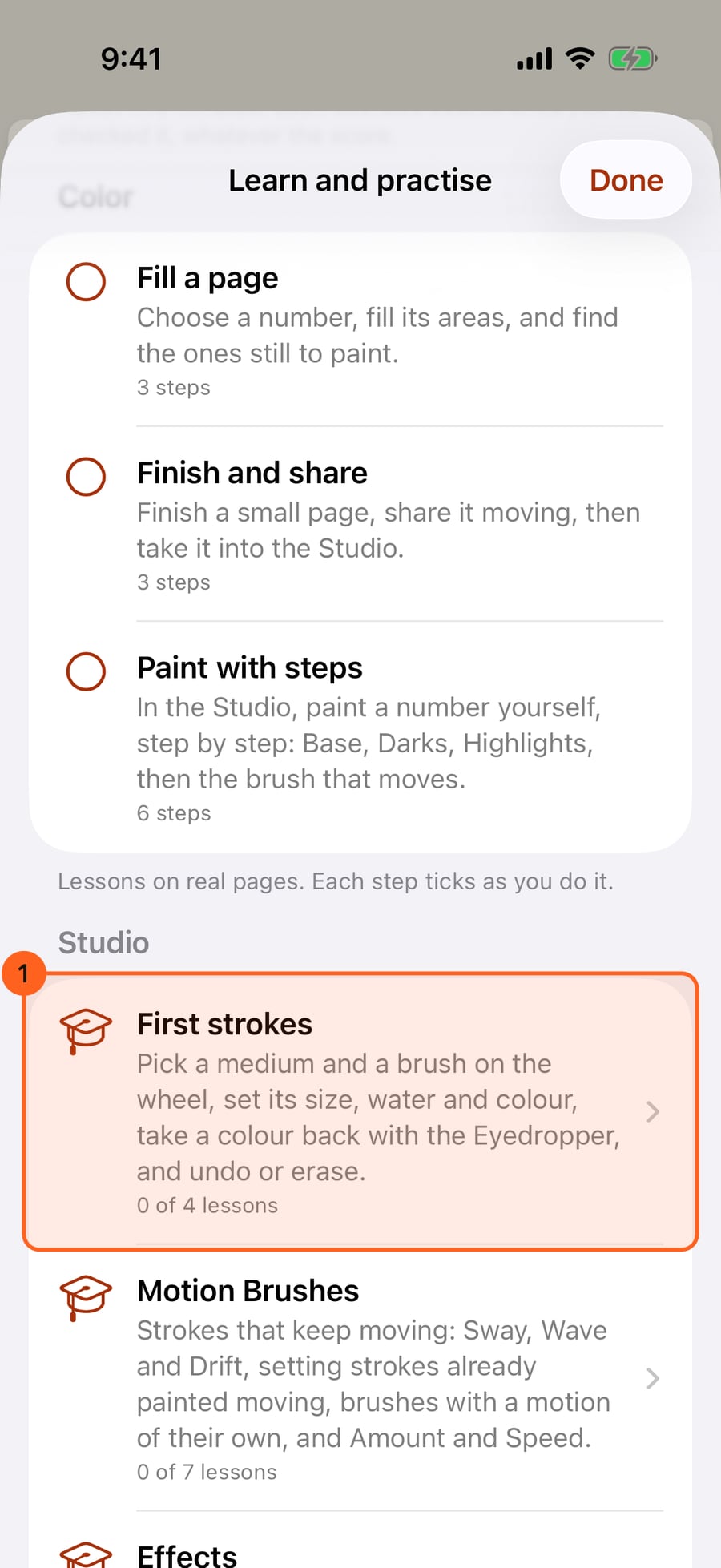
Lessons are in Actions, Learn and practise. Color comes first, then the Studio, where six short units teach the tools, from your first strokes to Motion Brushes, effects and sharing, each by tracing a small scene.
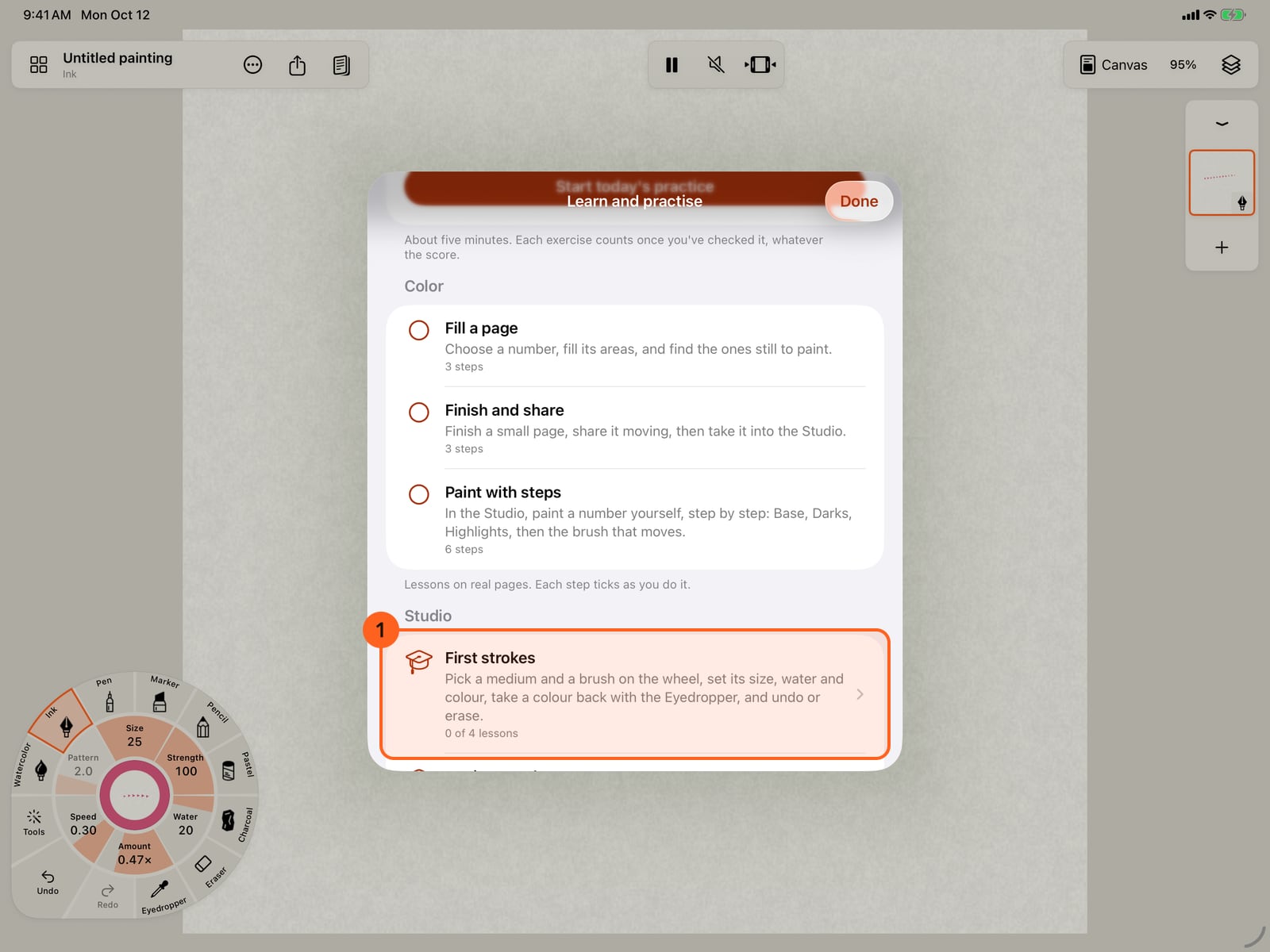
Lessons are in Actions, Learn and practise. Color comes first, then the Studio, where six short units teach the tools, from your first strokes to Motion Brushes, effects and sharing, each by tracing a small scene.
A unit lists its lessons in a recommended order. Take any of them, in any order. Motion Brushes starts with grass that sways.
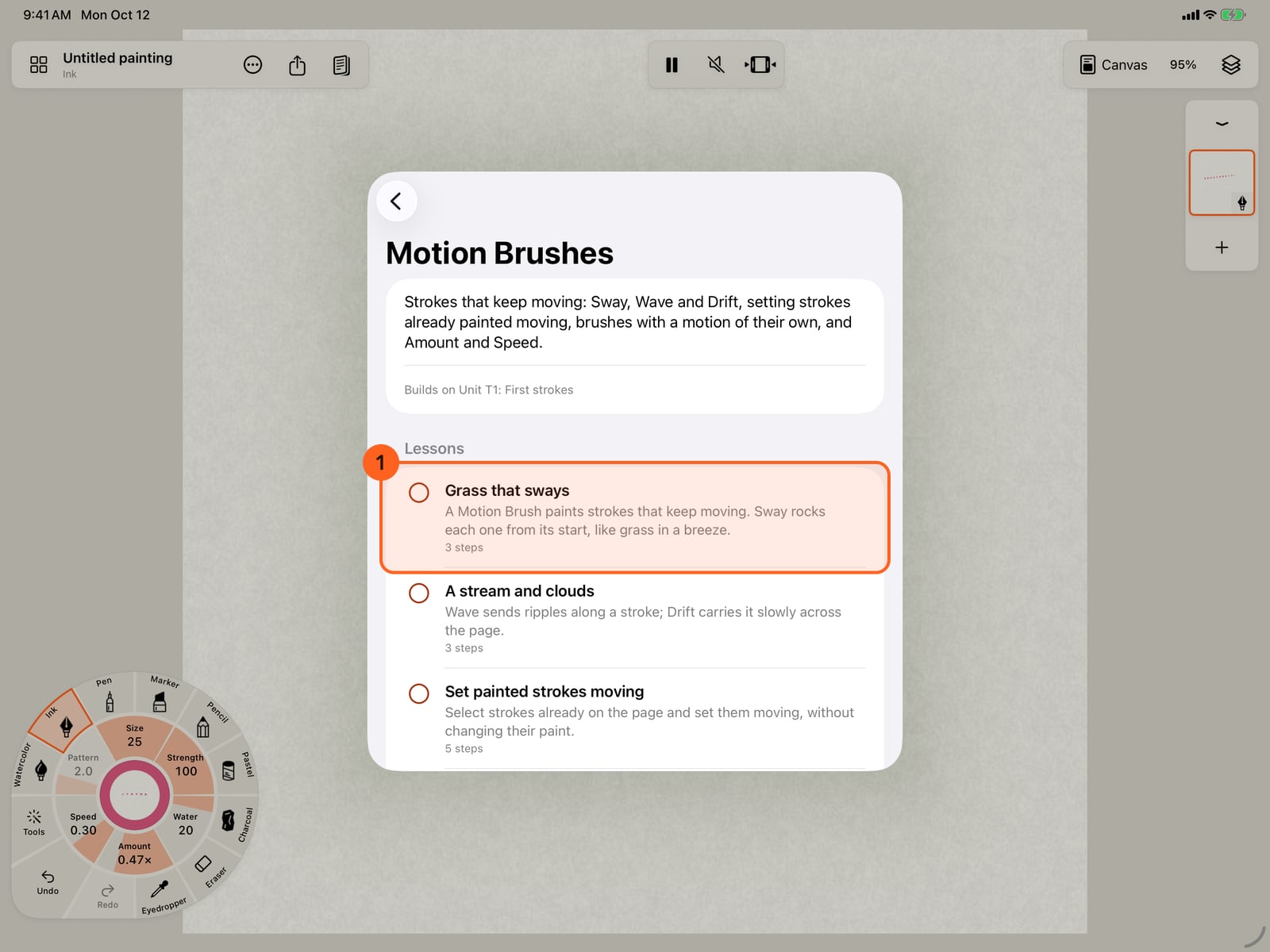
A unit lists its lessons in a recommended order. Take any of them, in any order. Motion Brushes starts with grass that sways.
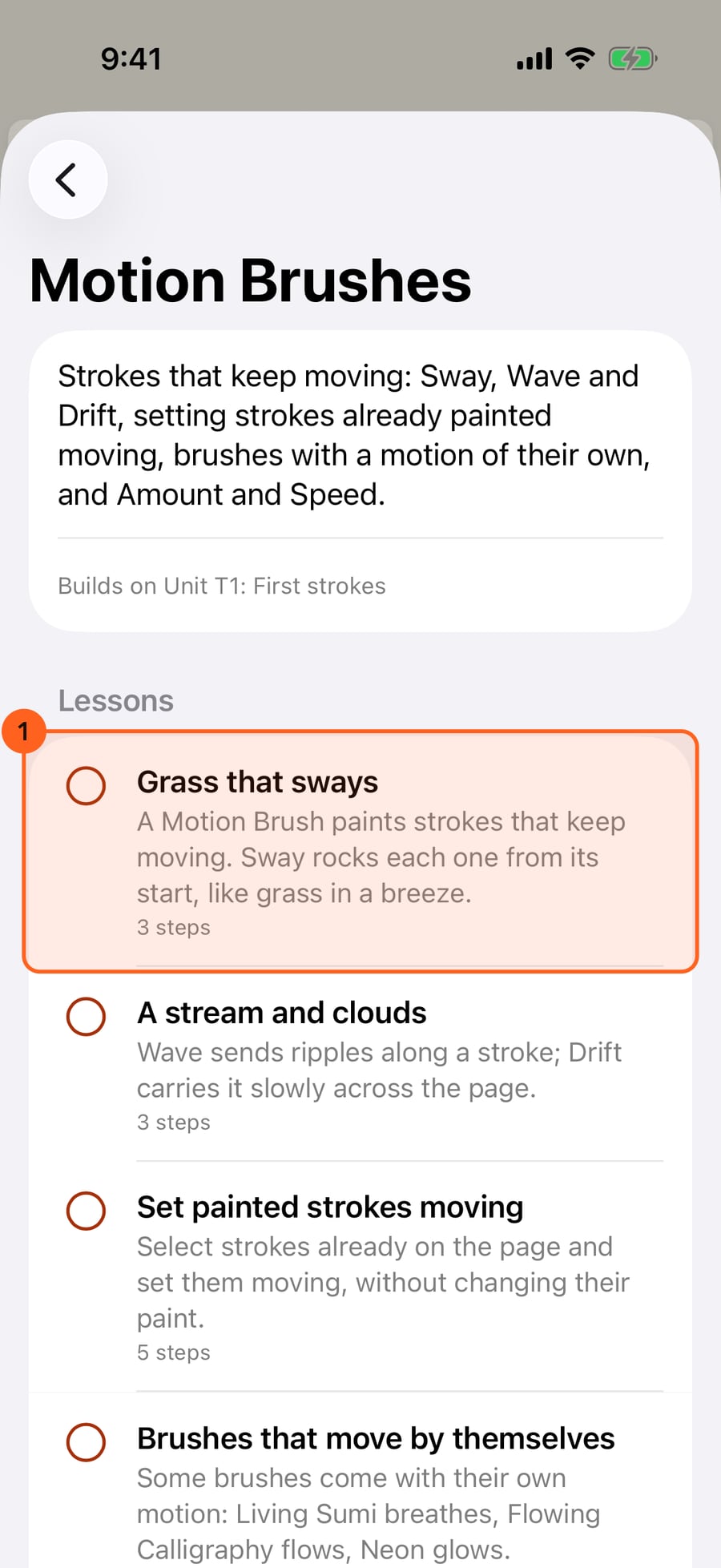
Each lesson starts with what it's about, and the brush itself, moving. Tap Start when you're ready.
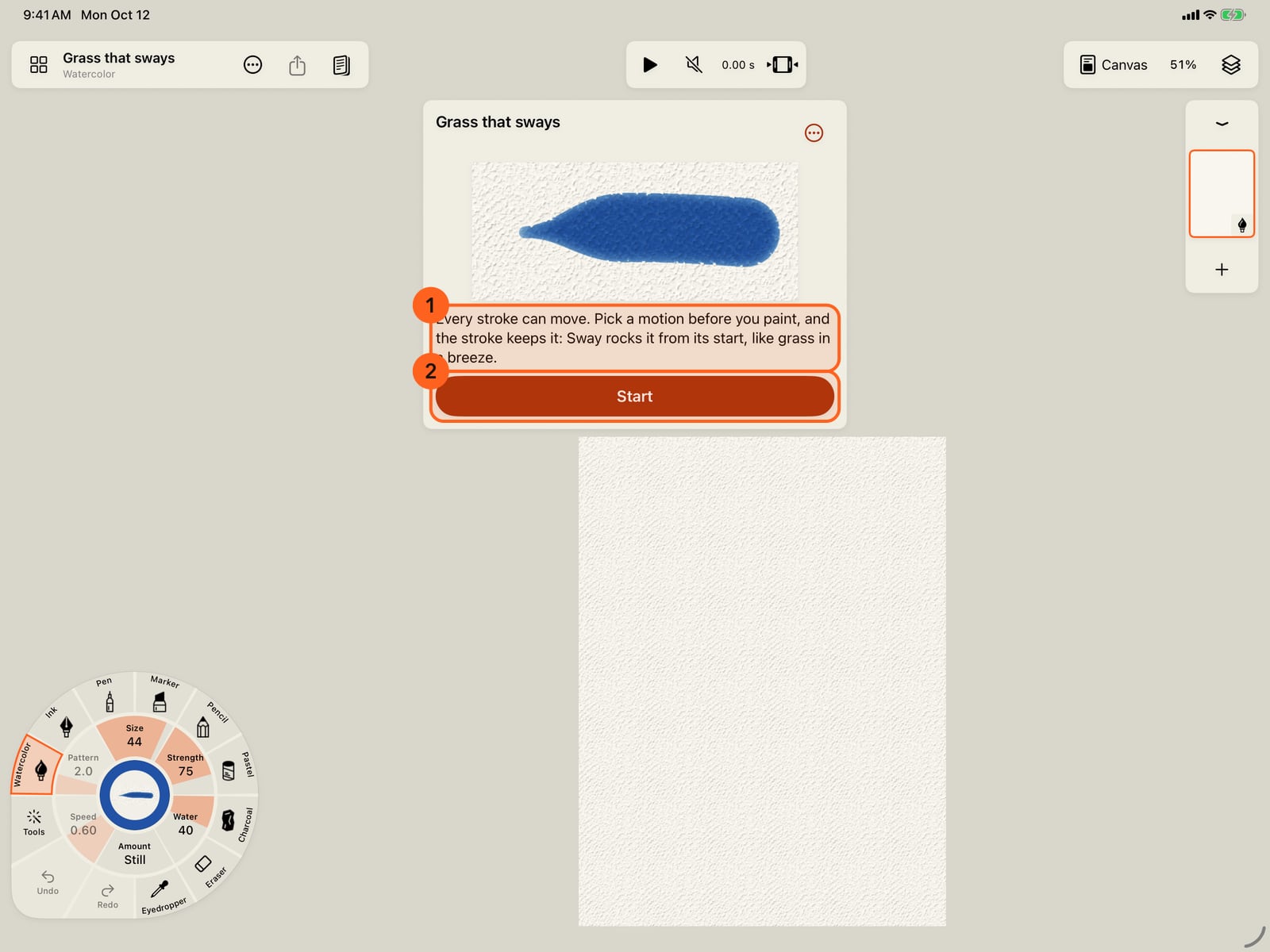
Each lesson starts with what it's about, and the brush itself, moving. Tap Start when you're ready.
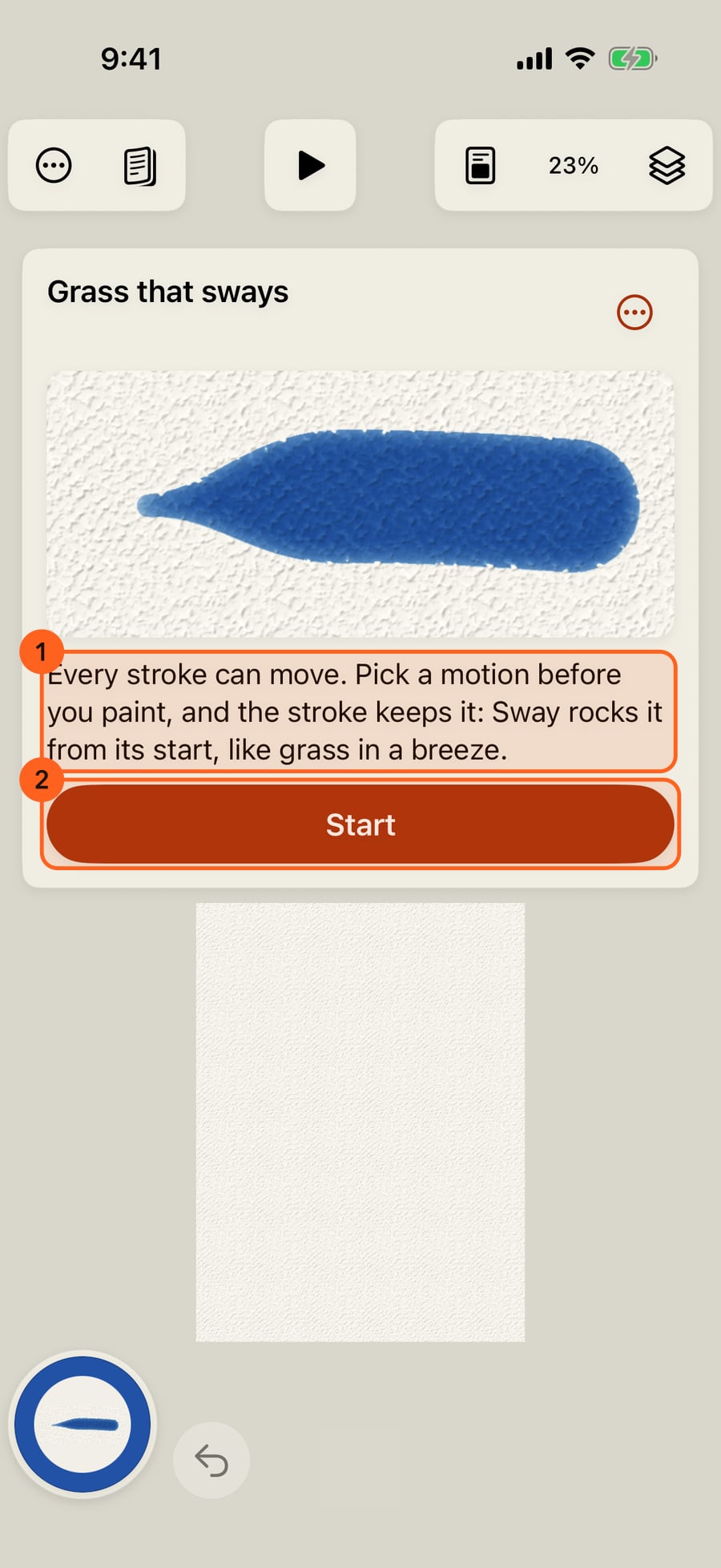
Each lesson starts with what it's about, and the brush itself, moving. Click Start when you're ready.
A lesson opens on a page of its own, with every tool. The card shows the next tool to set, and a ring on the wheel points at it. Each ticks as you set it, or tap Set it for me.
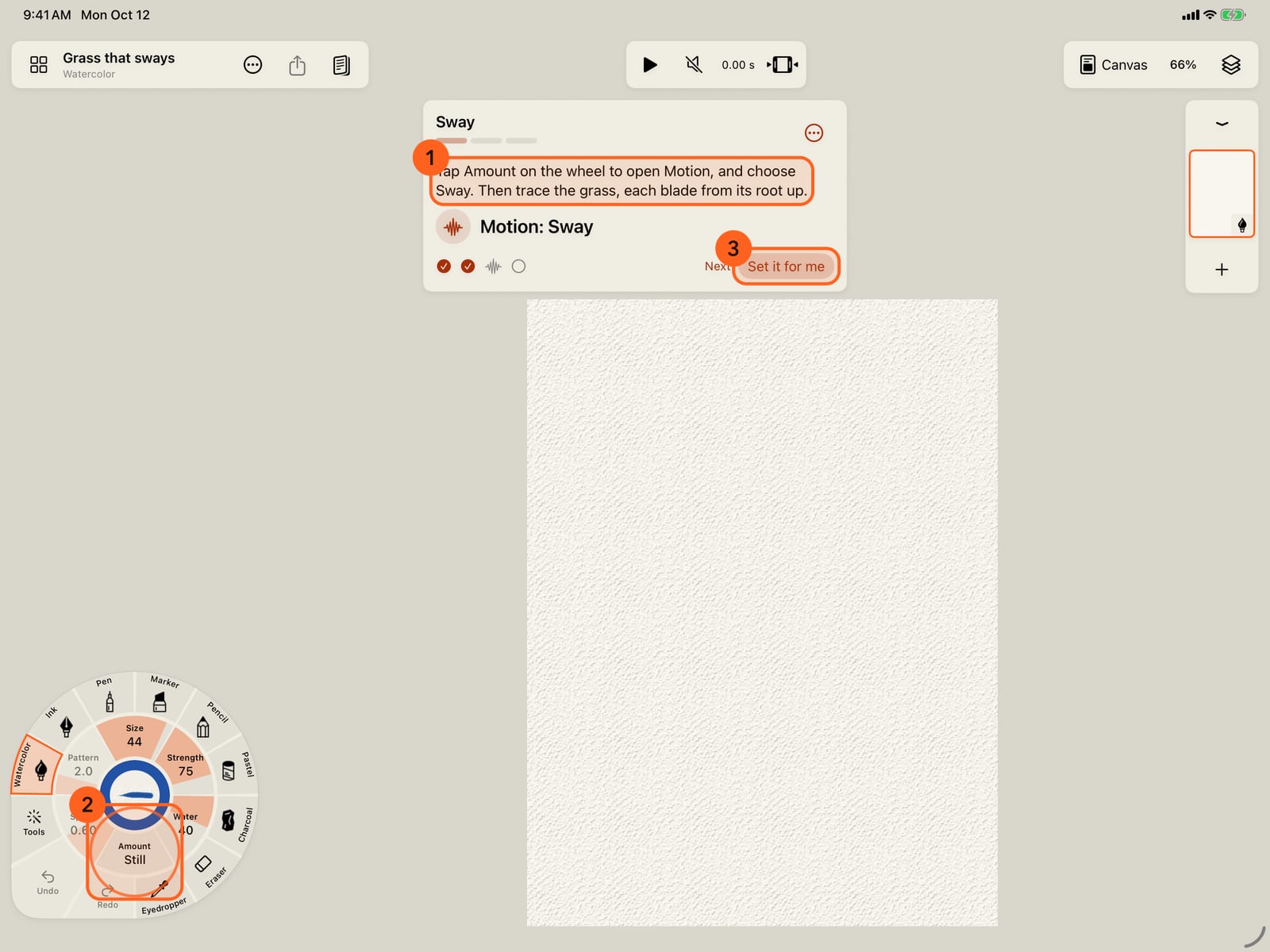
A lesson opens on a page of its own, with every tool. The card shows the next tool to set, and a ring on the wheel points at it. Each ticks as you set it, or tap Set it for me.
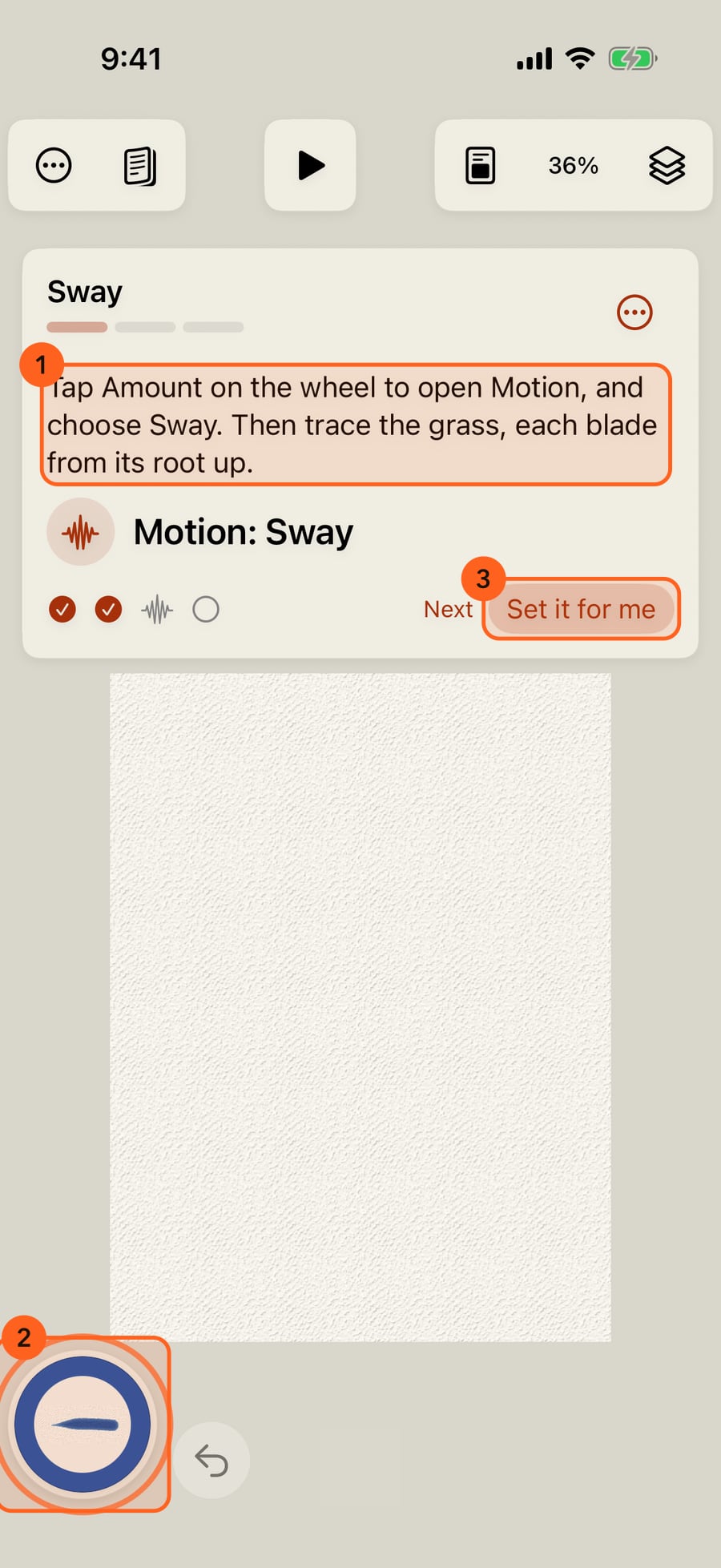
A lesson opens on a page of its own, with every tool. The card shows the next tool to set, and a ring on the wheel points at it. Each ticks as you set it, or click Set it for me.
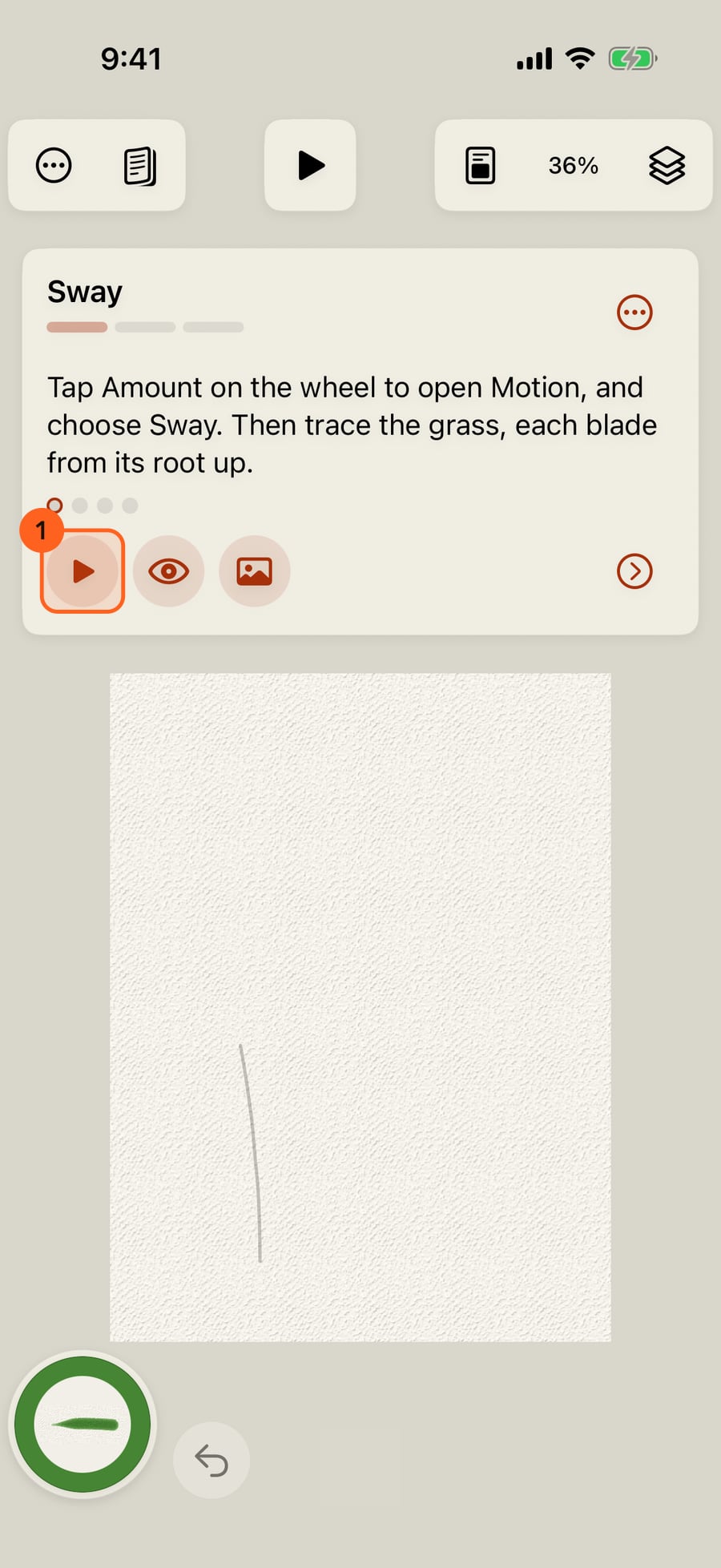
Then each stroke to trace draws itself, and stays faint as a guide. Show stroke plays it again.
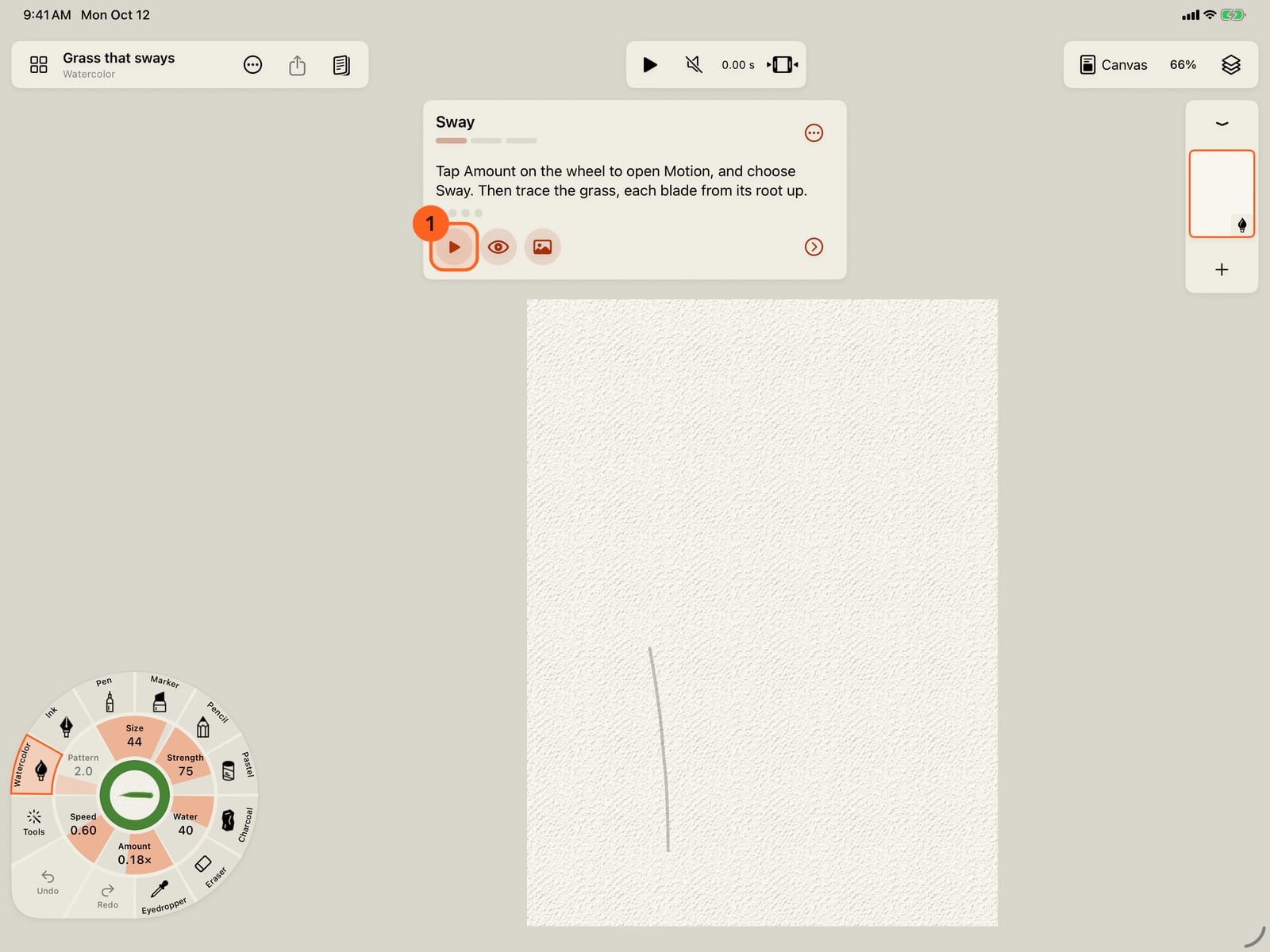
Then each stroke to trace draws itself, and stays faint as a guide. Show stroke plays it again.
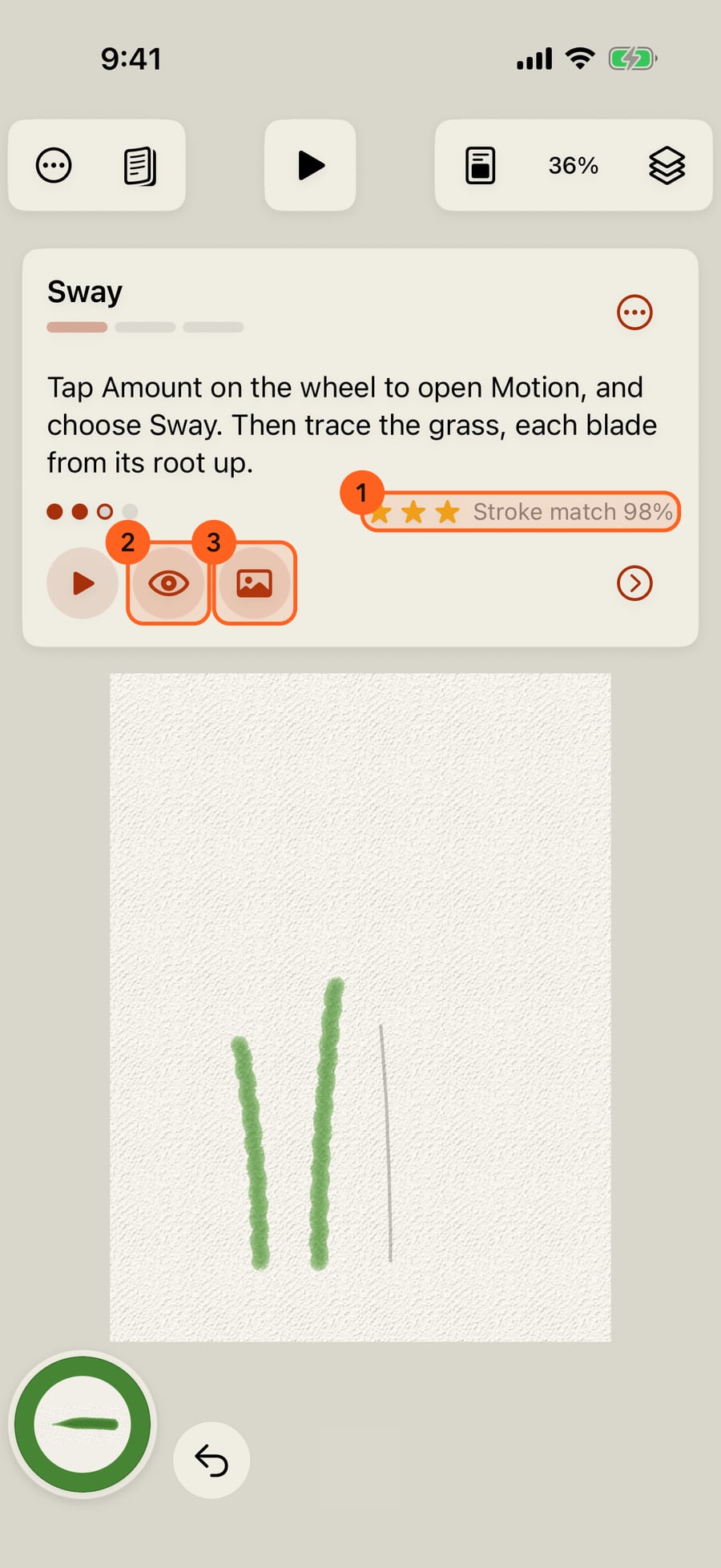
Draw over it. After each stroke, stars and Stroke match say how close you came, and a dot fills in. Once a step's strokes are down, the next step begins. Hold the eye or the picture to see the whole step or the finished page.
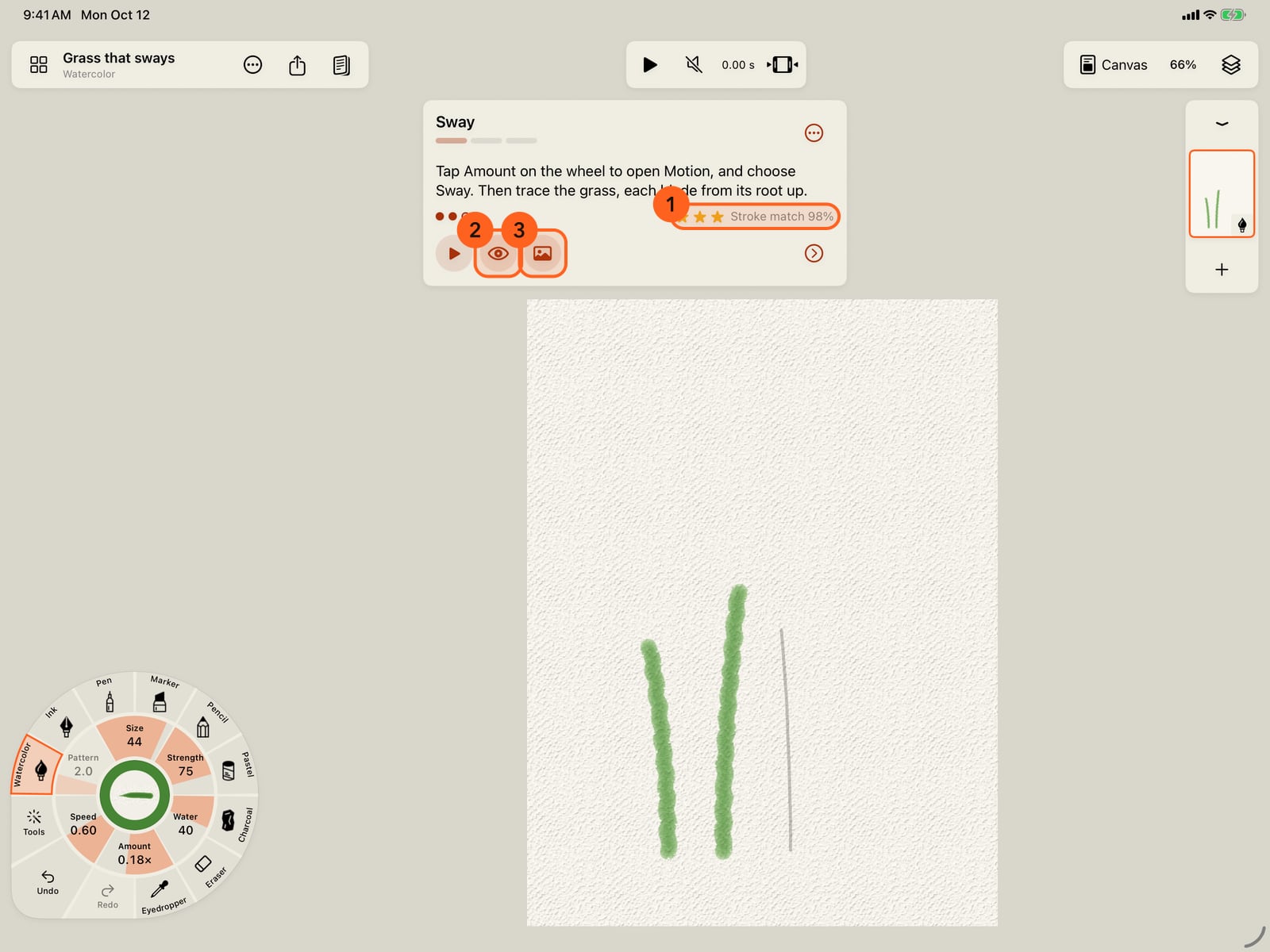
Draw over it. After each stroke, stars and Stroke match say how close you came, and a dot fills in. Once a step's strokes are down, the next step begins. Hold the eye or the picture to see the whole step or the finished page.
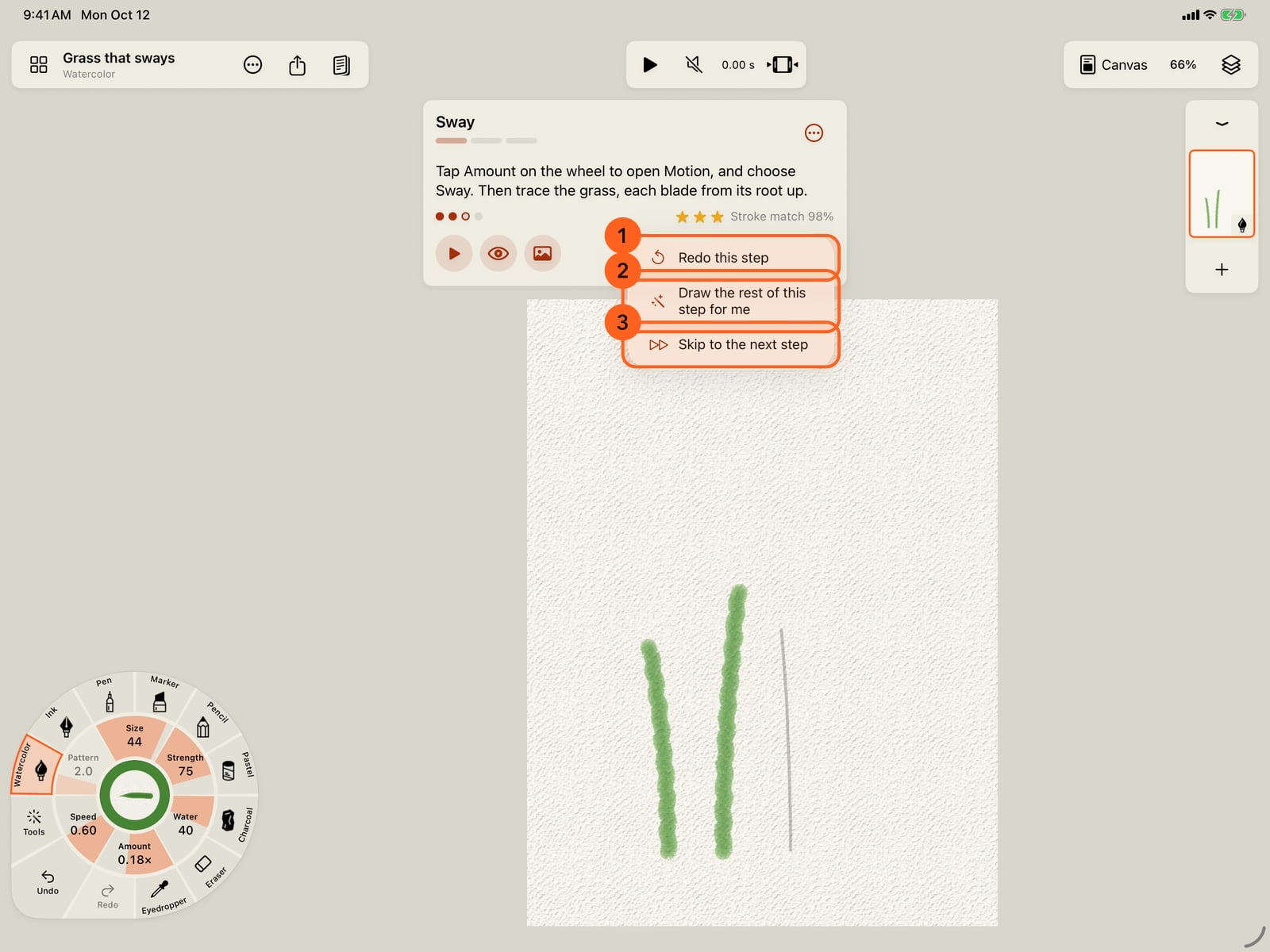
The step menu can redo the step, draw the rest of it for you, or skip to the next one.
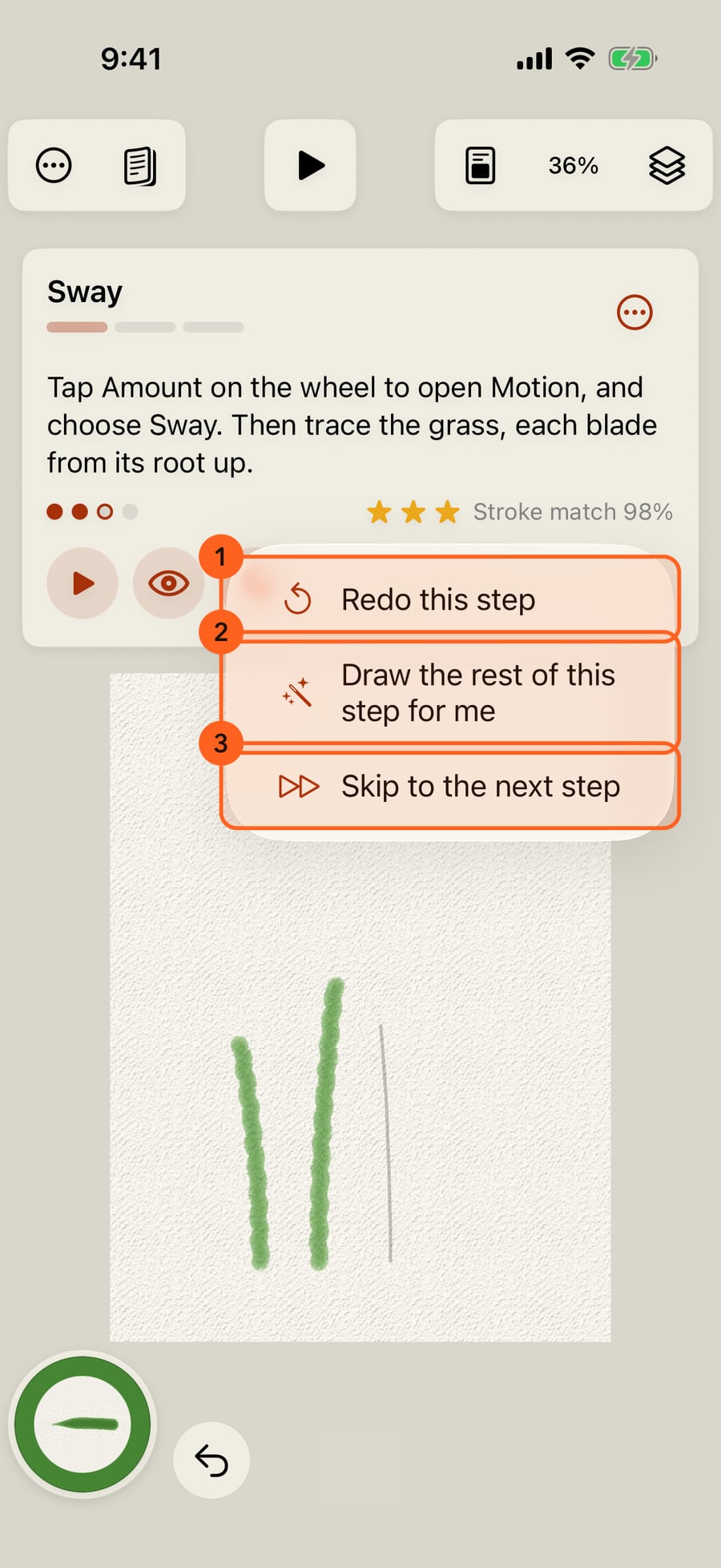
The step menu can redo the step, draw the rest of it for you, or skip to the next one.
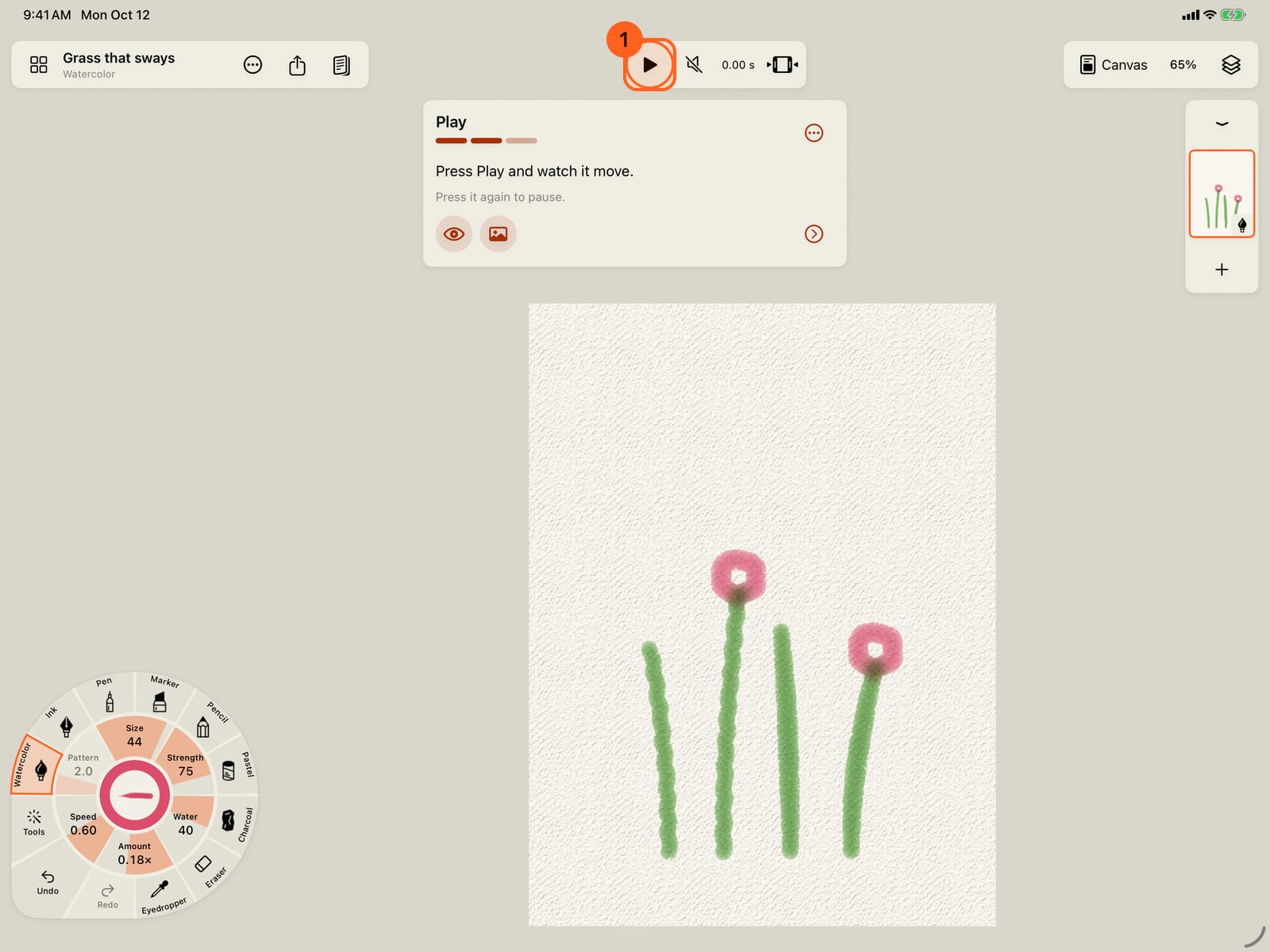
A lesson ends with Play. The ring points at it. Lessons stay still while you trace, so your strokes sit on their guides.
A lesson ends with Play. The ring points at it. Lessons stay still while you trace, so your strokes sit on their guides.
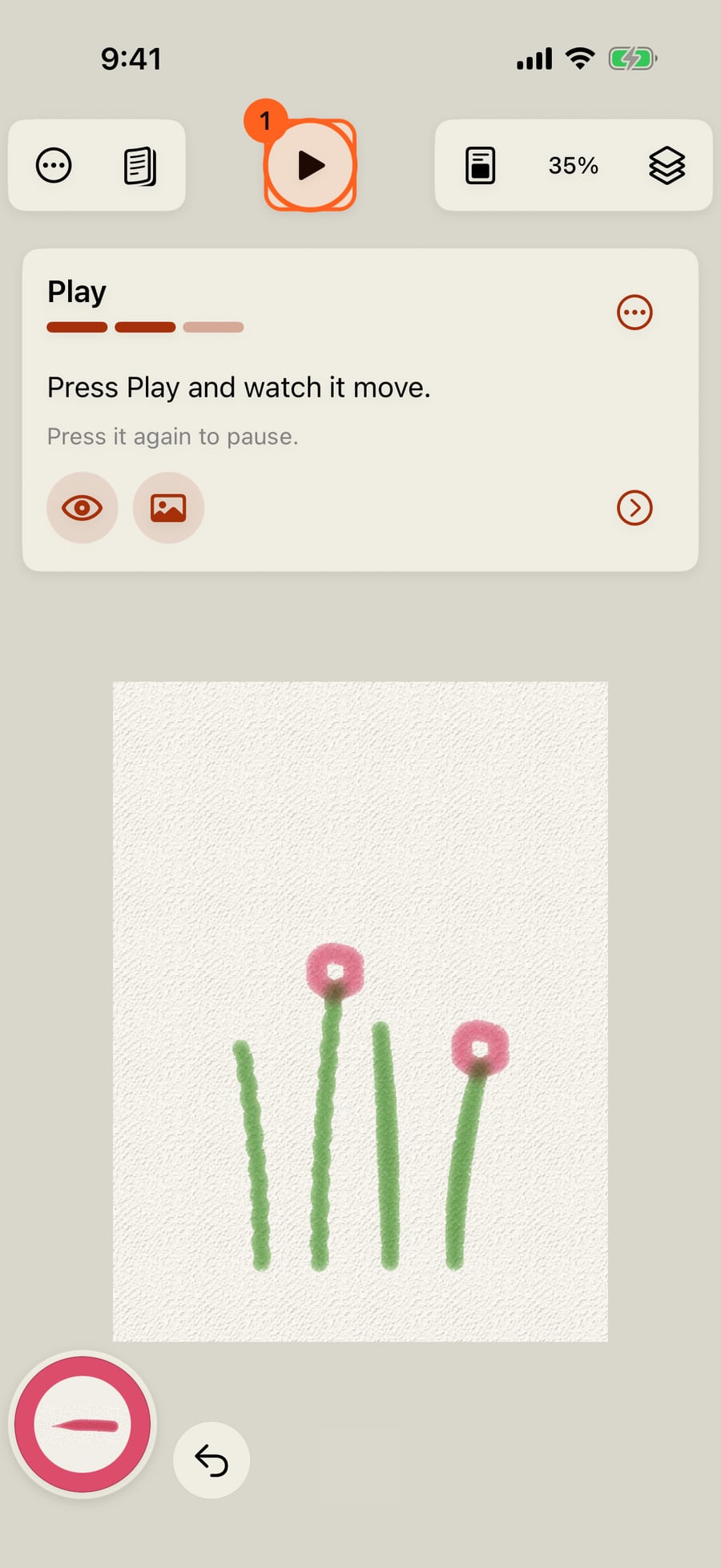
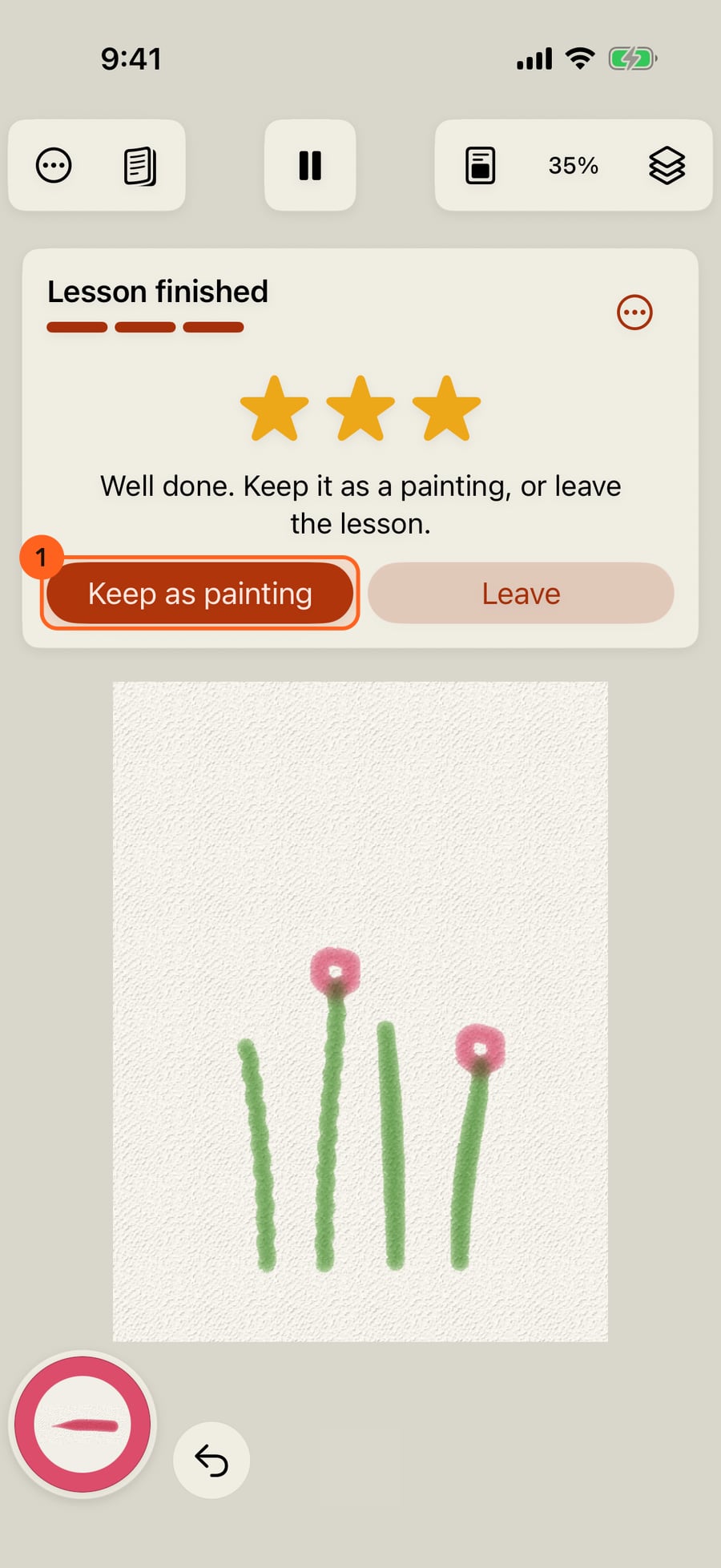
Press Play and the meadow sways. The lesson is finished, and it counts as a practice day. Keep as painting puts it in the gallery.
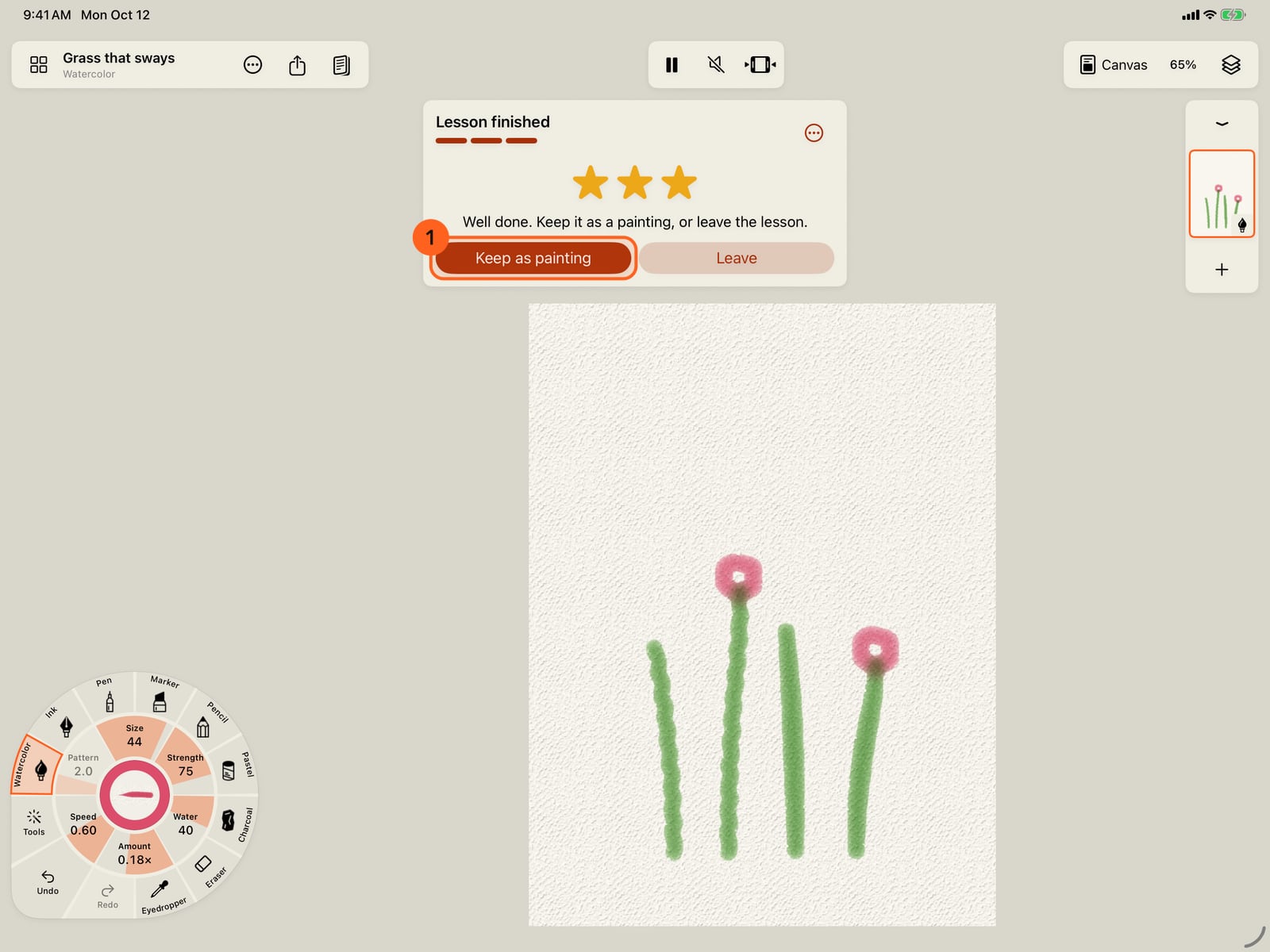
Press Play and the meadow sways. The lesson is finished, and it counts as a practice day. Keep as painting puts it in the gallery.
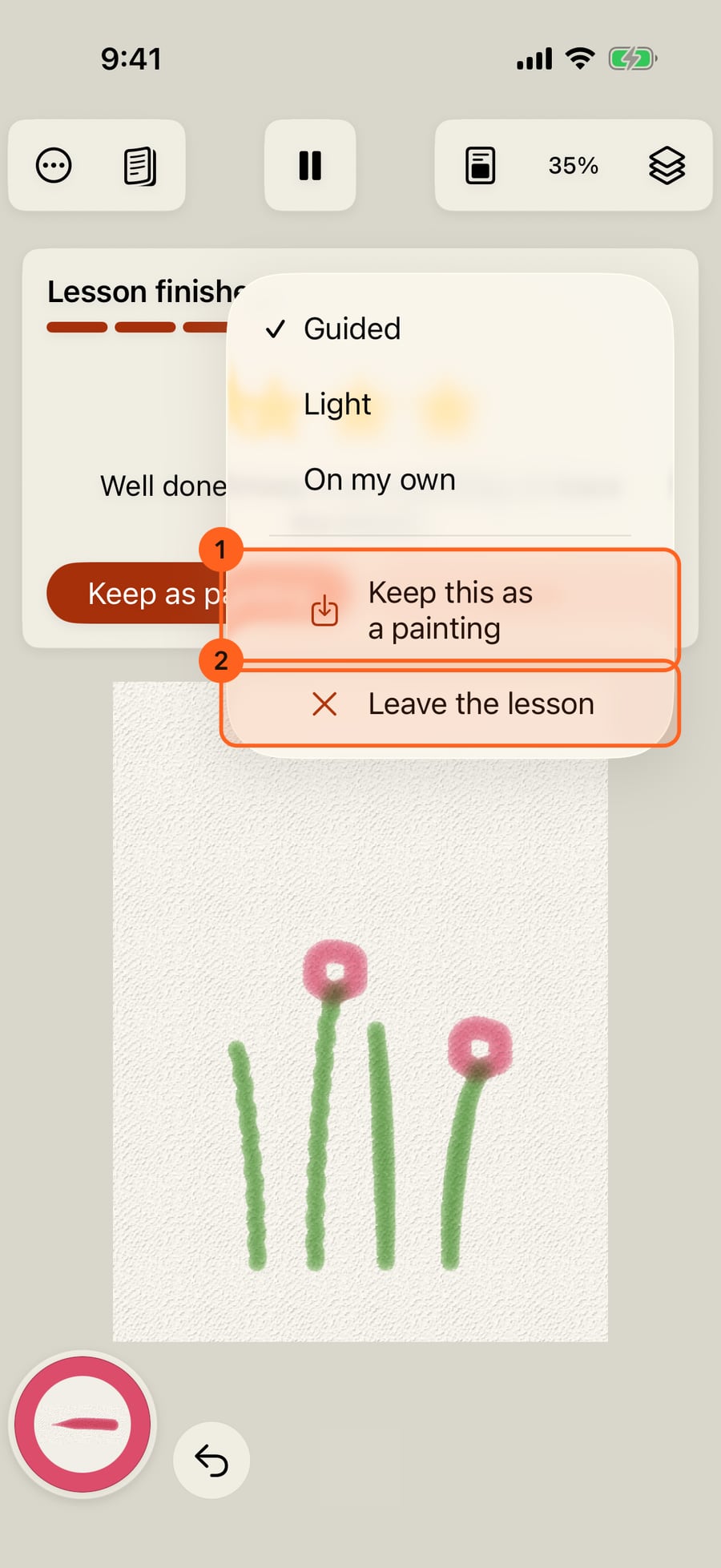
The lesson menu sets how much help you get, Guided, Light or On my own. At any step, it can also keep the lesson as a painting, or leave it.
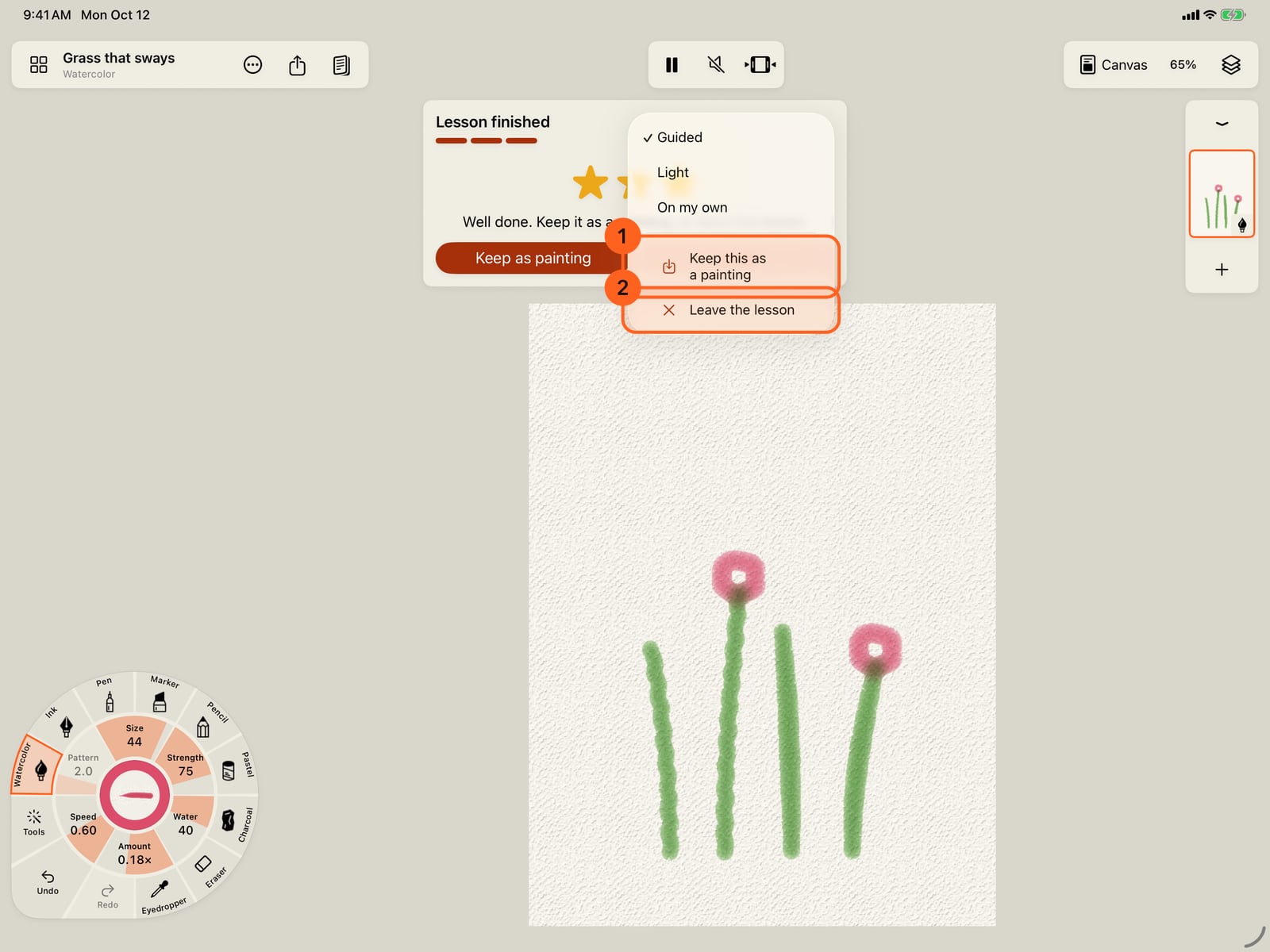
The lesson menu sets how much help you get, Guided, Light or On my own. At any step, it can also keep the lesson as a painting, or leave it.
The tour
The tour opens by itself on the first launch, over A quiet breeze, and any time from Actions → Motion Brushes tour 1. Every stroke is paint, marks and motion (see How a stroke works); the tour shows paint by number, then them on one page, then what you can make. Show me and Next go on, or swipe; the dots show where you are. Below them on every page, Paint by number 2 opens the coloring books and Studio 3 closes the tour, so you can start without seeing the rest; Skip does the same as Studio.
| Page | Shown | What it says |
|---|---|---|
| Motion Brushes | A moving illustration | Paint a stroke and it keeps moving; no keyframes, no timeline |
| Paint by number | Animals at Home's first page painting itself in, area by area, then moving | The books that come with the app paint by number: tap a number, then an area, and it paints itself in, its colour, shadow and light, then moves; or paint each step with a brush |
| Every stroke, three choices | Round, Sumi Stream, Flowing Calligraphy | Paint (a medium on the wheel's rim, colour from its centre), Marks (a line, shapes, hatching or effects) and Motion (how it moves after you lift, or Still) |
| What will you make? | A loop on each card | Coloring books that come alive 1 opens the coloring books, to paint a picture book by number or colour it freely. Moving illustrations 2 goes on to the brushes. Moving comics and books 3 opens a fresh page with Panel layouts. Learn and practise 4 opens Learn and practise: the lessons (below) and the daily practice. Draw together is in Actions |
| Achievements | A few badges | Optional badges for your strokes, drawing days, the brushes you try and your practice. Count my achievements turns them on, the same switch as Settings → Achievements (see Achievements) |
| Music while you paint | A music note | The app has music that follows your painting, and coloring books bring their own. Music while painting is off unless you turn it on here; it plays as soon as you do. It's the same switch as Sound, beside Play (in Actions on a narrow iPhone), and your device's silent switch mutes the app |
| How would you like to start? | A loop on each card | Paint by number 1 opens the coloring books, to paint one by number; Studio 2 goes on to a brush |
| Pick a brush to start (Studio) | Round, Petal Trail (pink, swaying), HB Pencil | Choose one, then Start painting |
Start painting 2 picks up the chosen brush and closes the tour. If the brush can't be picked up right now, the tour stays open and says why. Picking up a brush of another medium finds or adds a layer of that medium, so your other marks stay as they are. The last page recalls the gestures: pinch and drag with two fingers to zoom and move, a two-finger tap to undo and three to redo.
On the first launch, starting in the Studio, the first card follows the tour: paint on A quiet breeze, start a fresh page or paint by number. After the first launch, the app opens on the start screen.
On iPhone, Motion Brushes tour and Learn and practise are in the same Actions menu, below Gallery and the painting's other commands.
Tip: New to the app? Welcome tour and Your first painting show where everything on the screen lives.
Lessons
Actions → Learn and practise lists them in two sections. Color comes first: three hands-on Color lessons on real pages, where each step ticks as you do it. Studio follows, with the lessons below 1: each card has the lesson's name, what it teaches and how many steps it has, with a tick once you have finished it on any of your devices. Each lesson is a small scene recorded stroke by stroke and split into steps, each teaching a tool: a medium, a brush, a motion or an effect. You paint it after it: set the tools, watch a stroke, trace it, see how close you came. The idea comes from the research project Sketch-Sketch Revolution (Fernquist, Grossman and Fitzmaurice, 2011).
A lesson opens on a page of its own, the artist's size and paper, with the whole workspace: the stroke wheel, layers and every tool. The painting you had open is saved first, and comes back when you leave. The lesson page isn't in the Gallery unless you keep it.
The step card
The card under the top bar shows the step's name over a bar of the lesson's steps, then what to do.
Each step starts by listing its tools, the ones the lesson paints it with: the medium, the brush, the colour (with a swatch), the marks or effect, the motion, and sometimes the size, water, a motion's Amount, Speed and Pattern, or an effect's own gauges (shown as Liveliness: like the example). The next one to set is shown large, and the rest as a row of small icons that tick as you set them on the wheel; size and water only need to be close. A pulsing ring 2 points at the next control to tap: the medium on the wheel's rim, then the brush in its ring; a motion gauge, then the group and the mark, effect or motion in Marks and motion; or the colour. While a lesson is open, every tool it asks for is a tap away: the colour ring's swatches are the lesson's own colours, and its brushes and motions come first in their rings. Set it for me 3 sets them all. Next goes on to drawing with the tools you have. When the tools are already right, the step skips this list.
Then you draw:
| Control | What it does |
|---|---|
| The artist's stroke | Draws itself at the artist's pace when the step begins and after each stroke you draw, then stays faint on the page as a guide. |
| Show stroke | Plays the artist's next stroke again. |
| Dots | One for each of the step's strokes; they fill in as you draw. |
| Stars and Stroke match NN% | After each stroke: how close it came to the artist's, by how far apart they are on average, with three stars from 85% and two from 60%. It is only a guide, never a pass or a fail. |
| Eye, picture | Hold to see the artist's strokes for this step, or for the whole painting, faintly over yours. Let go and they're gone. With VoiceOver, they show for two seconds. |
| Step options | Redo this step puts the page back as the step began. Draw the rest of this step for me paints the artist's remaining strokes and moves on. Skip to the next step moves on without them. |
A step is done once you have drawn as many strokes as the artist did, however closely they match. The card says Step done and the next step starts a moment later. Undo takes back a stroke, and the artist's stroke to draw goes back with it.
Some steps ask for something other than a stroke to trace, and the ring points at what to tap: Play 1, Undo, the Eraser, Layers, Paper or Panel layouts in Canvas, or Export in Actions. One asks you to select strokes already on the page and set them moving, and is done once they move; another to select one and freeze it. Lessons stay still while you trace, so your strokes sit on their guides; the last step asks for Play.
How much help
The lesson menu's Help sets how much the lesson shows you. It is remembered for every lesson.
| Help | What it does |
|---|---|
| Guided (the default) | Each stroke is shown first, and the stroke you draw lands halfway between yours and the artist's. |
| Light | Each stroke is shown first; your strokes stay exactly as you draw them. |
| On my own | No previews: paint the step your own way. |
Once your strokes match the artist's closely for a while, the card suggests less help, such as You're matching closely. Try Light?. Tap it to switch, or ignore it.
Finishing
After the last step the card says Lesson finished, with one to three stars for how closely your strokes matched. A finished lesson counts as a practice day, on your streak and calendar. Keep as painting makes the lesson page a painting in the Gallery, named after the lesson, with the brush still in hand. Leave goes back to the painting you had open. The lesson menu has both at any step: Keep this as a painting and Leave the lesson. Opening a lesson again starts it from the first step.
Lessons are Free, and they paint with Free brushes.
Units and lessons
Learn and practise lists the Studio's lessons in six units 1, under Studio, after Color's. A unit says what it builds on, which is a suggestion, never a lock, and lists its lessons 1 in a recommended order; take any of them, in any order. A unit is complete when its lessons are finished.
Each lesson opens on a concept card: what it's about in a sentence or two, with the brush it teaches moving above it. Start goes on to the first step.
| Unit | Lessons |
|---|---|
| First strokes | Brushes on the wheel · Size and water · Colour and the Eyedropper · Undo and the Eraser |
| Motion Brushes | Grass that sways (Sway) · A stream and clouds (Wave, Drift) · Set painted strokes moving · Brushes that move by themselves (Living Sumi, Flowing Calligraphy, Neon) · Amount and speed · Freeze · Pattern |
| Effects | A campfire (Flame, Embers) · Rain and snow · Night lights (Fireflies, Twinkle) · A pond (Current, Ripples) · Tuning an effect (its own gauges) |
| Marks | Shapes along a path (Petals, Stars) · Liquid marks (Beads, Stream) · Hatching that moves |
| Media in motion | Wet in wet (Wet Round, Living Wash) · Ink that flows (Ink Wash, Feathering Ink, Boiling Ink) · Dry media that move (Living Sketch, Trembling Charcoal, Steam) |
| Pages and sharing | Layers and sharing (Layers, Export) · Paper (Pastel paper) · Panels (Panel layouts) |
Every lesson, its brushes, motions and effects are Free.
Try it in the app.
Download on the App Store Free for iPad, iPhone and MacSomething not behaving as expected?
Visit support or write to support@doodlydoodle.app.